
Open the company file and review documents
Find company documents, understand who can read and download them, and request updates through the responsible team.
Steps
-
Open the company file
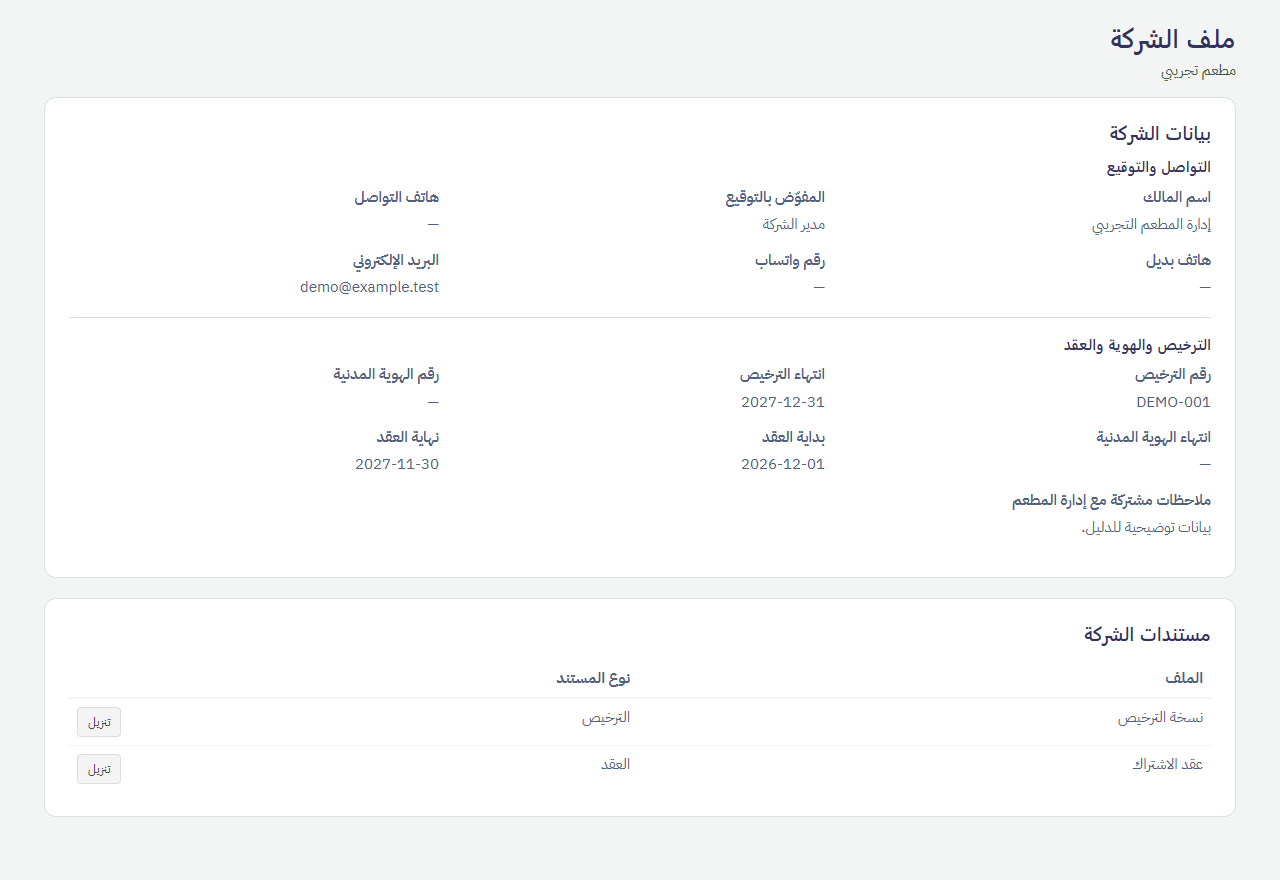
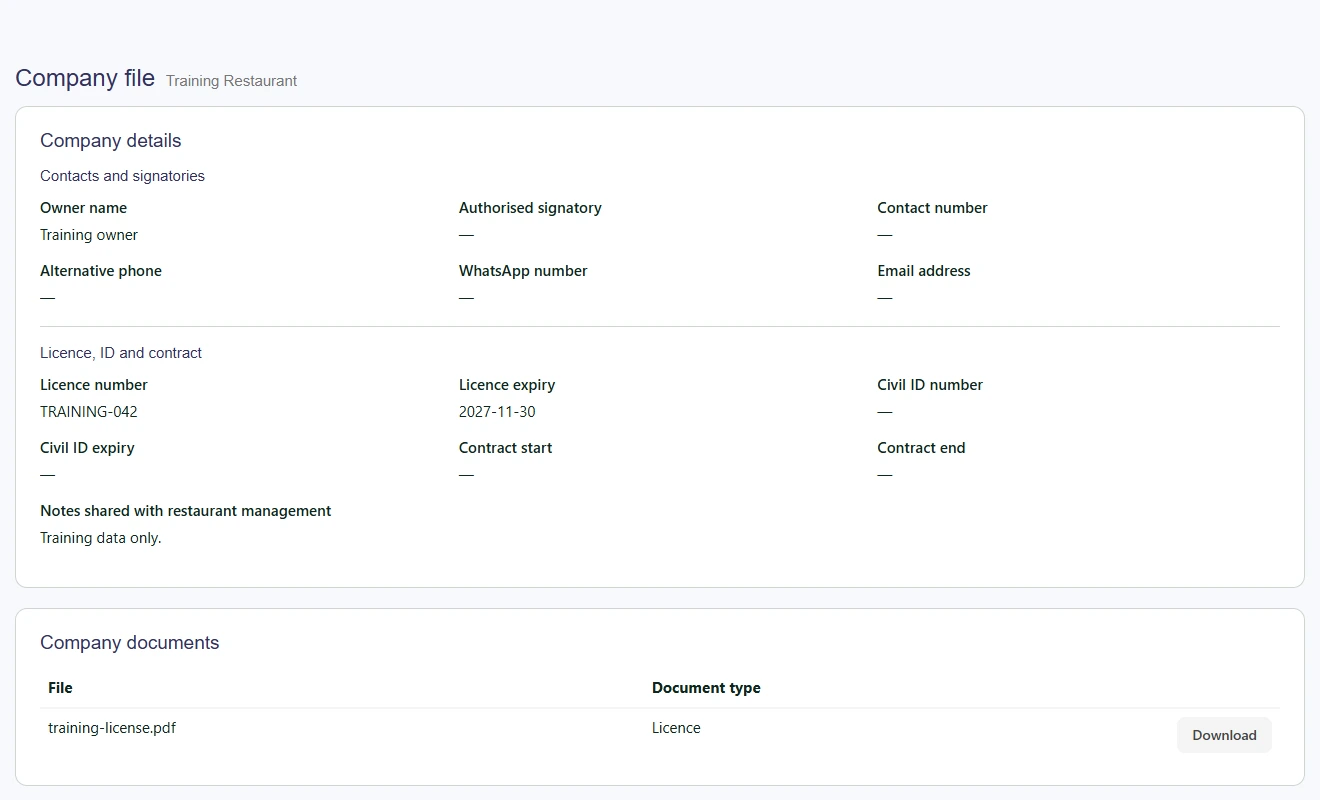
From Restaurant settings open Company file. Check the company name is correct.
-
Review and download
Open the document you need, check its name and download it with your account.
-
Updates are made by the platform team
If a licence is renewed, send the new document to the platform administrator to upload.
-
Check the new version appears
Reopen Company file. If the old one still shows, tell the platform administrator.
Fields and buttons
| Field or button | When to use it | Result and how to check |
|---|---|---|
| Company | Match the company shown on the page to your account domain before opening a document. | For multiple companies, use the intended company session and verify its documents. |
| Document details | Check document name and available version details in Company file. | After any update, reopen the same record and check the current version. |
| Download | Use an account with company-wide access. If the button is hidden, check the role. | Cashier access to a branch does not grant access to company documents. |
| Update or replace | Give the renewed license to the authorized operator under the company's intake process. | After processing, compare filename and version before downloading. |
| Assistant | For documents, open Company file in KEMET as an authorized user. | The assistant connector does not expose company documents. |
Screen images
Worked example
Review a renewed license
Training example. After submitting the renewed license to the responsible operator, open Company file in KEMET and match the company name and updated document.
From ChatGPT or Claude
Once KEMET is connected to your assistant, copy and send this request:
Show my company details and the branches I can access.
The assistant reads data right away. Any change is shown to you in KEMET for approval before it runs, within your account permissions only.
Tools the assistant uses here
restaurant_list_branchesrestaurant_get_branch_operating_configuration
Verify the result
- You accessed the correct company and documents are visible to authorized users.
- The downloaded copy belongs to the correct company and document.
Common problems
Company file is missing for a cashier
Ask the company administrator to check the role. Company documents require business settings permission and access to all branches.
A user wants a license through chat
Open the document from Restaurant settings → Company file. The assistant connection grants access to supported conversation tools, and company documents are accessed in KEMET.
For: Restaurant owner Branch manager Accountant
Screens and buttons depend on your account permissions and branches. Images show KEMET with training data.