
Cashier, kitchen and accounting access
Assign permissions by job and branch. Verify each role by signing in with its own account.
Steps
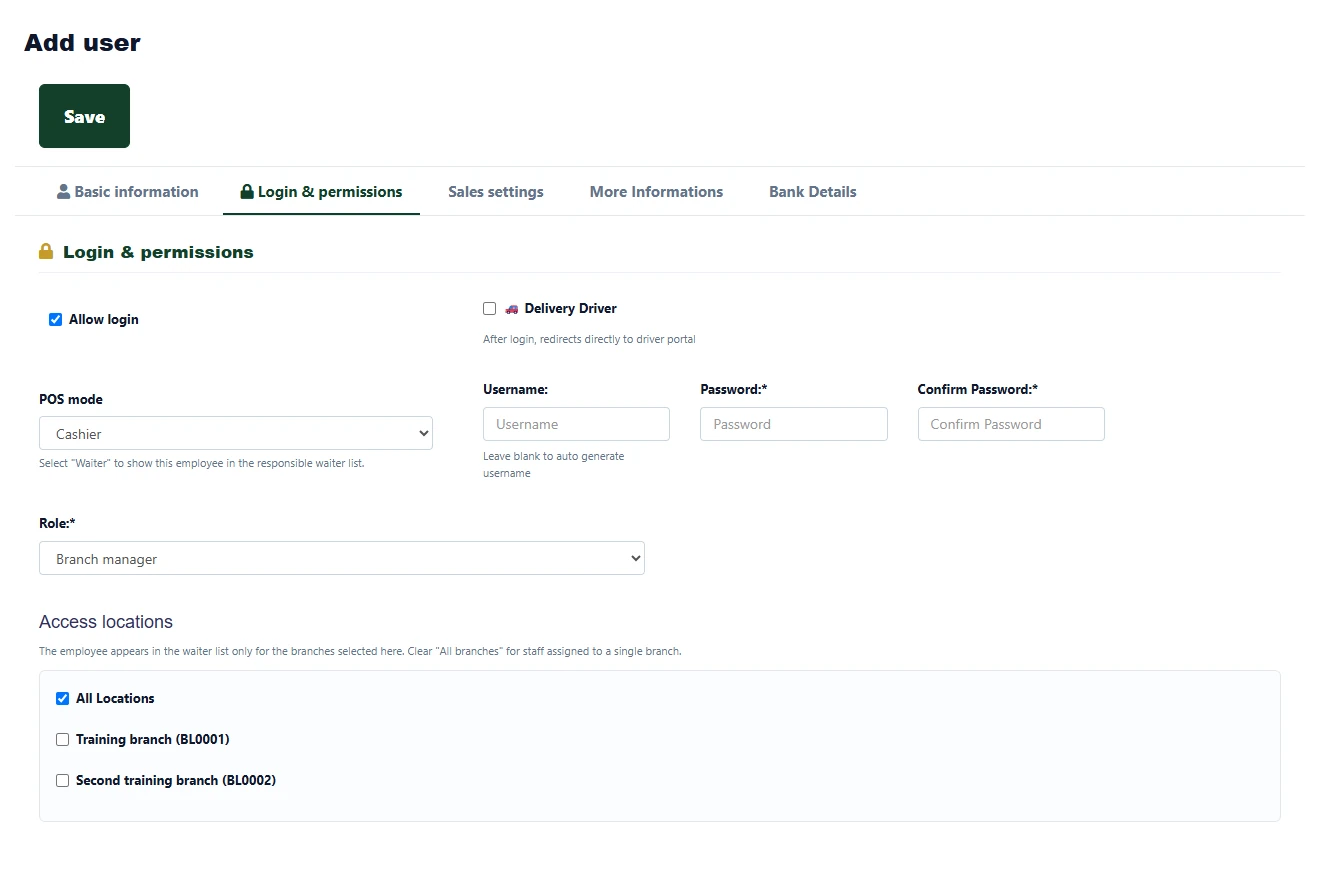
-
Link the employee to a branch
Open the user and choose the branches they work in.
-
Cashier permissions
Enable sales and payment. If they handle returns or refunds, enable those.
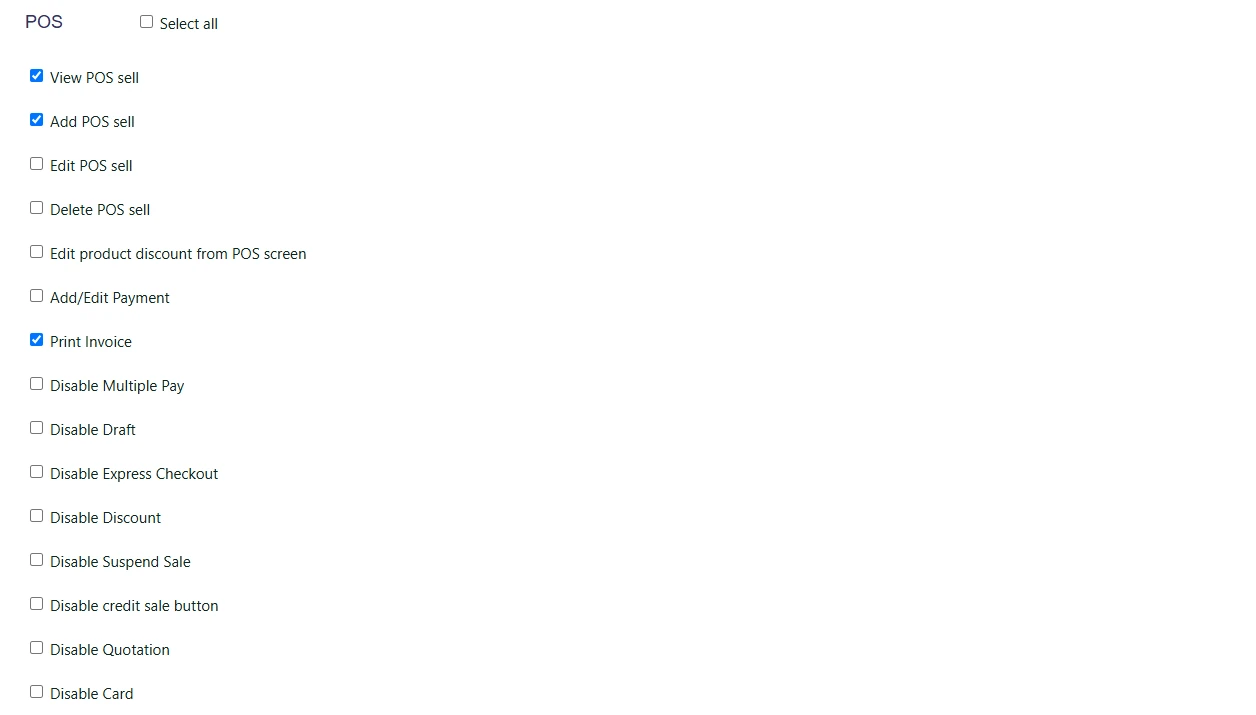
Edit the cashier role: tick only the permissions it needsView full size -
Kitchen permissions
“Request preparation for a branch” differs from “Manage preparation requests in the kitchen”. Enable what is needed.
-
Accounting permissions
Journal viewing for accountants. Posting and reversal for responsible roles only.
-
Test with their account
Sign in as the employee and check the screens and buttons they need.
Fields and buttons
| Field or button | When to use it | Result and how to check |
|---|---|---|
| User account and role | Create an individual account and assign the matching work role. | Use the actual staff role when verifying permitted actions. |
| Permitted branches | Assign the locations the role needs. Review all-location access with the owner. | Check an allowed and denied location for the same user. |
| Viewing and operating permissions | Assign viewing, create, edit and approval access by actual duties. | If the page is visible and an action is missing, check its separate permission. |
| Refund and journal permissions | Grant refunds, payment edits and ledger reading or posting by company policy. | Test under a permitted role and verify the result from a separate role. |
| Disable staff sign-in | Inspect account status and open shifts before disabling login. | Verify historic documents remain traceable and the account cannot start a new shift. |
Worked example
Branch assignment example
A Branch A cashier requests preparation. The central kitchen manager follows the request at the preparation location. The accountant views journals for their permitted branches.
From ChatGPT or Claude
Once KEMET is connected to your assistant, copy and send this request:
Show staff, their roles and allowed branches.
The assistant reads data right away. Any change is shown to you in KEMET for approval before it runs, within your account permissions only.
Tools the assistant uses here
restaurant_list_company_staff_directoryrestaurant_list_company_security_roles
Verify the result
- The employee sees their branch and the actions needed for their job.
- The kitchen account can open requests routed to its permitted preparation location.
Common problems
The tab is visible but the save button is missing
Review the specific write permission and the branch assignment. Read-only access still allows checking the register.
Roles look correct and another branch's data is absent
Review the user's permitted locations. Open the other branch from an account authorised there.
For: Restaurant owner Branch manager Accountant
Screens and buttons depend on your account permissions and branches. Images show KEMET with training data.