
Your first day running a branch
Set up the branch, team, menu and payments, then follow one test order all the way to its invoice.
Steps

-
Check branch settings
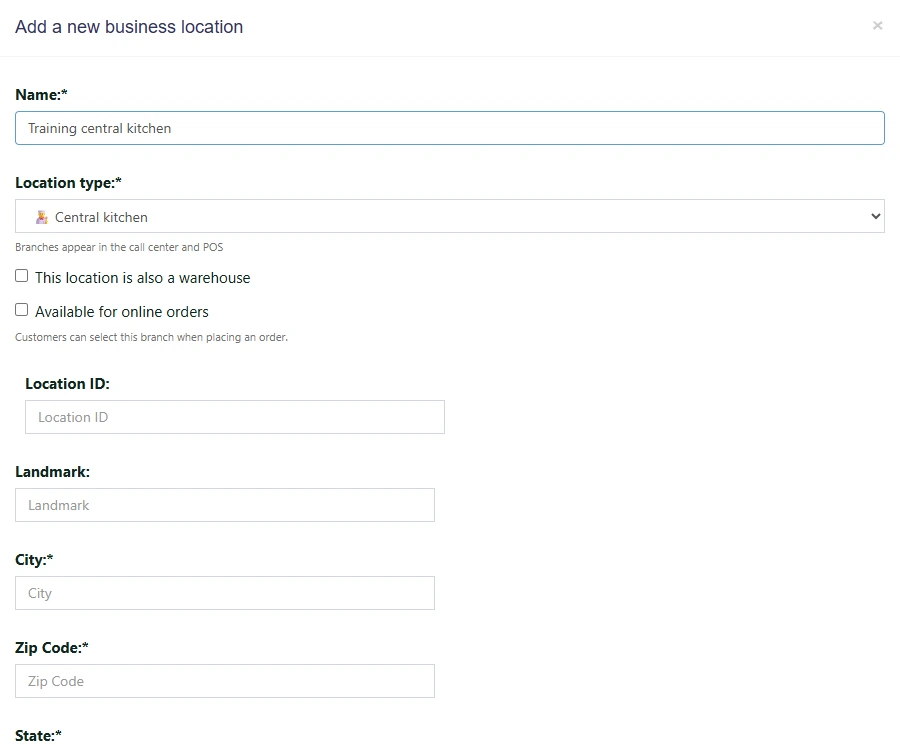
Open Branches and check the name, time zone and operating-day start.
-
Set up team accounts
Assign each employee to a branch. The cashier tests POS; the kitchen tests its screen.
-
Prepare a test item
Link an item to the branch and menu. If it uses stock, make sure it has a balance and cost.
-
Open the cashier shift
Open POS, choose the branch and enter the cash actually in the drawer.
-
Run a full order
Place an order end to end and check the invoice, payment and stock.
Fields and buttons
| Field or button | When to use it | Result and how to check |
|---|---|---|
| Branch and location ID | Record name and operational role such as sale, warehouse or production. | Verify branch availability in intended purchasing, preparation or sales. |
| Menu and prices | Choose the branch's menu and review distinct channel pricing where used. | Open the item in the branch cart and verify price and add-ons. |
| Invoice scheme and layout | Assign POS numbering, layout, tenders and mapped accounts as configured. | The training invoice uses the branch reference, layout and expected payment method. |
| Collection shift | Open the shift for the intended branch and cashier and record actual opening float. | After a training invoice, match the payment and shift total. |
| Access test | Sign in as a training cashier and review permitted locations. | Verify an allowed branch, then confirm a blocked branch stays unavailable. |
Screen images
Worked example
First-shift exercise
With test data, enter a KWD 20.000 float and sell one item for KWD 3.500 in cash. Before any other movements, expected cash should be KWD 23.500.
From ChatGPT or Claude
Once KEMET is connected to your assistant, copy and send this request:
Show my branches, menus and the tables ready in my branch.
The assistant reads data right away. Any change is shown to you in KEMET for approval before it runs, within your account permissions only.
Tools the assistant uses here
restaurant_list_branchesrestaurant_list_branch_menusrestaurant_list_floor_tables
Verify the result
- Repeat the same checks on a phone or tablet if the branch uses one.
- Record the invoice, payment and journal references so you can trace them later.
Common problems
The branch is absent in POS
Open the user's role and review its permitted locations and the branch status.
The item is missing from the menu
Check its branch and menu assignments, then review availability in that branch.
For: Restaurant owner Branch manager
Screens and buttons depend on your account permissions and branches. Images show KEMET with training data.