
Create a sales item, raw ingredient or prepared output
Set identity, unit, tracking and branch assignments before adding an item to a menu or recipe.
Steps
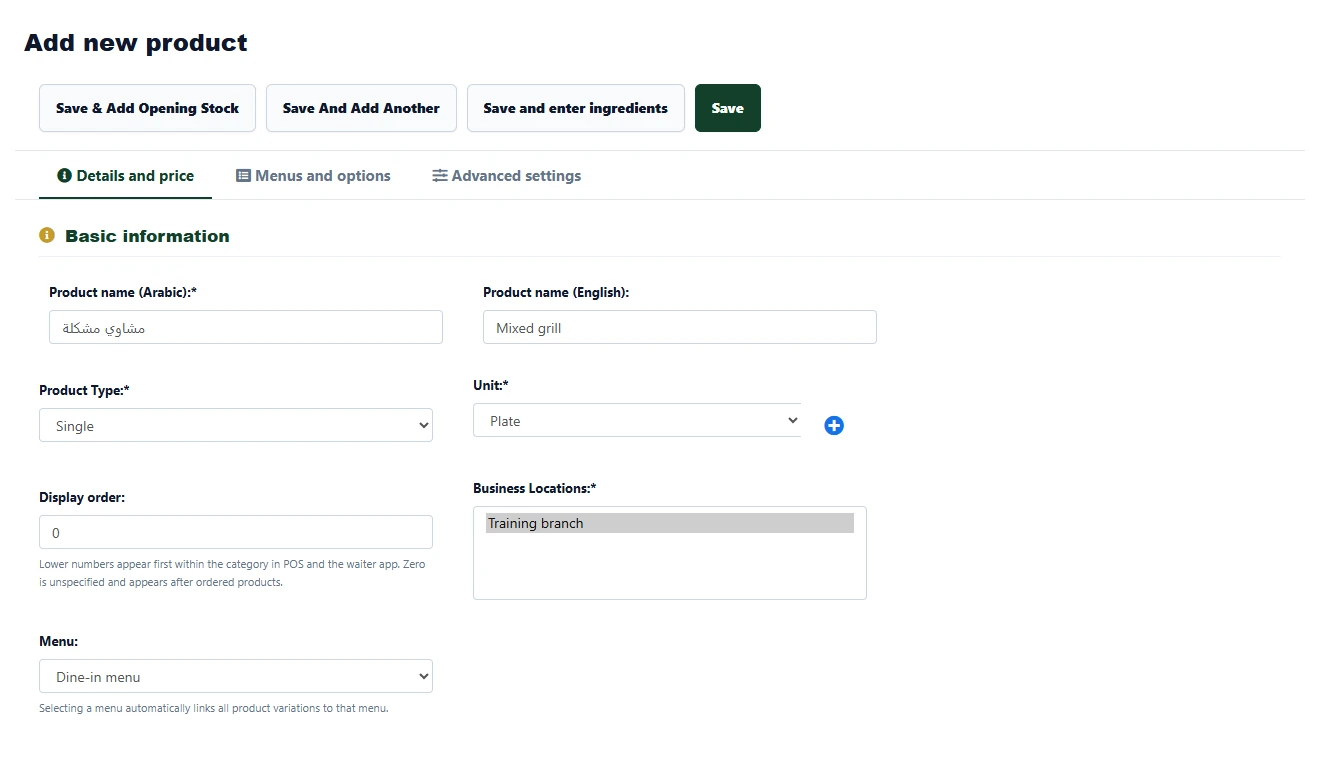
-
Open Add product
In Products → Add product enter the Arabic and English names, and choose type, unit, category and branch.
-
Set stock and menu
Ingredients and prepared food hold stock. For a dish choose direct stock or a recipe, and choose the menu.
-
Code, price and photo
Check code and unit, enter price and tax, and add a photo and description.
-
Test after saving
An ingredient must appear in purchases and recipes. A dish must appear in the menu and cart.
Fields and buttons
| Field or button | When to use it | Result and how to check |
|---|---|---|
| Arabic and English product names | Use names front-of-house and kitchen staff recognize. Compare ticket and menu display in each language. | Search by name and SKU before creating to avoid duplicate items. |
| Product type | Choose the type for single items, variants or combinations according to setup. | For variants, test each sellable option in the cart. |
| Unit and sub-units | Use the base unit and verify case or pack conversion before entering purchased quantities. | Two cases of 12 add 24 pieces in a training receipt. |
| Business locations and menu | Assign intended branches and attach a sale item to a menu where appropriate. | Check sale, production or purchase eligibility in the intended branch. |
| Stock management and quantity alert | Use tracking for counted items. Set an alert level for shortage review. | Use stock history to confirm physical movement from its source. |
| SKU and barcode type | Use a stable code and check it against selected product or variation and branches. | Test POS lookup before registering more movements. |
| Tax, price and photo | Check price and tax mode where enabled, then image and description. | Compare item detail, menu and cart total in the intended channel. |
Worked example
Ingredient, output and a menu dish
Training example. Raw chicken is stocked in kg, cooked half chicken in pieces, and chicken kabsa appears in the menu. Set cooked output on the production recipe and check its consumption on a kabsa sale.
From ChatGPT or Claude
Once KEMET is connected to your assistant, copy and send this request:
Add a new item, Mixed grill, priced 6.600 on the dine-in menu.
The assistant reads data right away. Any change is shown to you in KEMET for approval before it runs, within your account permissions only.
Tools the assistant uses here
restaurant_propose_create_productrestaurant_propose_update_product_sale_pricerestaurant_propose_update_product_localized_namesrestaurant_get_catalog_product_configuration
Verify the result
- The item appears in the expected branch and workflow for its role.
- SKU, unit and tracking are correct in one tested movement.
Common problems
Output is missing from production selection
Check stock tracking, branch assignment, production mode and the active recipe before changing the menu.
Menu price differs from product price
Open branch and channel menu pricing. Compare base price, modifiers and tax in a cart on the same menu.
For: Restaurant owner Branch manager Kitchen team Purchasing and stock
Screens and buttons depend on your account permissions and branches. Images show KEMET with training data.