
Set up the sales menu for each branch
Set up categories, prices and modifiers, then check what the cashier and the guest see for the selected branch.
Steps
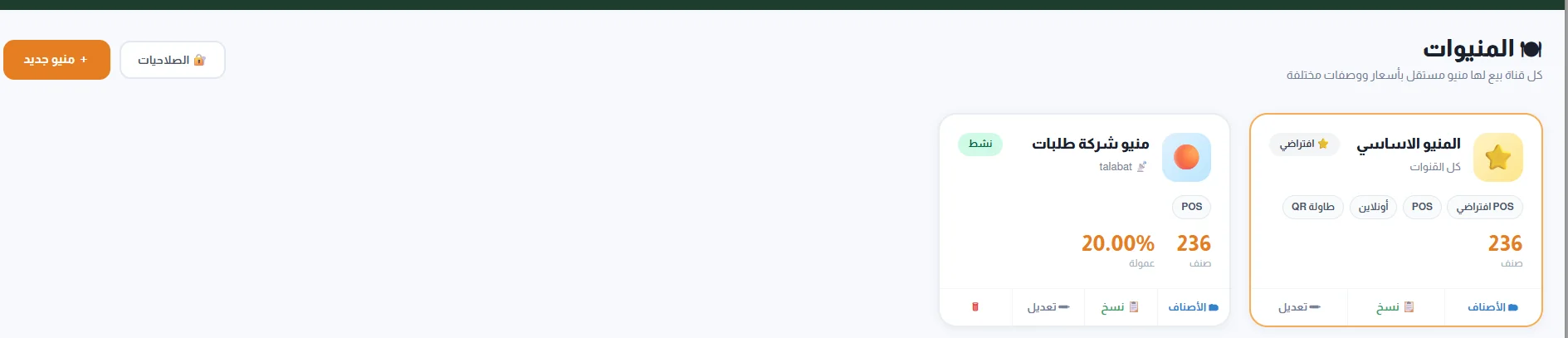
-
Open the branch menu
In Menu management choose the branch and menu.
-
Arrange sections and items
Name sections the way guests search and add items with image and description.
-
Check add-ons and prices
Set add-ons as required or optional and try them in the cart.
-
Test in POS and the store
Open POS and the online store for the same branch and check name, price and add-ons.
-
Test two branches
If an item is on in one branch and off in another, test each branch separately.
-
Check the first order
Choose item, add-on and quantity, and check price and discount before saving. Keep the invoice number.
Fields and buttons
| Field or button | When to use it | Result and how to check |
|---|---|---|
| Branch and sale surface | Choose intended branch or channel menu and verify its POS or online visibility. | Open the intended POS surface or store link after editing. |
| Sections and ordering | Use recognizable sections and order their items for staff and guests. | Verify placement and search on the intended menu. |
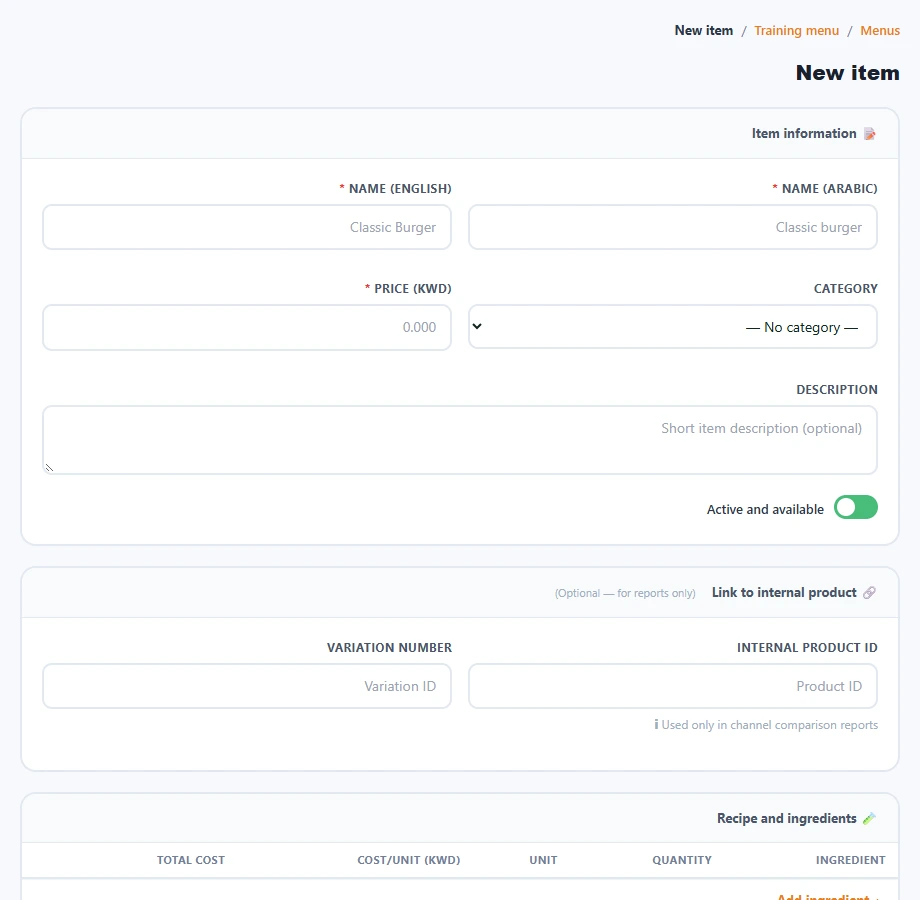
| Name, description and image | Set display name, image and description in the required language and open item detail. | Confirm image and modifier details belong to that item and variant. |
| Prices and modifiers | Check configured menu price, available choices and surcharges. | Test the same quantity and choices in a cart on the target surface. |
| Branch rollout checks | Compare the target branch and another branch where menus are distinct. | Verify price and availability changes applied to the intended menu. |
Screen images
Worked example
Meal with an add-on
Training example. A meal at KWD 4.500 with one rice add-on at KWD 0.250 shows KWD 4.750 before any discount or fees.
From ChatGPT or Claude
Once KEMET is connected to your assistant, copy and send this request:
Show my branch menu and add a new Desserts section.
The assistant reads data right away. Any change is shown to you in KEMET for approval before it runs, within your account permissions only.
Tools the assistant uses here
restaurant_list_branch_menusrestaurant_list_menu_itemsrestaurant_propose_create_menu_categoryrestaurant_propose_add_menu_variation
Verify the result
- A second branch continues to show its assigned menu and prices.
- The chosen modifier is on the order line and the cart amount matches the price shown.
Common problems
The item exists in management and is missing in POS
Check the branch, menu membership, sell status and filter before changing the product.
An item price differs between screens
Compare channel menu, branch price, options and applied promotion, then open a fresh cart for comparison.
For: Restaurant owner Branch manager
Screens and buttons depend on your account permissions and branches. Images show KEMET with training data.