
Configure online ordering hours and item availability
Set branch hours, available booking slots, temporary pauses and sold-out states in the online menu.
Steps
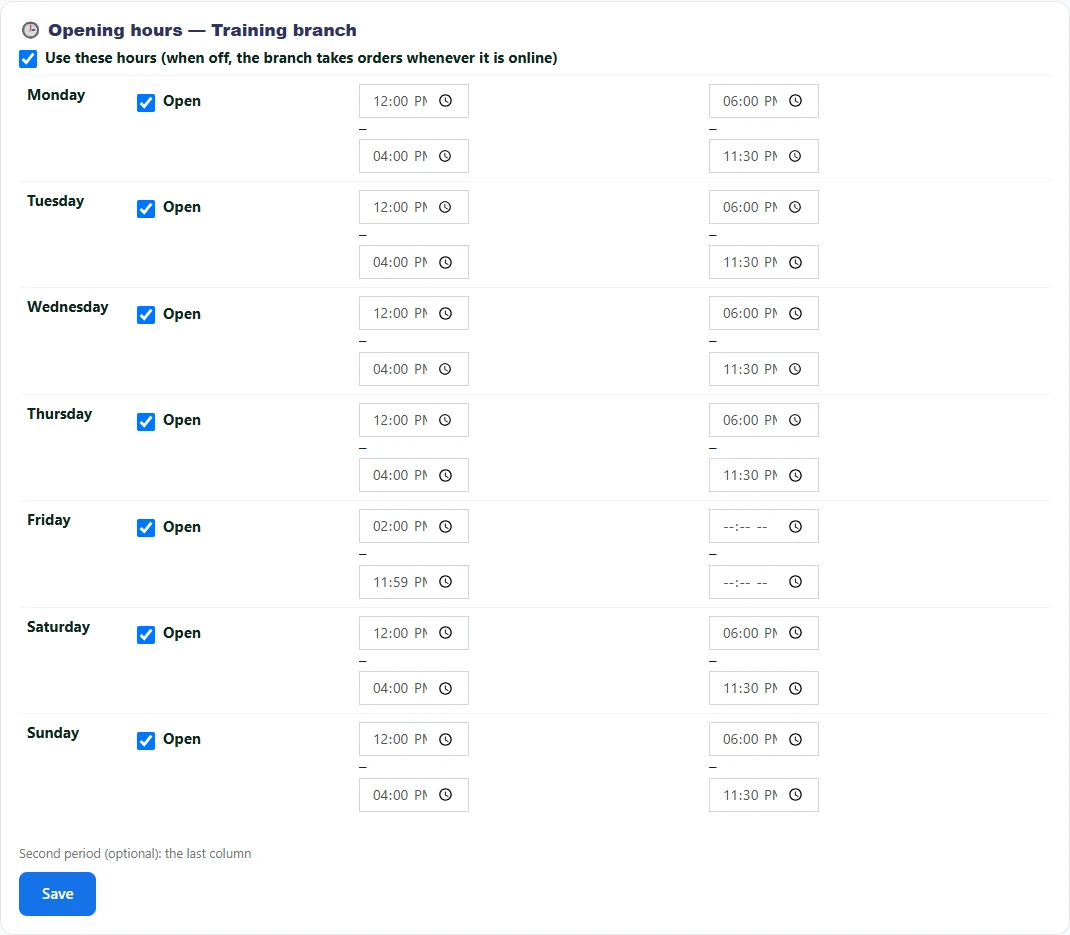
-
Set branch hours
In Online store → Ordering & hours, tick “Use these hours” and set one or two periods per day.
-
Scheduled order slots
Enable scheduling and set the maximum days, lead time and slot interval. Test from a customer phone.
-
Pause the branch
If the branch must stop online orders, choose a duration and write a customer message.
-
An item ran out?
If only one item is out, stop that item in Sale items instead of pausing the branch.
Fields and buttons
| Field or button | When to use it | Result and how to check |
|---|---|---|
| Branch and availability | Choose the branch responsible for incoming orders and check enabled state. | Open the target branch link as a guest and confirm location. |
| Pickup and delivery service hours | Check hours allowed per enabled type and branch time. | Test in-hours and after-hours availability. |
| Preparation time and delivery coverage | Check lead time and coverage against actual kitchen and delivery capacity. | Test the cart with a valid address and intended service type. |
| Item temporarily unavailable | Review availability under Sale items or branch menu settings. | Refresh the correct branch storefront and verify item availability and price. |
Worked example
Evening hours that cross midnight
Training example. A branch runs from 6 p.m. to 1 a.m. Test the storefront before opening, during service, and after the last available slot. Verify booking times against kitchen lead time.
From ChatGPT or Claude
Once KEMET is connected to your assistant, copy and send this request:
Stop selling this item online today and resume it tomorrow.
The assistant reads data right away. Any change is shown to you in KEMET for approval before it runs, within your account permissions only.
Tools the assistant uses here
restaurant_propose_stop_item_salerestaurant_propose_resume_item_salerestaurant_propose_set_branch_menu_item_availabilityrestaurant_get_menu_item_availability
Verify the result
- Storefront operating hours and booking slots match the intended branch schedule.
- An item stop or store pause affects the intended scope.
Common problems
No booking slot is available despite configured hours
Check scheduling, lead time, booking horizon, slot interval and branch pause status.
A sold-out item still shows in the storefront
Confirm the affected menu item and branch. Check the customer page and test the cart after refreshing.
For: Restaurant owner Branch manager
Screens and buttons depend on your account permissions and branches. Images show KEMET with training data.