
Receive and review online orders
Review an incoming order at its source before fulfilment and match the invoice against recorded payment.
Steps
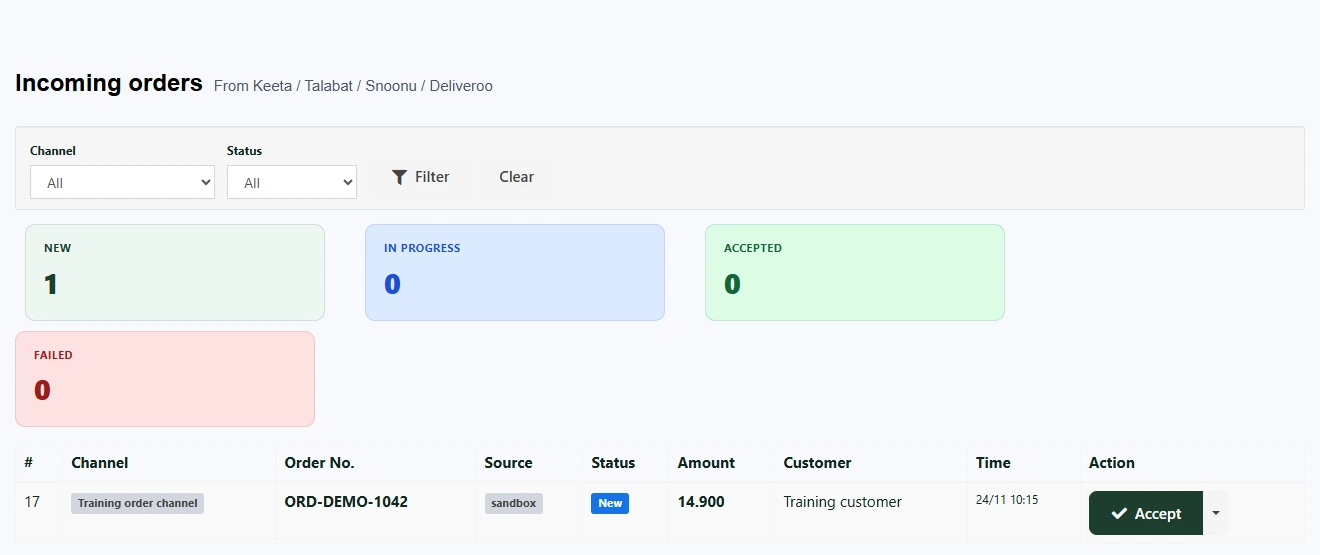
-
Open incoming orders
In POS choose the branch and open Incoming orders.
-
Review the order
Open it and match items, add-ons, delivery and time.
-
Check payment
If paid online, check the payment status. If cash on receipt, it is collected at handover.
-
Accept the order
If items are available and the address is right, click Accept. It goes to the kitchen.
-
Follow the invoice
After accepting, open the invoice and compare fees, discount and total.
Fields and buttons
| Field or button | When to use it | Result and how to check |
|---|---|---|
| Order reference and branch | Match guest reference to the notification in the fulfillment branch. | Search for the same number before entering a manual order. |
| Pickup or delivery | Review schedule and address for delivery or branch and pickup time. | Use the fulfillment path appropriate to the order type. |
| Items and modifiers | Check quantities, options, discount and confirmed total in preview. | Use the permitted action on the existing order if something is unavailable. |
| Payment status | Check whether it is prepaid, pending review or payable on delivery. | For prepaid orders, reconcile reference before entering additional payment. |
| Accept and send to kitchen | Accept after verifying details and eligibility and trace the result. | Verify invoice and kitchen ticket match accepted prices and items. |
Worked example
Accepting a test order
A customer chooses pickup at Branch A. The Branch A cashier matches the order number and amount, and verifies pay-on-pickup before handing the ticket to the kitchen.
From ChatGPT or Claude
Once KEMET is connected to your assistant, copy and send this request:
Show pending website orders and accept this cash order.
The assistant reads data right away. Any change is shown to you in KEMET for approval before it runs, within your account permissions only.
Tools the assistant uses here
restaurant_list_incoming_online_ordersrestaurant_propose_accept_online_cash_order
Verify the result
- The same reference leads to the order and its invoice after acceptance.
- A confirmed payment appears in the payment history for the same amount.
Common problems
The order is missing in the current branch
Check the customer's chosen branch, order source and filters. Search for its reference in the correct incoming queue.
The gateway confirmed payment and stock changed
Review the payment and order review states with a manager. Decide on fulfilment or refund only after matching the original reference.
For: Cashier Branch manager
Screens and buttons depend on your account permissions and branches. Images show KEMET with training data.