
Test an order from the online store
Follow the customer’s journey from branch and service selection to the order reference.
Steps
-
Open the branch link
Open the store on a phone, choose pickup or delivery, and check the branch.
-
Choose the item
Open the item and choose add-ons. Check quantity and price in the cart.
-
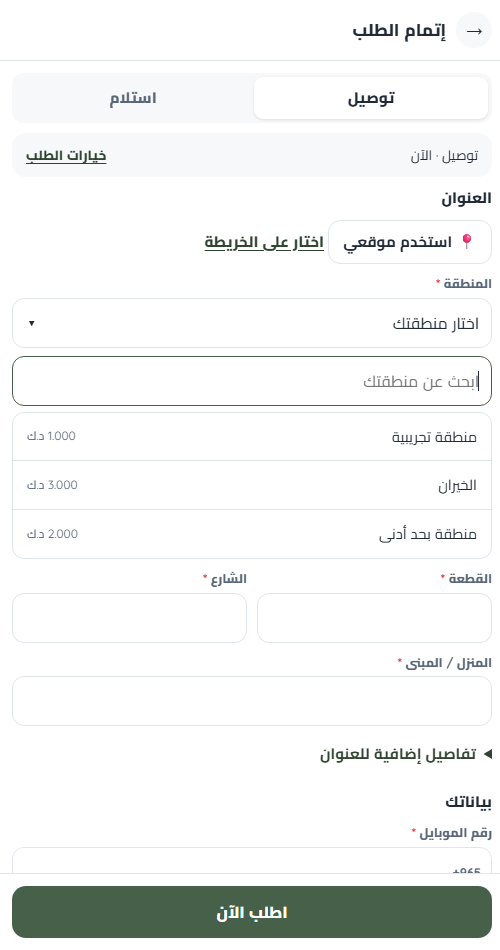
Enter delivery details
Enter customer details. For delivery choose the area and address. You see the fee and time.
-
Review and submit
Check discount, fees and total, choose a payment method and submit.
-
Keep the order number
Note the order number and find it in the cashier's Incoming orders.
Fields and buttons
| Field or button | When to use it | Result and how to check |
|---|---|---|
| Branch and fulfillment type | Choose pickup or delivery for the intended branch before building the cart. | Product values, fees and availability use branch and channel settings. |
| Modifiers and quantity | Check item, required choices and quantity on its detail view. | The cart updates for choices, quantity and the eligible discount. |
| Phone and delivery address | Enter required customer details. For delivery choose actual address and area where shown. | Coverage and fees update. Verify branch and address before payment. |
| Coupon and payment method | Apply an eligible coupon before confirming payment and choose an available tender. | The cart shows eligible discount, fees and final payable amount. |
| Place order or Pay | Review cart total. If price or availability changes, confirm the revised quote before continuing. | Keep the order number and check status after returning from the payment provider. |
| Paid with an order number | Check order number, branch and cart details. | Branch staff can track the same reference in Incoming orders as configured. |
| Payment needs review | If your bank or provider confirmed payment and the order is missing, retain the payment reference and time. | Check with the branch before paying or placing the order again. |
Worked example
Pickup example
In a demo exercise, order a KWD 4.500 meal for pickup and check the summary has no delivery fee. Look up the customer-facing reference in POS.
From ChatGPT or Claude
Once KEMET is connected to your assistant, copy and send this request:
Show the online store checkout settings and latest website orders.
The assistant reads data right away. Any change is shown to you in KEMET for approval before it runs, within your account permissions only.
Tools the assistant uses here
restaurant_get_storefront_checkout_configurationrestaurant_list_incoming_online_ordersrestaurant_report_storefront_event_funnel
Verify the result
- Delivery to an eligible area shows the expected fee before confirmation.
- The order appears once in the selected branch with the expected amount and method.
Common problems
A cart item was stopped during checkout
Refresh the menu and review the cart. Select an available alternative from the same branch before paying.
Money was deducted and the order is pending
Keep the order and gateway references. Check the payment and review status in POS before submitting again.
For: Restaurant owner Branch manager Cashier
Screens and buttons depend on your account permissions and branches. Images show KEMET with training data.