
Set up the online storefront
Configure the branch and fulfillment options, then follow a training order from the guest view to incoming orders.
Steps
-
Choose branch and order type
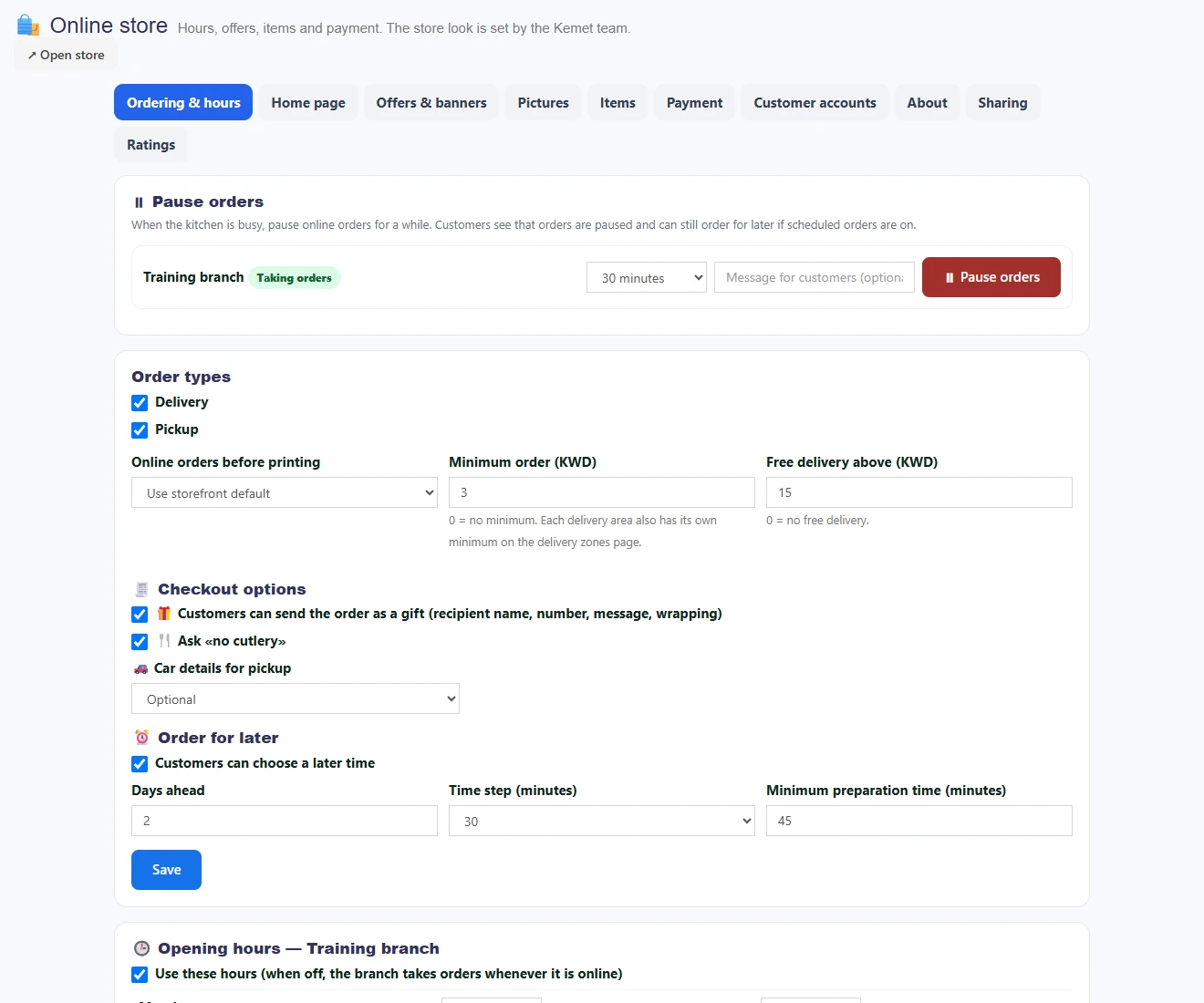
Open Online store → Ordering & hours and enable delivery or pickup for the branch.
-
Fees and minimum
Set the minimum and free-delivery threshold, and test an address inside and outside the zone.
-
Images and branch details
Check images and cover. Open the store on a phone and check everything is clear.
-
Run a test order
Choose an item, add-on and order type, and follow the order until it reaches the branch.
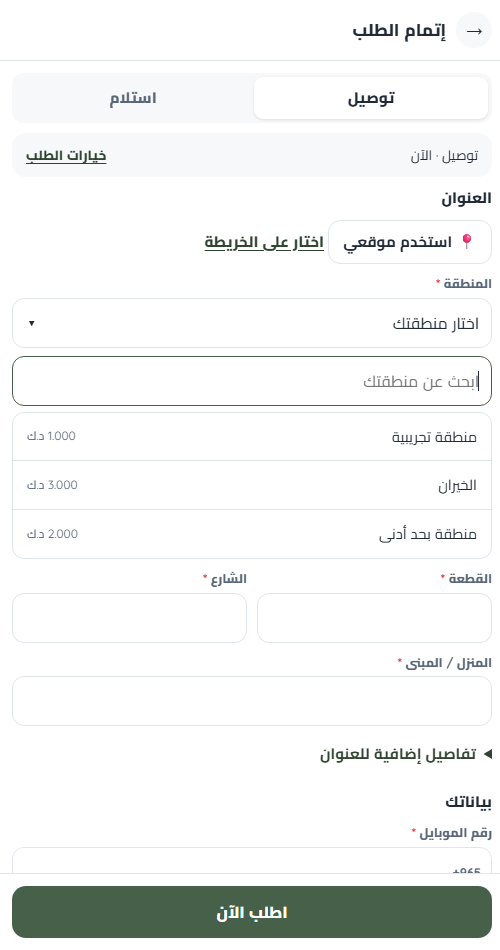
مثال على إتمام الطلب من متجر المطعم على الهاتفView full size
Fields and buttons
| Field or button | When to use it | Result and how to check |
|---|---|---|
| Branch | Start with the operating branch and confirm it accepts orders. | Open a customer session and verify the same branch. |
| Branding and images | Check available colors, cover, banners and photos for the managing role. | On mobile verify price, add-ons and branch name remain clear. |
| Fulfillment and service hours | Enable pickup or delivery as the branch can support and set hours. | Test inside and outside hours for the intended order type. |
| Delivery coverage and fees | Check areas, minimum spend and charges for configured options. | A KWD 4.500 cart and KWD 0.750 delivery give KWD 5.250 before other changes. |
| Test order | From training send one order and match its reference in incoming orders. | Match online payment or outstanding value and details to the guest screen. |
Worked example
Pickup and delivery
Training example. Try a KWD 4.500 cart for pickup, then delivery with a KWD 0.750 fee. The fee is a distinct part of the KWD 5.250 total before other adjustments.
From ChatGPT or Claude
Once KEMET is connected to your assistant, copy and send this request:
Show the online store settings and active promotions.
The assistant reads data right away. Any change is shown to you in KEMET for approval before it runs, within your account permissions only.
Tools the assistant uses here
restaurant_get_storefront_checkout_configurationrestaurant_list_storefront_promotion_configrestaurant_report_storefront_product_engagement
Verify the result
- The customer flow produces one training order at the intended branch.
- Branch staff can see the address, fulfillment type and selected modifiers.
Common problems
Delivery is missing from checkout
Check branch, service hours, delivery setting and coverage. Test the same address against its intended branch.
The storefront shows the wrong branch
Open a new storefront session, choose the correct branch and review menu assignment and channel settings.
For: Restaurant owner Branch manager
Screens and buttons depend on your account permissions and branches. Images show KEMET with training data.