
Set item prices by menu and sales channel
Understand base product price, menu-specific price and the discount applied at checkout.
Steps
-
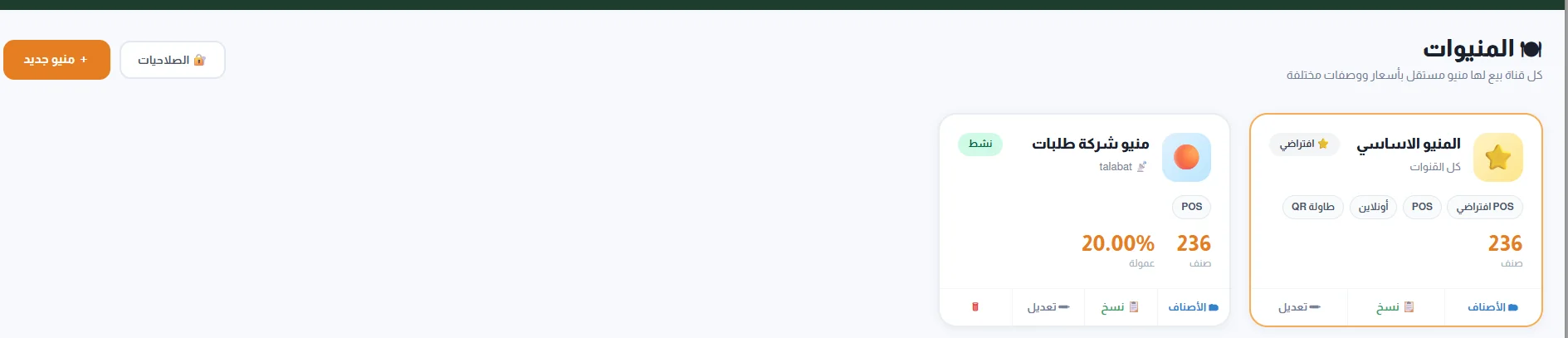
Choose the menu
Open Menus and choose the menu (POS, delivery…). Give each menu a clear name.
-
Set the price in the menu
Find the item in the menu and set its price here. This price applies to this menu only.
-
Check availability and add-ons
Make sure the item is available in the branch and add-on prices are right.
-
Test each channel
Build a POS basket and an online basket and compare price, add-ons and discount.
Fields and buttons
| Field or button | When to use it | Result and how to check |
|---|---|---|
| Menu and channel | Open the menu assigned to the intended branch or channel before editing. | The menu selected in POS or channel must match the edited one. |
| Base product and variation | Match the underlying SKU and variation for the menu item. | Test pricing for the intended variant. |
| Menu item price | Where a channel has explicit pricing, edit its menu item and retain base price for comparison. | Compare channel and base menus for the branch with matching modifiers. |
| Availability and location | Check publication, branch assignment and item visibility for the selling role. | Check branch and visibility before changing the product when a menu is missing. |
| After discounts | Compare display, add-ons and cart price with active promotion. | For KWD 5.000 channel and KWD 4.500 base, test both menus and identify the source amount. |
Worked example
One dish on two price lists
If a dish is 3.300 KWD on POS and 3.900 KWD on the delivery menu, test both. A 0.250 KWD rice add-on on delivery makes the line 4.150 KWD before discount or delivery fee.
From ChatGPT or Claude
Once KEMET is connected to your assistant, copy and send this request:
Change this item's price on the delivery menu and show current prices.
The assistant reads data right away. Any change is shown to you in KEMET for approval before it runs, within your account permissions only.
Tools the assistant uses here
restaurant_list_menu_itemsrestaurant_propose_edit_menu_item_presentationrestaurant_native_price_group_price_group_products
Verify the result
- Each test basket shows its intended channel price and add-ons.
- The item price, discount and delivery fee are visible in their respective fields.
Common problems
The item shows the other menu's price
Verify the menu and branch that actually opened and check the item in that menu. Test with a fresh basket.
The price is correct but the item cannot be ordered
Review visibility, sale stops, branch assignment and channel opening hours.
For: Restaurant owner Branch manager Cashier
Screens and buttons depend on your account permissions and branches. Images show KEMET with training data.