
Import or update restaurant items from Excel or CSV
Create new items in the native import screen. To update existing items from ChatGPT or Claude, prepare an item file and review the proposal in KEMET before approving.
Steps
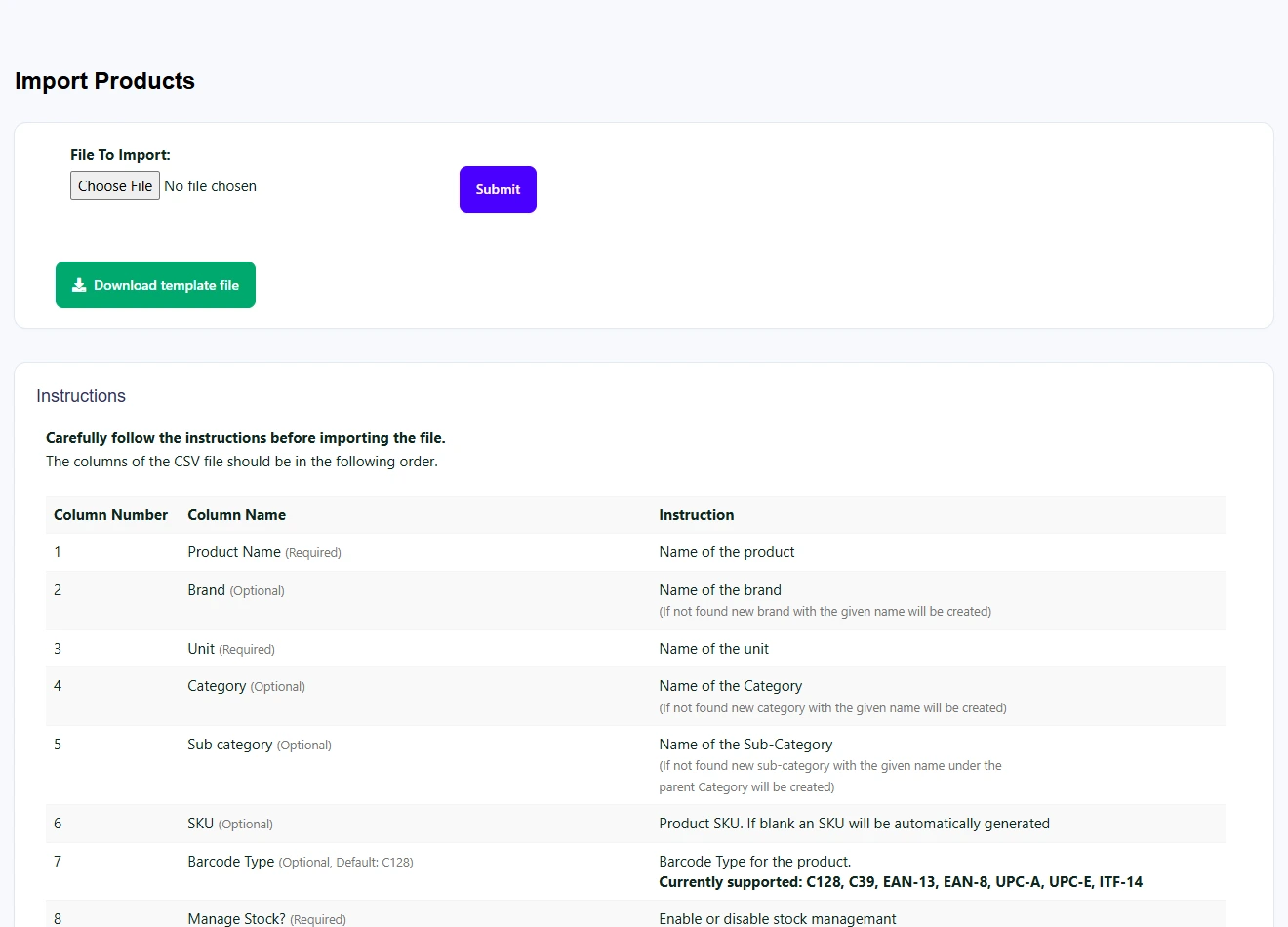
-
Download the template
In Products → Import products, click Download template. Excel or CSV both work.
-
Enter name and unit
For each item enter the name, unit (piece or kg), category, and whether it tracks stock.
-
Check codes and prices
Keep the code column as text if it starts with zero. Check price, tax and branch.
-
Upload a small sample first
Upload only 2–3 rows the first time. Find them in Products and check everything.
-
Add the item to the menu
A new product does not appear for sale by itself. Open it in the menu and set its price and add-ons.
-
Prepare an update file for existing items
Put the product_id, and the variation_id when changing a size's price or code. Up to 40 rows per file.
-
Ask the assistant for a review
Attach the file in chat and ask for a preview. The assistant shows old and new values with a review link.
-
Approve in KEMET
Open the review link with your account, check each row and approve. Then open the item to confirm the change.
Fields and buttons
| Field or button | When to use it | Result and how to check |
|---|---|---|
| Import template | Download the template from your version. Begin with a small file and retain its column order. | Review required and optional columns before copying the whole catalogue. |
| Name, SKU and type | Use recognizable names and unique SKUs. Follow the template for product types and variants. | Test one known row and verify it appears once after upload. |
| Category and unit | Match approved category and unit names, especially litres, kilograms and pieces. | Open the product and check inventory unit before purchase or preparation. |
| Price and opening stock | Check decimal formatting. Supply opening stock only when supported and documented. | Verify price and balance in the intended branch and investigate any variance before uploading again. |
| Import result | Read the row number and error. Correct the file after inspecting current KEMET records. | Verify product, branch and SKU before retrying only what is needed. |
| product_id | Use the exact KEMET ID on every row | Selects the existing product displayed in the proposal. |
| variation_id | Include it for SKU, selling price or purchase price | Selects the intended variant. Compare the current SKU before approval. |
| Optional headers | Include only supported fields being changed, such as name, name_ar, name_en, category_id or brand_id | Blank cells preserve values. Enter SKUs as text when they have leading zeros. |
| File format | One .xlsx sheet or comma-delimited CSV, headers first and up to 40 change rows | Paste formulas as values and keep each row the same width as the header. |
| Proposal review link | Open as the proposing user and check branch, identifiers and values | Changes await your decision in KEMET. Verify the product and proposal state after approval. |
Worked example
A small restaurant import
Test bottled water 330 ml in pieces and white rice in kilograms. Verify both in Products. Add the water to the selling menu and check the rice as an ingredient in the recipe. Existing-item update example. Use headers product_id,variation_id,selling_price,sku and the row 41,73,3.250, with the example IDs replaced by exact KEMET IDs. The proposal should show the new price of 3.250 and preserve the existing variant SKU.
From ChatGPT or Claude
Once KEMET is connected to your assistant, copy and send this request:
Review this item spreadsheet and propose the changes before they are saved.
The assistant reads data right away. Any change is shown to you in KEMET for approval before it runs, within your account permissions only.
Tools the assistant uses here
restaurant_propose_product_workbook_updatesrestaurant_native_products_search
Verify the result
- New items have the intended unit, SKU and location.
- The selling item appears on its linked menu and the ingredient is available in the correct unit for recipes.
- After approval, match the changed price or SKU to the selected variant. Check the proposal state in KEMET before retrying.
Common problems
Import rejects the unit
Compare the spelling with the Units screen. Correct the reported row and retry.
A product code lost its leading zero
Set the code column to text before entering the code. Check both possible codes in KEMET before uploading again.
The assistant cannot read the file, or a row is rejected
Use literal UTF-8 CSV with the supported headers, then check the reported row and cell count. Stay within 40 rows, convert formulas to values and verify that variation_id belongs to product_id.
For: Restaurant owner Branch manager Purchasing and stock
Screens and buttons depend on your account permissions and branches. Images show KEMET with training data.