
Review and approve a proposed change in KEMET
Request a specific change preview, then open the KEMET review link as yourself to confirm scope and quantities before approval or decline.
Steps
-
Ask the assistant clearly
Say the branch, item or document and the change. The assistant sends you a review link.
-
Open the link in KEMET
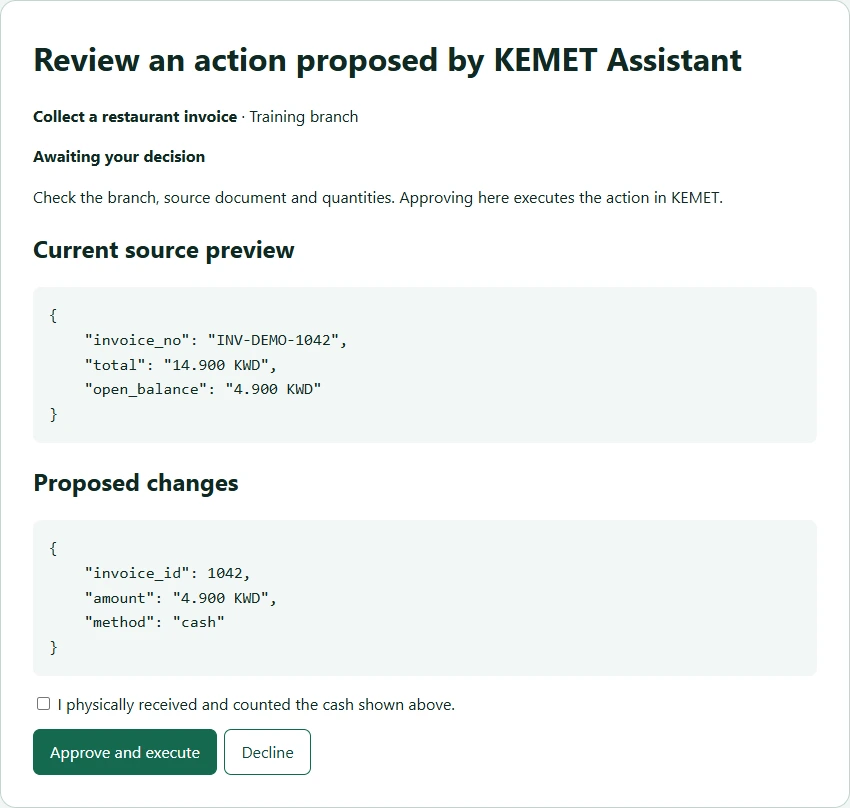
Open it with the same account. You see the branch, current data and the requested change.
-
Approve or decline
If right click Approve and execute. If money is involved, confirm you received and counted it. If wrong click Decline.
-
Check the result
After Executed open the document in KEMET or ask the assistant for the status. If the link expired, ask for a new preview.
Fields and buttons
| Field or button | When to use it | Result and how to check |
|---|---|---|
| Current source preview | Check branch, item or source reference, and its previewed state. | Use the native document alongside the preview to verify a price or quantity. |
| Proposed changes | Review each requested field, value and reason in the action. | Base selling price and channel menu price have separate settings. Verify target scope before approval. |
| Physical cash confirmation | Shown for cash deposit or collection proposals. Check it after physically counting the stated amount. | The confirmation applies to the amount and action on this screen. |
| Approve and execute / Decline | Choose the appropriate action in KEMET using the account that requested it. | Approval runs through native permissions and rechecks the source state. |
| Awaiting your decision | The action is ready for review in KEMET. | Make the decision on the approval page and verify the resulting source. |
| Executed | Read KEMET result and its reference. Check whether the native result is a draft or posted movement. | Complete any remaining native stages required by that operation. |
| Declined / Expired / Source changed | Refresh the source and request a new preview if the action is still needed. | Use native action status and source result before requesting another submission. |
Worked example
Stop one item in one branch
Training example. Ask for a proposal to stop selling one juice in the Arabic branch because it ran out. Review item, branch and reason before approval. Then verify stock sale status in that branch POS and enabled storefront.
From ChatGPT or Claude
Once KEMET is connected to your assistant, copy and send this request:
Show the status of the action you proposed to me.
The assistant reads data right away. Any change is shown to you in KEMET for approval before it runs, within your account permissions only.
Tools the assistant uses here
restaurant_get_action_status
Verify the result
- The preview shows branch, source and proposed values. Pending means the execution result has yet to be produced.
- Approval results are traceable in KEMET, and decline or expiry is visible.
Common problems
Reads work but the proposal link is missing
Check company enablement, connector consent and the native operation permission. The assistant platform must allow proposal tool calls. Use the source KEMET screen when the action is unavailable.
Review link is denied or the source changed
Sign in with the connected KEMET account and check branch and permission. Request a fresh preview if the source changed or the link expired.
For: Restaurant owner Branch manager Cashier Kitchen team Accountant
Screens and buttons depend on your account permissions and branches. Images show KEMET with training data.