
Create a sales return from Orders
Choose the returned quantity and condition for each item, then record the return and confirm any money actually paid back.
Steps
-
Open Return from the invoice
In Orders find the invoice and click Return on its row.
-
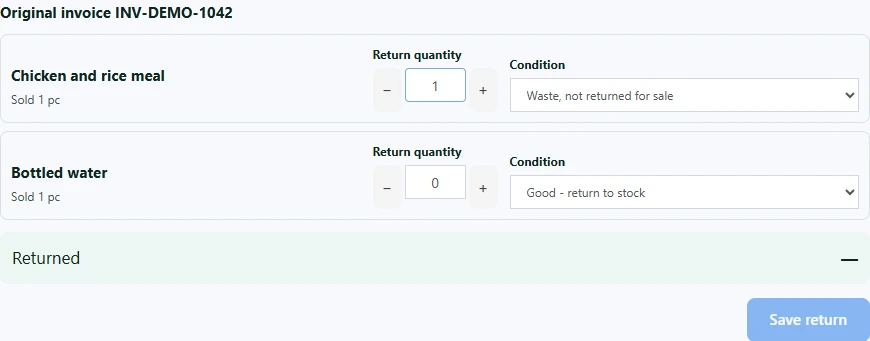
Enter quantity and condition
Enter the total returned quantity (one before and one now = 2). Prepared food is recorded as damaged or waste.
-
Check the amount and save
You see the return value and the refund amount. Click Save and continue to refund.
-
Check the credit note
Keep the credit note number and confirm it is linked to the invoice in Returned sales.
Fields and buttons
| Field or button | When to use it | Result and how to check |
|---|---|---|
| Original invoice | Match the reference and branch before editing lines. Open the current record if a return was attempted earlier. | Eligible quantities and return values come from the original sale. |
| Return quantity | Enter the cumulative total, including previous returns. One earlier and one additional unit is a total of two. | Sold quantity is the maximum. The already-returned quantity is the minimum. |
| Good – return to stock | Use for a physically eligible tracked item when the option is available. | Verify stock receipt to the branch and lot, and supported cost reversal when recorded. |
| Damaged / Waste | For prepared food or goods unfit for sale, use the actual available disposition. | Items remain outside saleable stock. Check waste and cost support on the note. |
| Returned | Original priced return value for the returned line or part. | Appears on the credit note and can offset the original outstanding invoice. |
| Amount to refund | Verify the amount after examining eligible balance, actual payments and prior refunds or allocations. | On a KWD 10.000 invoice with KWD 6.000 paid and a KWD 5.000 note, offsetting KWD 4.000 leaves KWD 1.000 refundable in this example. |
| Save and continue to refund | Select after checking quantity, disposition and financial effect. | Keep the credit note reference and follow refund tender if money is due to the customer. |
Worked example
Return against a partially paid invoice
Training example. A KWD 10.000 invoice has KWD 6.000 paid. A KWD 5.000 credit note can offset KWD 4.000 outstanding and leave KWD 1.000 refundable. Check the screen amounts before paying.
From ChatGPT or Claude
Once KEMET is connected to your assistant, copy and send this request:
Record a return for this invoice and show recent returns.
The assistant reads data right away. Any change is shown to you in KEMET for approval before it runs, within your account permissions only.
Tools the assistant uses here
restaurant_propose_return_credit_noterestaurant_list_returnsrestaurant_get_return_detail
Verify the result
- The credit note was created and links back to the sale.
- Refundable amount and stock handling agree with the selected condition and quantity.
Common problems
Return button is missing
Check invoice status, prior returned quantities and permission for the branch.
Waste cost is pending review
Keep the credit note number and ask accounting to reconcile original sale cost. Check the available refund on the same note.
For: Cashier Branch manager Accountant
Screens and buttons depend on your account permissions and branches. Images show KEMET with training data.