
Read return journals in one view
Review the credit note value, waste cost, and debits and credits together, with access to source documents and existing entries.
Steps
-
Open return journals
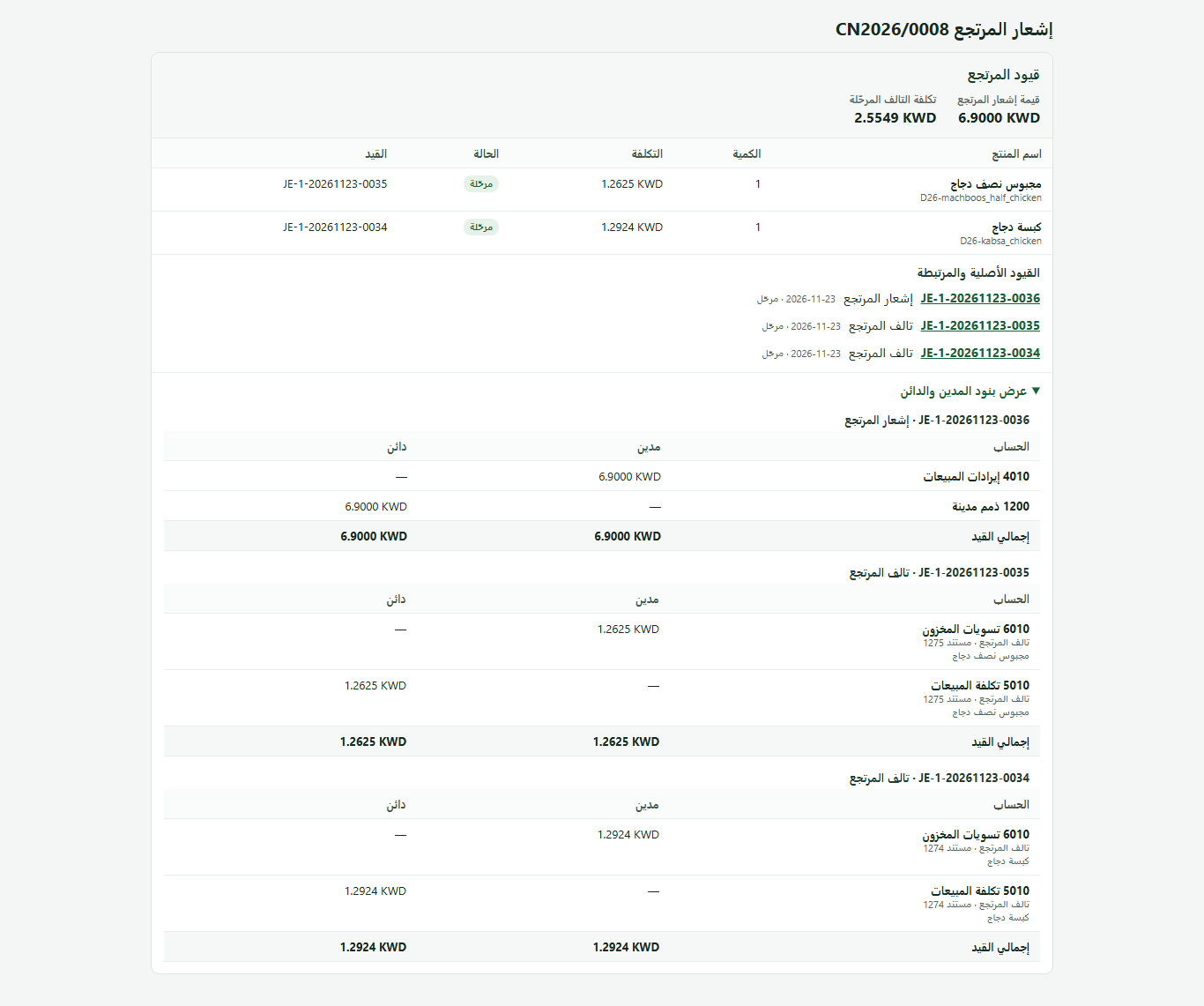
From the credit note details scroll to Return journals. You see the note value and waste cost.
-
Show debit and credit
Click View debit and credit lines. Financial lines belong to the note; cost lines to the wasted item.
-
Linked older entries
In Original and linked entries open each reference. Older returns may have a separate waste entry.
-
Separate refund from cost
Money returned to the customer is in the payment entry. Cost of spoiled food is in the waste entry.
-
Cost reclassification
If cost was issued at sale, you see lines moving it from cost of sales to the waste account.
-
Cost under review
If cost is still under review, the accountant checks the documents before reposting.
Fields and buttons
| Field or button | When to use it | Result and how to check |
|---|---|---|
| Credit note value | Commercial credit for the returned sale quantity. | Compare the credit note with the original invoice return amount. |
| Posted waste cost | Supported historical cost of items classified as damaged or waste. | Training example. KWD 1.2924 + KWD 1.2625 = KWD 2.5549 of cost on a KWD 6.900 note. |
| View debit and credit lines | Open the lines to trace commercial and cost accounts. | In the example, cost is debited to waste or adjustment and credited to cost of sales according to mapping. |
| Original and linked entries | Use for legacy notes with separate entries or costs proven after the note. | Review each entry number and posting date. Supported cost can appear within the new credit note posting. |
| Posted | Review linked accounts and posted amounts. | The journal totals balance. |
| Pending review | Inspect stock issue evidence at sale, lot reference and original cost journal. | Retry from the document after evidence reconciles when your role permits it. |
| Proven zero | Check the line status and supporting documents before closing review. | A proven zero reflects a supported zero-cost basis, separate from pending review. |
Worked example
KWD 6.900 credit note and KWD 2.5549 cost
Training example from the R18 preview. A KWD 6.900 credit note links to two waste amounts of KWD 1.2924 and 1.2625, totaling KWD 2.5549. This distinguishes the credit amount from the cost of the items. The legacy entries retain their references in the same view.
From ChatGPT or Claude
Once KEMET is connected to your assistant, copy and send this request:
Show all journals for this return in one view.
The assistant reads data right away. Any change is shown to you in KEMET for approval before it runs, within your account permissions only.
Tools the assistant uses here
restaurant_get_return_detailrestaurant_get_branch_journalrestaurant_get_return_waste_posting
Verify the result
- Each journal balances and its links open the credit note, sale invoice or waste register as appropriate.
- Each item's cost status is visible and any later posting appears with its linked reference.
Common problems
An older return still shows multiple journals
Open the combined view from the note. Those references record the original postings and let you trace each document.
The return journal list shows only two lines
Open details, item cost states and related entries. Cost may be pending or posted in a related waste journal depending on the note.
For: Accountant Branch manager Restaurant owner
Screens and buttons depend on your account permissions and branches. Images show KEMET with training data.