
Pay a refund from the credit note
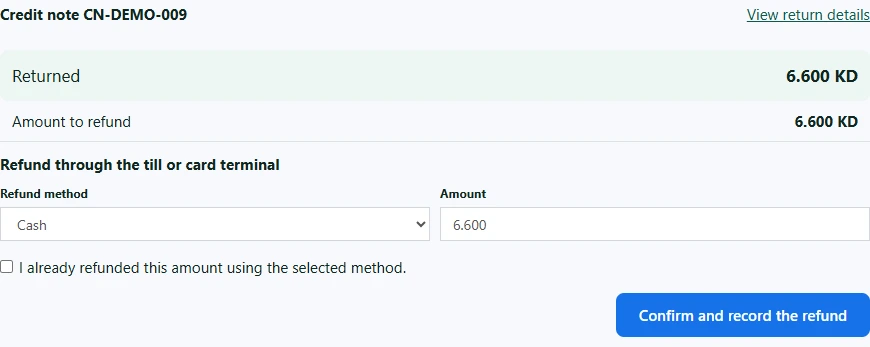
Choose the refund method and verify the actual payout can be traced from the note and payment entry.
Steps
-
Know the amount
Open the return details. You see what can be refunded after any debt offset or earlier refund.
-
Pay back, then record
Cash: hand over the money first, then tick “I handed the refund to the customer”. Terminal: confirm after it succeeds.
-
Electronic refund
If the original payment was online, follow the refund status on the same note and refresh before any second refund.
-
Check the entry
Open the note to see the amount refunded, and open the payment entry to check method and amount.
Fields and buttons
| Field or button | When to use it | Result and how to check |
|---|---|---|
| Cash | After handing over cash, enter the eligible amount and confirm I handed the refund to the customer. | The payment movement is assigned to the configured till and shift. Verify reference and refund status. |
| Card terminal | Process the card refund on the terminal first and confirm only after the receipt shows success. | Compare saved refund reference to the terminal and check for a previous posting after delays. |
| Electronic refund | For an eligible original payment use the supported Casheer workflow when enabled. | Reconcile a pending refund on the same note and provider before a further refund. |
| Confirm and record the refund | After selecting actual tender and amount and confirming that the payout occurred. | Payment reference and amount are listed under the note, with the recorded payment journal traceable. |
| Available refund | Review original invoice balance offset, prior paid amounts and pending refunds. | The amount follows current allocations on the same note. |
| Waste cost pending review | When the sale refund is eligible but original stock cost is unresolved. | Accounting follows original cost evidence on the note. Eligible payout is tracked through the payment workflow. |
Worked example
Partial cash refund
Training example. A note has KWD 3.000 available and partial refund is allowed. If KWD 1.000 is handed over, record that payout and verify KWD 2.000 remains before other allocations.
From ChatGPT or Claude
Once KEMET is connected to your assistant, copy and send this request:
Record that the customer received the refund in cash.
The assistant reads data right away. Any change is shown to you in KEMET for approval before it runs, within your account permissions only.
Tools the assistant uses here
restaurant_get_return_refund_balancerestaurant_propose_refund_return_cash
Verify the result
- No duplicate payout is recorded against the same balance, and the recorded method matches actual payment.
- The displayed electronic refund status can be matched to the provider reference.
Common problems
Electronic refund is pending
Refresh and match the provider reference. Confirm the first attempt's outcome before recording a new payout.
Refund available is zero although a note exists
Check the allocation breakdown for outstanding-balance offset, a prior refund or another applied settlement.
For: Cashier Branch manager Accountant
Screens and buttons depend on your account permissions and branches. Images show KEMET with training data.