
Apply return credit to a replacement invoice
Create a linked replacement invoice, apply available credit and track what remains to collect or refund.
Steps
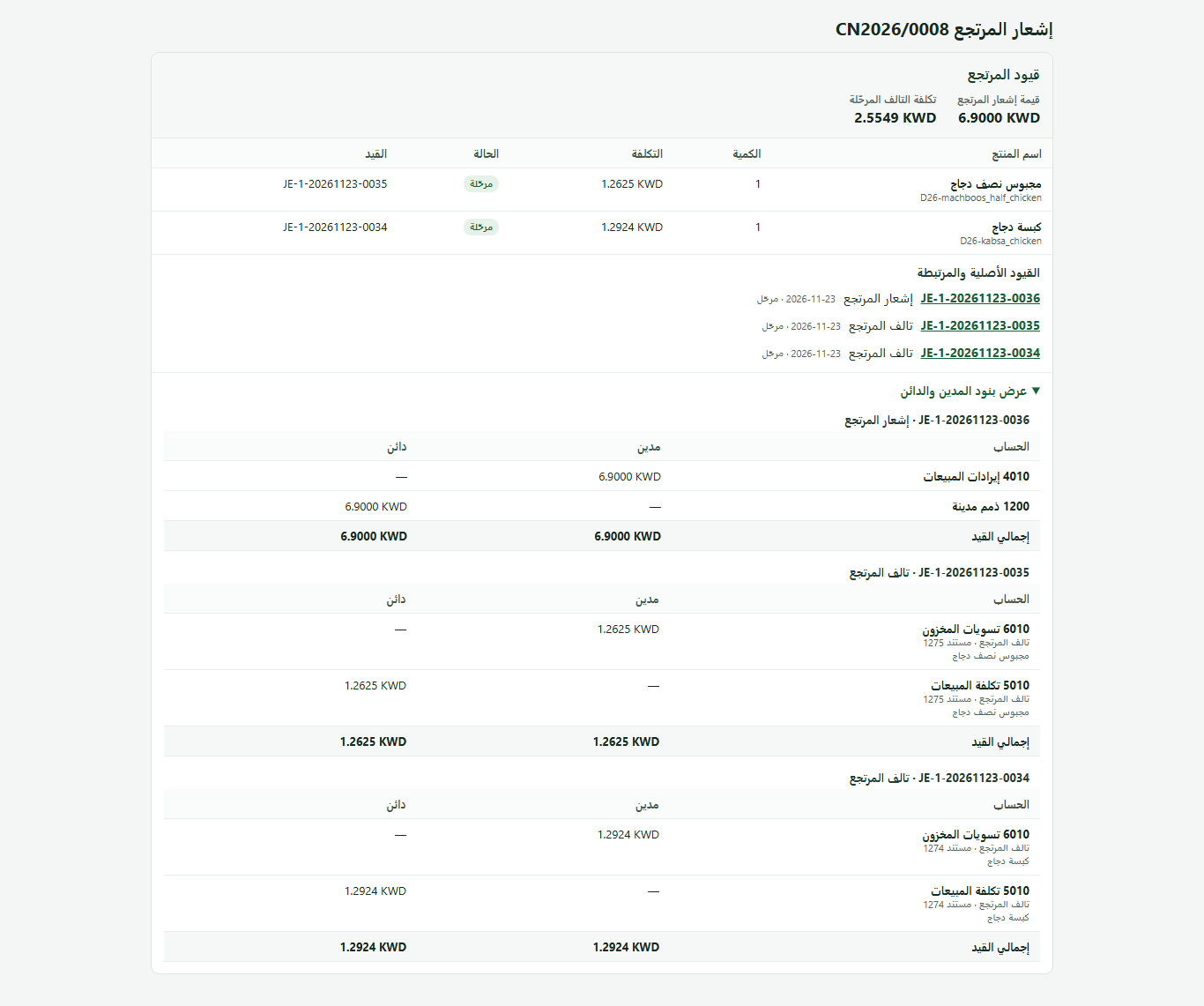
-
Start from the credit note
Open the return details, see the available credit, and click Exchange or Replacement invoice.
-
Record replacement items
In POS check branch and customer, add the new items and save the invoice.
-
Apply the return credit
Return to the note and choose the replacement invoice. You see any amount still due or credit left.
-
Check the link
Open the invoice and the note and confirm the credit appears once.
Fields and buttons
| Field or button | When to use it | Result and how to check |
|---|---|---|
| Available note balance | Check remaining note value after payments, refunds or earlier allocations. | Use the current eligible credit balance. |
| Linked replacement invoice | Create a replacement from the note and enter correct products, branch and customer. | After saving retain the invoice and note links. |
| Replacement reference and amount | Select the linked replacement and the amount to allocate. | A KWD 4.500 replacement with KWD 3.000 credit leaves KWD 1.500 to collect. |
| Remainder due or refundable | Review outstanding invoice or remaining note value after allocation. | Record actual collection or qualifying payout from its source. |
| Posting and edit restrictions | Check the allocation journal when enabled. Review restrictions before changing linked documents. | For blocked edits after allocation, ask accounting to trace the source. |
Worked example
Exchange with an amount to collect
Training example. A note has KWD 3.000 available and the replacement invoice is KWD 4.500. Applying the available credit leaves KWD 1.500 to collect.
From ChatGPT or Claude
Once KEMET is connected to your assistant, copy and send this request:
Show this return's balance and how much can be applied to a new invoice.
The assistant reads data right away. Any change is shown to you in KEMET for approval before it runs, within your account permissions only.
Tools the assistant uses here
restaurant_get_return_refund_balancerestaurant_get_return_detailrestaurant_list_returns
Verify the result
- The replacement invoice links to the note and both documents show the applied value.
- Paid, outstanding and available amounts match the recorded exchange.
Common problems
The replacement invoice is missing from allocation
Check how it was created, the credit note link, branch and customer. Open the same note before creating another document.
Available credit is below replacement value
Check earlier refunds or allocations. Apply the displayed available value and collect the remaining invoice balance using the actual payment method.
For: Cashier Branch manager Accountant
Screens and buttons depend on your account permissions and branches. Images show KEMET with training data.