
Record a production order from POS
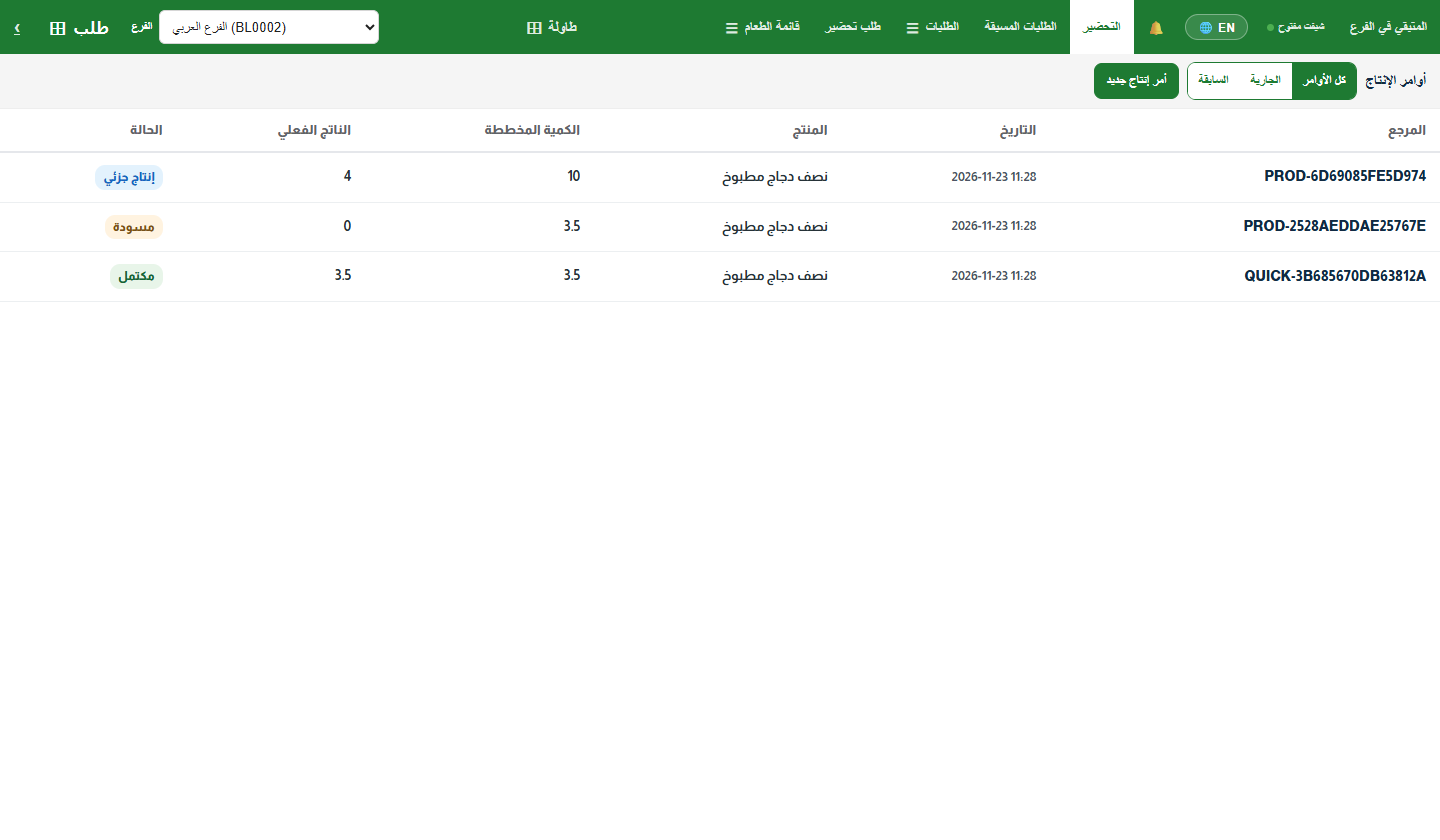
Use the Preparation tab to review current and previous orders, then record actual output and ingredient consumption for the method used.
Steps
-
Open production orders
In POS open Preparation. You see current and past orders.
-
New production order
Click New production order and choose the prepared item and quantity.
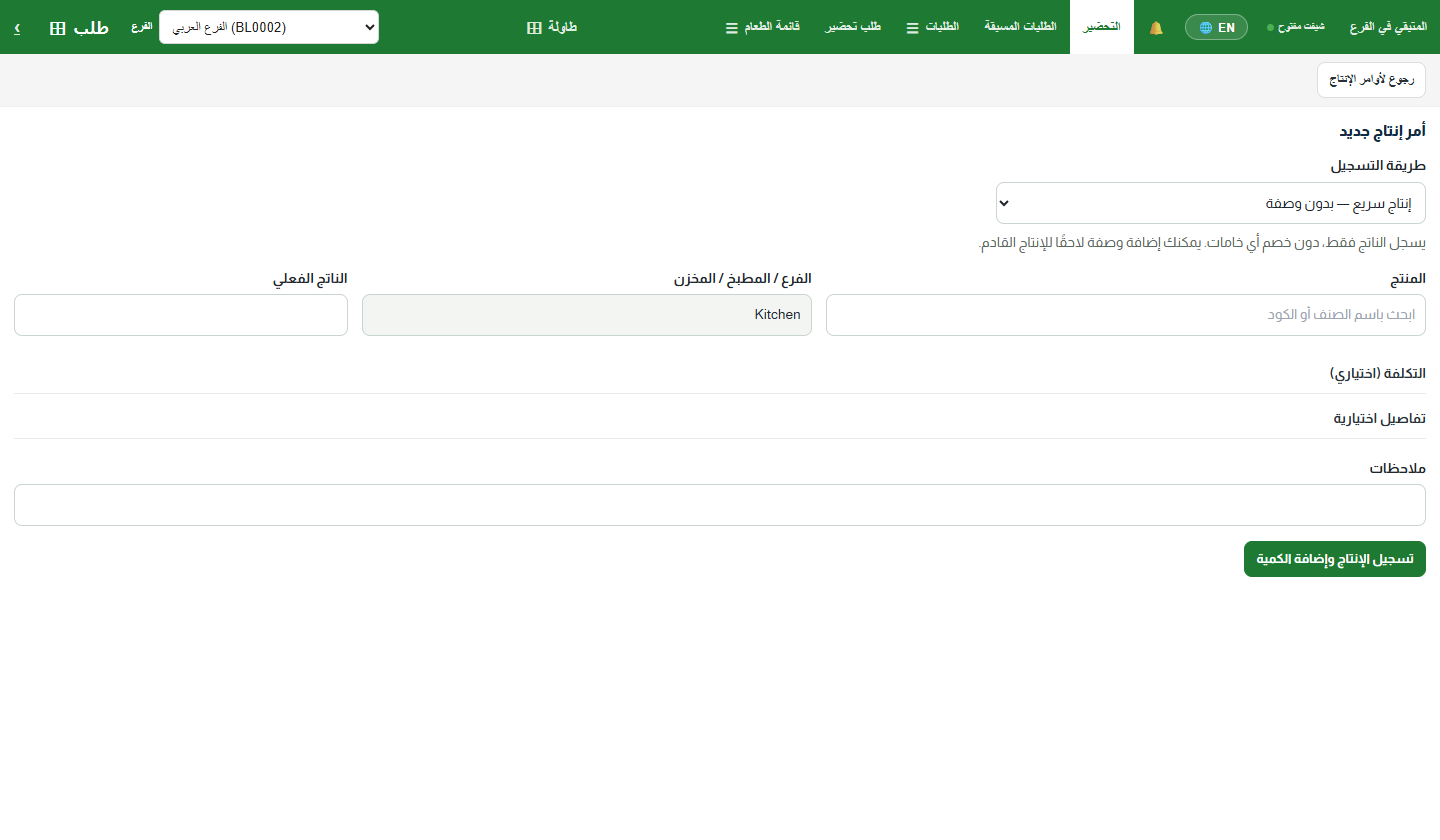
نموذج أمر إنتاج جديد داخل نقطة البيعView full size -
Complete production
With a recipe: record ingredients used and actual output. Without: “Record production and add quantity” only adds output.
-
Match with stock
Open the order and compare output with the balance in Remaining stock.
-
Compare ingredients
Check each ingredient's planned quantity against what was used. If output is low, see the yield report.
-
Check the entry
Open the batch reference or entry and check output, quantities and accounts.
Fields and buttons
| Field or button | When to use it | Result and how to check |
|---|---|---|
| Quick production without recipe | Use for recording tracked output where authorized. Choose branch output and actual quantity. | The output receipt is recorded. Unspecified quick-production cost stays unsupported and does not establish ingredient history. |
| Recipe production | Choose branch output linked to a recipe and enter planned quantity, then review the draft. | Creates an order for tracking. At completion record actual ingredient lots, consumption and output. |
| Branch / kitchen / stock location | Check the location issuing raw stock and receiving output. POS scopes the entry to its branch. | The production order and lots are recorded against that location. |
| Actual output | Enter actual output. For a plan of 30 and actual 28, enter 28. | The report shows a variance of −2 and 28 units received on the relevant movement. |
| Raw inventory | Verify actual ingredient quantities consumed from source lots before completion. | With split account mapping, consumed cost credits raw inventory in the production journal. |
| Prepared inventory | Check unit and actual cost transferred to output. | Output debits mapped prepared inventory. Verify journal lines and order reference. |
| Status and references | After saving, use All orders, In progress or Past orders. | Trace the production order, lot, document and journal where permitted. |
Worked example
Batch of cooked chicken
Training example based on the product preview. 14 kg raw chicken, 0.300 L oil and 0.300 kg spices produced 20 portions at a total recorded cost of KWD 20.8416. Open the order to inspect planned and actual quantities and issue lines.
From ChatGPT or Claude
Once KEMET is connected to your assistant, copy and send this request:
Prepare a production order for 10 kg cooked rice and show the ingredients needed.
The assistant reads data right away. Any change is shown to you in KEMET for approval before it runs, within your account permissions only.
Tools the assistant uses here
restaurant_native_production_calculate_production_inputsrestaurant_propose_create_production_orderrestaurant_propose_start_production_orderrestaurant_propose_complete_production_batch
Verify the result
- The completed order has a reference, actual output and a lot in its branch.
- Output and ingredients in the journal or order details match the recorded quantities.
Common problems
A sale item is missing from production search
Check whether the item is tracked in this branch or assembled from a recipe at sale. Search for the prepared output consumed by the sale recipe.
Quick production received output without ingredient issues
Review the recorded method. For batches that must issue ingredients, use recipe production and record consumption at completion.
For: Kitchen team Branch manager Accountant
Screens and buttons depend on your account permissions and branches. Images show KEMET with training data.