
Set up add-ons and options for a menu item
Configure sauce, rice and other options, then check the price and what staff receive in the kitchen.
Steps
-
Choice or add-on?
Size (small/large) changes the item itself. A sauce or side is an add-on.
-
Create a modifier set
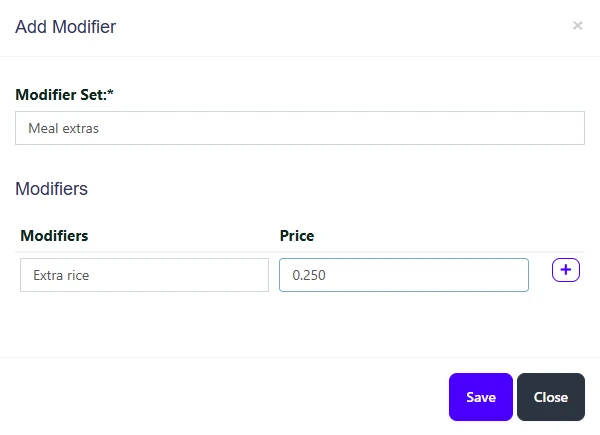
In Restaurant settings → Modifier sets, enter the group name, options and each price.
-
Link it to items
From the set click Manage products, choose the items and save.
-
Try an order
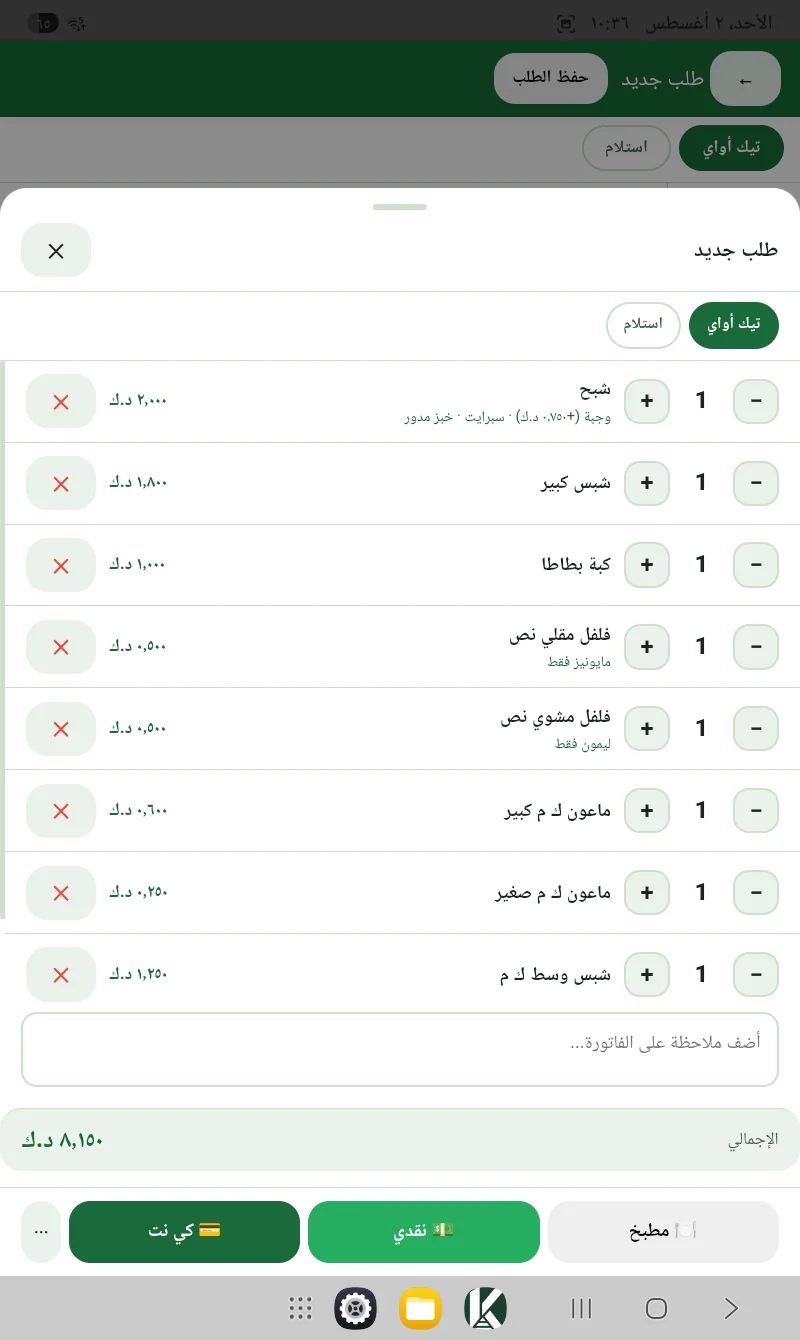
In POS or the waiter app choose the item and add-on. You see the price and note in the cart and ticket.
-
Check stock
If the add-on uses an ingredient, make sure it was issued after the sale.
Fields and buttons
| Field or button | When to use it | Result and how to check |
|---|---|---|
| Modifier set name | Give the set a recognizable name, such as sauce or drink. | The group appears on the assigned item in its menu. |
| Required selection and limits | Set required or optional choice and available minimum and maximum limits. | Test an empty selection and a multiple selection against the configured limits. |
| Option and price | Set the label and supplemental price according to configuration. | A KWD 4.500 item with a KWD 0.250 modifier totals KWD 4.750 before charges. |
| Attach the group to an item | Assign at the product or menu item and open that menu in POS or storefront. | Verify option name, surcharge and saved cart selection. |
| Ticket or stock issue | After a training order inspect KOT, and if the modifier tracks stock inspect its configured movement. | Verify whether an actual stock item and movement are linked. |
Screen images
Worked example
Mixed grills with rice and a kitchen note
A 4.500 KWD dish plus rice priced at 0.250 KWD gives 4.750 KWD before discounts and fees. Enter 'sauce on the side' as a separate note and verify that both reach the kitchen.
From ChatGPT or Claude
Once KEMET is connected to your assistant, copy and send this request:
Show the add-ons for this item and add a new add-on group.
The assistant reads data right away. Any change is shown to you in KEMET for approval before it runs, within your account permissions only.
Tools the assistant uses here
restaurant_get_menu_item_optionsrestaurant_list_product_option_groupsrestaurant_propose_append_product_option_groups
Verify the result
- Options appear on the intended products at the expected prices.
- The add-on and note shown on the kitchen ticket match the saved order.
Common problems
One product does not show the group
Open Manage Products on the modifier set, confirm the product is assigned, then check branch and active menu and use a new basket.
The add-on shows a different price in the basket
Compare the configured add-on with the menu and channel used to select it. Verify the options and price shown before saving.
For: Restaurant owner Branch manager Cashier Waiter Kitchen team
Screens and buttons depend on your account permissions and branches. Images show KEMET with training data.