
Install K-Waiter, prepare the tablet and take a dining-room order
Install the approved version, connect the tablet to the restaurant, open a table, test its printer, send a KOT and hand off the bill. For managers, waiters and cashiers.
Steps
-
Install the app
Open the K-Waiter file from your manager and install it. Updates must come from the same app.
-
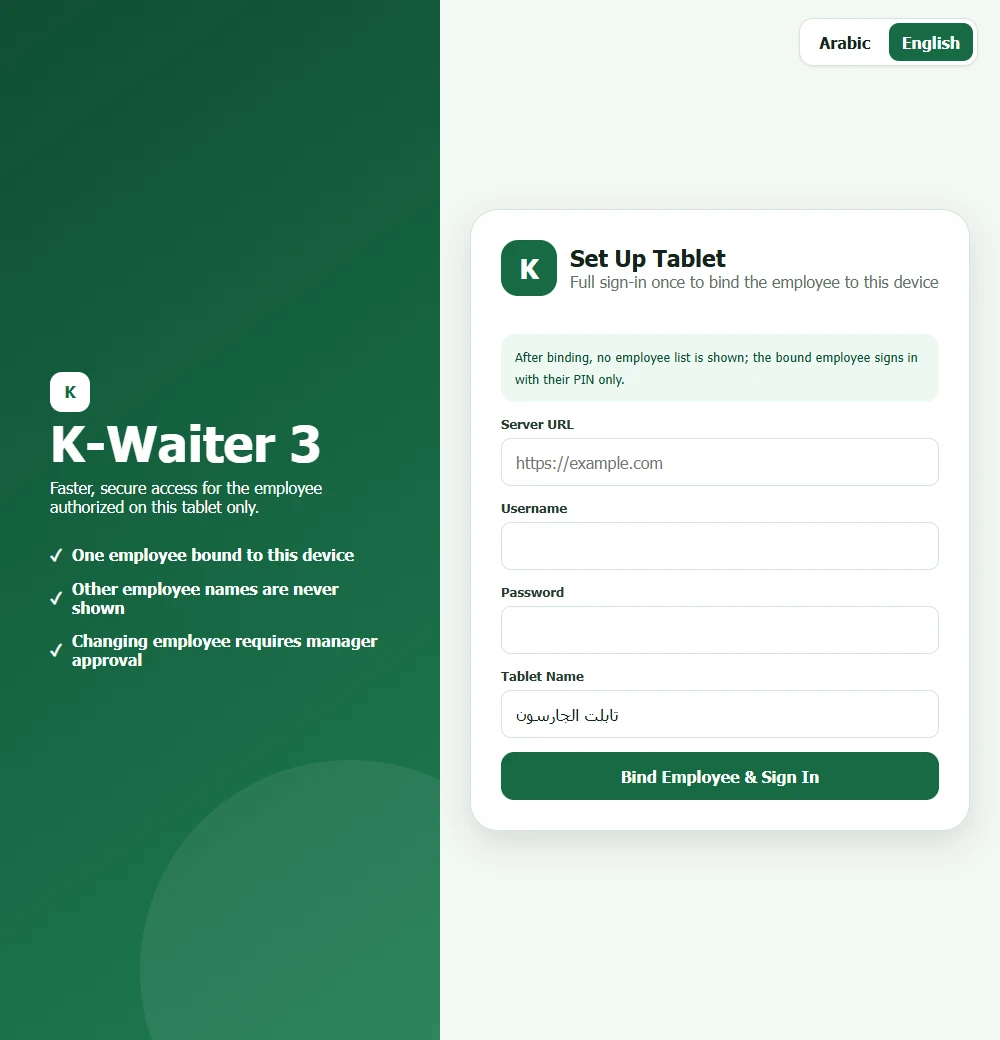
Enter the restaurant link and sign in
Open Server setup, enter the restaurant link, tap Save & continue, and sign in.
-
Choose branch and test the printer
Choose your branch. With the manager set the printer (direct or Print Agent) and print a test.
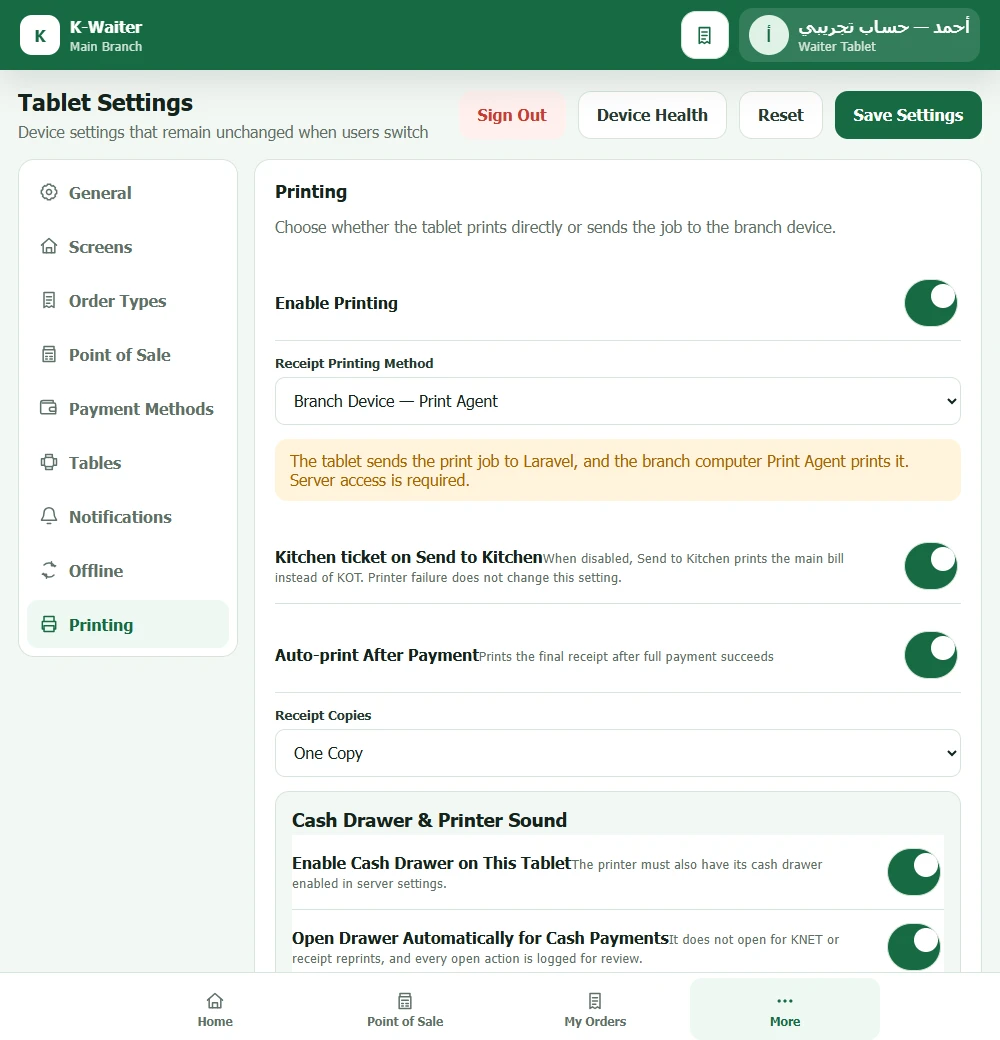
K-Waiter tablet printing options and routing to Print AgentView full size -
Open the table
In Tables choose the table and add items, add-ons and notes.
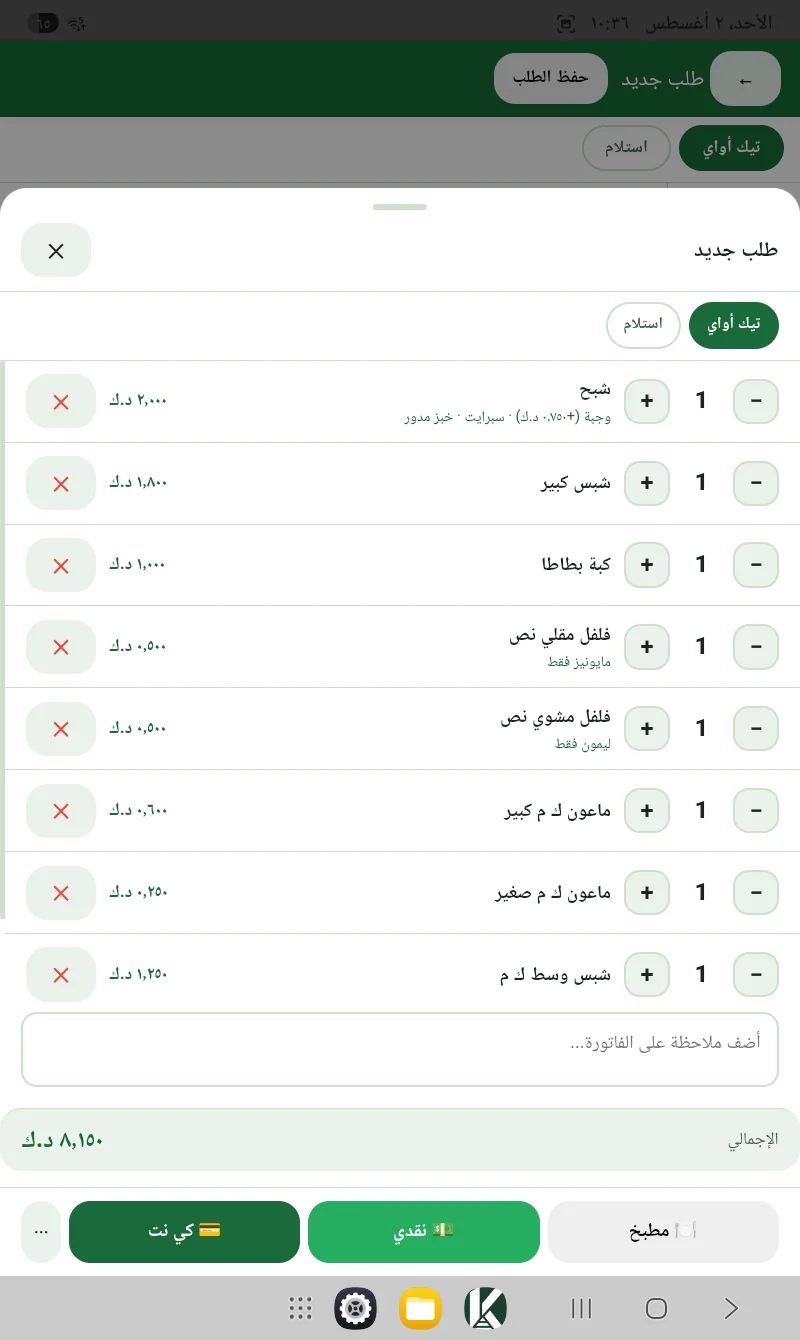
مراجعة الأصناف والكمية والملاحظات داخل تطبيق الويترView full size -
Send to the kitchen
Tap Send KOT. If the guest orders more later, add it to the same order.
-
Guest calls and the bill
In Waiter calls tap Acknowledge. Show the bill or send a payment request to the cashier.
-
Collect or hand to the cashier
If allowed, record the method actually paid, once. If not, the cashier closes the bill.
-
Before switching account
If an action is pending because of the network, return to the same account and check it first.
Fields and buttons
| Field or button | When to use it | Result and how to check |
|---|---|---|
| System URL | Enter the approved HTTPS portal before signing in. | Confirm the restaurant, branch and menu after sign-in. |
| Save & Continue | After entering the correct server address in setup. | The sign-in screen opens. |
| Tables and Calls | Open a known table or handle a guest request. | Check the table status and any existing order first. |
| Send KOT | After reviewing item quantities, modifiers and notes. | Verify the reference, table and preparation station. |
| Bill / Request payment | View the bill or notify the cashier as permitted. | Reconcile payment against the same order. |
| Reprint | When you need a copy after checking the original print job. | The copy is linked to the same order reference. |
| TCP | Put the tablet and printer on reachable networks. Use the printer IP and configured port in tablet settings. | Run the printer test and verify the expected physical output. |
| Bluetooth | Pair in Android, then select the printer from the app's paired devices. | Allow the nearby-devices permission and run an in-app print test. |
| Server / Print Agent | Use the branch Print Agent computer for its printer queue, including USB printers installed there. | Check Print Agent status and the branch printer assignment. Try a bill and kitchen ticket. |
| KOT rules | Assign the kitchen station and printer on the branch, with the required KOT rules enabled. | Use a test order with items from two stations and verify where each ticket went. |
Worked example
Test table A04 with a ticket and payment
Training example. Open A04 and add chicken with the note “sauce on the side.” Send the KOT and check the note and table at the kitchen. Reopen the same order to add a drink, then request payment from the cashier on that reference. Finish after one collection appears on the bill.
From ChatGPT or Claude
Once KEMET is connected to your assistant, copy and send this request:
Show waiter devices and their status, and pending table calls.
The assistant reads data right away. Any change is shown to you in KEMET for approval before it runs, within your account permissions only.
Tools the assistant uses here
restaurant_list_waiter_device_healthrestaurant_list_waiter_callsrestaurant_report_waiter_response
Verify the result
- Company, branch, tables and menu match the restaurant settings.
- The test ticket reached the selected printer, and the kitchen order appears at the correct station.
- Notes and additions belong to the same order reference. The cashier or authorized waiter records the payment once.
- Review queued and printed jobs before requesting a reprint.
Common problems
Wrong branch or server appears
Use Change at sign-in or System URL in Settings. Verify the user, branch and menu. Ask management to correct branch access before recording an order.
Cannot reach the server
Open the same HTTPS address in the tablet browser. Check the restaurant network, internet connection and valid site certificate with the manager, then retry with the same account.
The table is busy or another device updated the order
Refresh Tables and reopen the existing order. Review saved changes before adding items or sending notes again.
The order was sent, but nothing printed
Verify the order appears at the kitchen. Check its KOT rules, station and print job. For TCP, test the IP and port from the tablet. For Server mode check the branch computer's Print Agent. Use Reprint from the same order for a second copy.
Payment is hidden or the shift is closed
Review collection permission and shift with the cashier. If a payment is pending after a connection problem, check the same invoice before confirming again.
You need to review waiter devices from the assistant
An authorized manager can use `restaurant_list_waiter_device_health` to review device health within their access. Installation, system URL and local printer setup are done on the tablet.
For: Waiter Cashier Branch manager
Screens and buttons depend on your account permissions and branches. Images show KEMET with training data.