
Install Kemet Print Agent and connect a branch
Install the Windows print agent, connect it to the intended branch and prove a test job reaches the correct printer before enabling receipts and kitchen tickets.
Steps
-
Install on the printing PC
On the PC next to the printer install Kemet Print Agent. For USB, note the exact Windows printer name.
-
Copy the branch details
In KEMET open Print settings → Print Agent setup. Choose the branch and copy the server link and branch number.
-
Create the branch key
Click Create / rotate branch key and copy it. The key is shown only once.
-
Save and test the connection
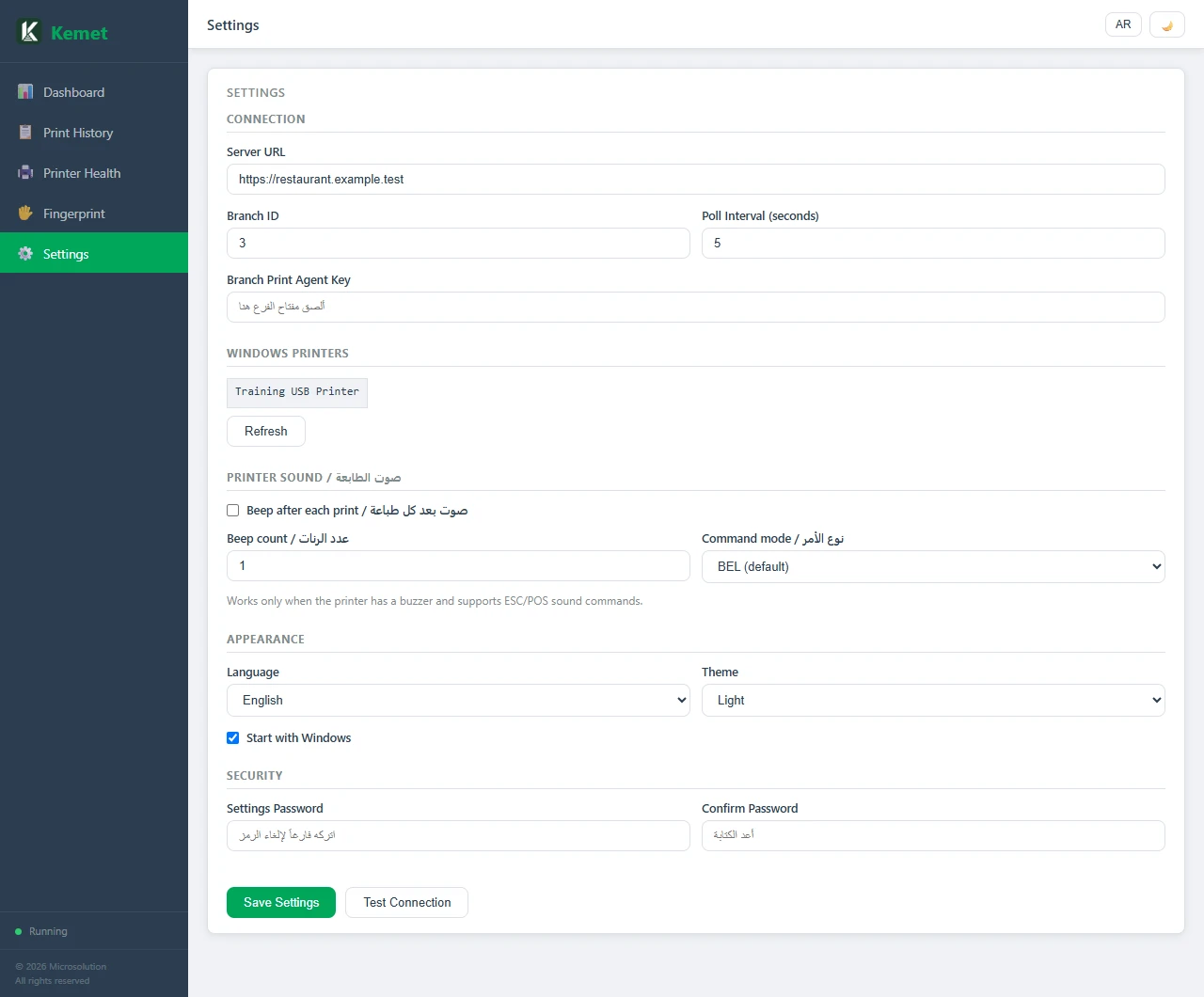
In the app → Settings, paste the link, number and key. Click Save settings, then Test connection.
-
Print a test page
In KEMET click Test beside the printer and check the paper comes out.
-
Turn on orders gradually
Try one training order and see where each paper prints before enabling everything.
Fields and buttons
| Field or button | When to use it | Result and how to check |
|---|---|---|
| Server URL | Copy from the setup card for the company you are configuring. | A connection test retrieves that company's printer list. |
| Branch number (Location ID) | Use the branch selector before copying. | Determines the branch whose jobs the agent collects. |
| Branch agent key | Use the current branch key or coordinate rotating it for all stations. | The new key appears at creation; the old key is retired. |
| Save Settings then Test Connection | After entering the three values or changing the key. | Success proves access to the printer list; use a test job to verify the physical printer. |
| Start with Windows | Enable for the normal branch account and verify after signing in again. | The app returns in that Windows session without manually opening each time. |
| Agent status | Select the branch and refresh status after starting the agent. | A recent heartbeat confirms agent-to-server communication. |
| Windows printer name | For USB use the queue name visible on the agent PC. | Match the name exactly, then verify Printer Health. |
| Test | Use it once from the intended KEMET printer row. | Check the printed paper and history ID before submitting another test. |
Worked example
USB printer on the front till
In the training example, the branch ID is 12 and the Windows queue is POS-80. Use 12 from the branch card and save exactly POS-80 as the local printer. A successful connection means the app retrieved the KEMET printer list. The acceptance check is Test OK from POS-80 and a printed history entry for the same job.
From ChatGPT or Claude
Once KEMET is connected to your assistant, copy and send this request:
Show my branch's Print Agent status and last heartbeat.
The assistant reads data right away. Any change is shown to you in KEMET for approval before it runs, within your account permissions only.
Tools the assistant uses here
restaurant_list_print_agent_healthrestaurant_list_print_destinations
Verify the result
- The agent shows the same URL and branch ID as the setup card, and the current key is stored only on assigned PCs.
- Check Test Connection, the KEMET agent heartbeat and a physical test print. Each check verifies a different part of the setup.
- Confirm the destination and copy count of the first receipt and KOT after enabling branch routing.
Common problems
Connection test returns 401 or rejects the key
Match the company origin and branch ID and save the settings. Confirm whether the key was rotated. If a new key is required, coordinate updating every agent assigned to that branch.
Connection succeeds but the printer count is zero
Open the KEMET printer configuration and verify an active record is assigned to the same numeric branch ID. Correct the assignment with authorized access, save and retest.
The agent stops after signing out of Windows
Open it under the normal branch Windows account and check Start with Windows. Verify that the application stays running in that account’s session before relying on it.
For: Restaurant owner Branch manager Cashier Kitchen team
Screens and buttons depend on your account permissions and branches. Images show KEMET with training data.