
Connect branch printers and run a test print
Register the kitchen or cashier printer in the correct branch and verify its USB or network connection before configuring routing.
Steps
-
Register each printer
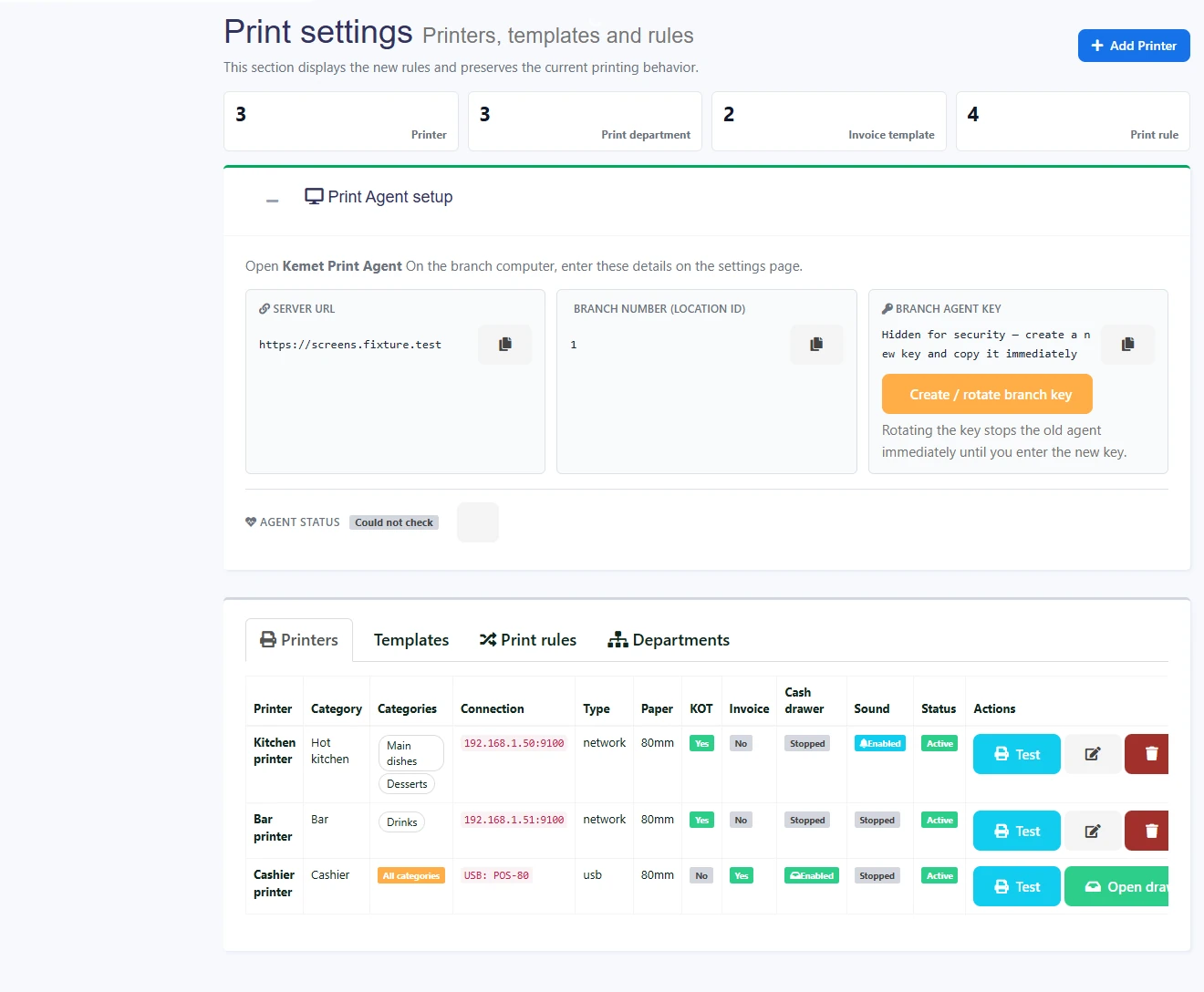
In Restaurant settings → Printers click Add printer. Give it a clear name like “Hot kitchen” and choose 58 or 80 mm paper.
-
USB printer
Choose USB and enter the exact Windows printer name. The Print Agent must run on that PC.
-
Network printer
Choose network and enter the IP and port (usually 9100). Keep the printer IP fixed.
-
Set its role and test
Tick KOT for the kitchen or receipt for the cashier, click Test and check the paper.
Fields and buttons
| Field or button | When to use it | Result and how to check |
|---|---|---|
| Branch and printer | Name the device for its location and assign branch and station. | Check the same branch print rule points to that device. |
| Connection type | Use direct network or USB through the agent according to the physical device. | Verify agent or local network connection before sending an order. |
| Paper width and text | Choose the physical paper width and test Arabic text and invoice numbers. | For clipping, compare receipt layout width to the device setting. |
| Test print | Run one print test through the intended route and identify the physical printer. | A test confirms connectivity. Then verify ticket routing for each required event. |
| Print job queue | If a sale document is missing after a successful test, check job and rule by order reference. | For pending or failed jobs check agent, printer and connection before reprint. |
Worked example
USB at the cashier computer
Training example. Windows shows POS-80 on the entrance computer. Register that exact name under the branch and verify a test page on the entrance printer before routing shift receipts to it.
From ChatGPT or Claude
Once KEMET is connected to your assistant, copy and send this request:
Show the printers connected to my branch and the Print Agent status.
The assistant reads data right away. Any change is shown to you in KEMET for approval before it runs, within your account permissions only.
Tools the assistant uses here
restaurant_list_print_destinationsrestaurant_list_print_agent_health
Verify the result
- The test page appeared at the right printer and fits the paper.
- The printer belongs to the right branch and its Windows name or network address matches.
Common problems
The USB test does not print
Print a Windows test page on the host computer. Check the exact Windows name and Print Agent status before changing rules.
A network printer has stopped responding
Check power, paper and connectivity. Compare its current address and port with the configuration in KEMET.
For: Restaurant owner Branch manager Kitchen team
Screens and buttons depend on your account permissions and branches. Images show KEMET with training data.