
Route receipts and kitchen tickets and diagnose print jobs
Choose which printer receives each event by branch, source and order type, then trace late or duplicate output through the job status.
Steps
-
Prepare departments and templates
Add print departments (hot kitchen, drinks) and choose a template: kitchen ticket, receipt or delivery label.
-
Make a rule per event
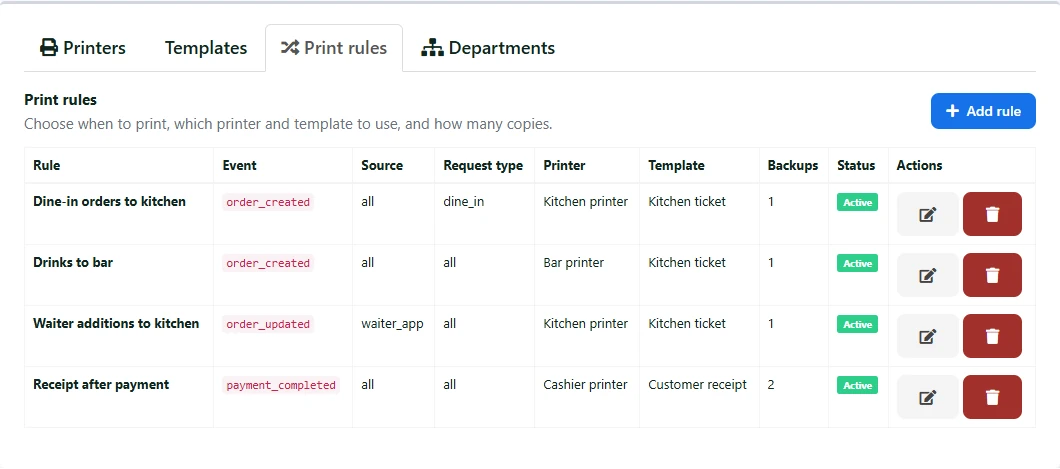
In the Print rules tab choose the event (new order, addition, payment), printer, template and copies.
-
Test two orders
Try a takeaway and a delivery order and compare kitchen and receipt papers and copies.
-
Before reprinting
Open the job status. If uncertain, check the printer for the paper first.
Fields and buttons
| Field or button | When to use it | Result and how to check |
|---|---|---|
| Branch and printer | Assign printer to the branch and station served. | Verify the printer exists and test the configured device path. |
| Print event | Choose when to print a receipt or ticket, such as order created or payment completed. | Test the matching event and verify output type and copies. |
| Source and fulfillment type | Scope the rule to POS or another source and fulfillment type when appropriate. | Test one matching case and one different order to validate routing. |
| Template and line scope | Choose the KOT or receipt layout and appropriate full-order or item scope. | Compare printed lines with KDS and check overlapping rules if duplicates print. |
Worked example
Drinks and hot food
Training example. An order with a hot dish and a drink prints each station's own items. Payment sends a receipt to the chosen cashier printer. If a kitchen ticket prints twice, check the station rule and any general rule that also matches.
From ChatGPT or Claude
Once KEMET is connected to your assistant, copy and send this request:
Show print rules: which event prints on which printer.
The assistant reads data right away. Any change is shown to you in KEMET for approval before it runs, within your account permissions only.
Tools the assistant uses here
restaurant_list_print_routing_rulesrestaurant_list_print_rule_assigned_categoriesrestaurant_list_branch_routing_departments
Verify the result
- Each station prints its intended items, with no unexpected output at other printers.
- You can trace the order reference and print job status to the physical printer.
Common problems
The test page prints, but the order does not
The printer test confirms the device. Check the enabled rule for the event, branch, source and order type, then confirm the template and printer.
The print result is uncertain after a disconnect
Look for the original ticket at the printer. Review the job status with the printing administrator before retrying.
For: Branch manager Restaurant owner Kitchen team
Screens and buttons depend on your account permissions and branches. Images show KEMET with training data.