
Configure invoice numbering and print layout by branch
Configure numbering and receipt layout, assign both to a branch, and verify with a training invoice.
Steps
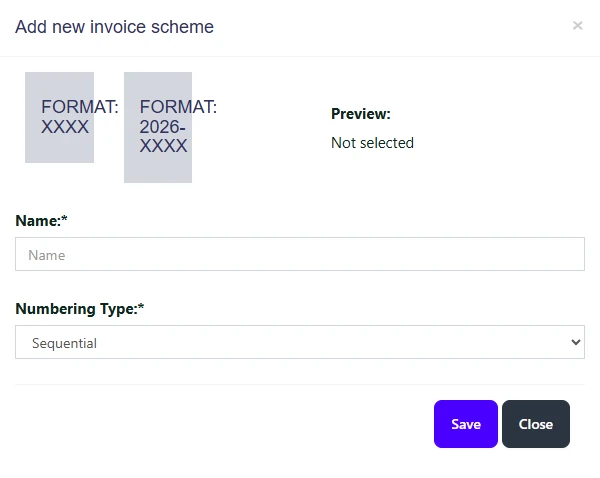
-
Set the numbering
Open Invoice schemes and choose the prefix, start number and digits. Check the last used number before changing.
-
Choose the receipt layout
Open Invoice layouts and choose what appears: branch name, logo, address and payment.
-
Assign them to the branch
In Branches → Edit, choose the numbering and layout for POS.
-
Test an invoice
Create a training invoice and print it. Check the number, layout and branch details.
Fields and buttons
| Field or button | When to use it | Result and how to check |
|---|---|---|
| Invoice scheme | Choose scheme type, prefix and starting number according to the fields shown. | Verify a new invoice reference for the branch and sales workflow. |
| Invoice layout | Choose a receipt layout and configure labels, branch fields and logo. | Compare preview and physical print for the same reference. |
| POS layout and sale layout | In branch edit, choose the intended layout and sequence for each workflow. | Test an invoice issued for the target branch. |
| Kitchen ticket rule | For kitchen tickets, check print rules and station printer instead of the bill layout. | Check KOT and customer bill separately on a single training order. |
Worked example
Branch-specific numbering
Training example. Branch A uses prefix A. Assign its scheme and receipt layout and print a test invoice. If the preview looks right but the paper is cropped, review paper width and print routing.
From ChatGPT or Claude
Once KEMET is connected to your assistant, copy and send this request:
Show the invoice numbering and print layout used in my branch.
The assistant reads data right away. Any change is shown to you in KEMET for approval before it runs, within your account permissions only.
Tools the assistant uses here
restaurant_list_invoice_numbering_schemesrestaurant_list_invoice_presentation_layoutsrestaurant_propose_change_branch_receipt_settings
Verify the result
- Numbering and layout are correct for the branch POS.
- Receipt layout was checked with a training invoice separate from kitchen KOT.
Common problems
The branch still shows the old layout
Check the branch POS layout assignment and document type. Open a newly issued training invoice in that branch.
Invoice numbers have a different prefix
Compare the POS and sale schemes and where the invoice was created.
For: Restaurant owner Branch manager Accountant Cashier
Screens and buttons depend on your account permissions and branches. Images show KEMET with training data.