
Manage a branch suspension, inventory and reopening
Use branch management to set the scope of a suspension, review commitments and stock, and track approval and reopening.
Steps
-
Review the branch status
Open the branch in branch management. You see its operating state, events and linked stock.
-
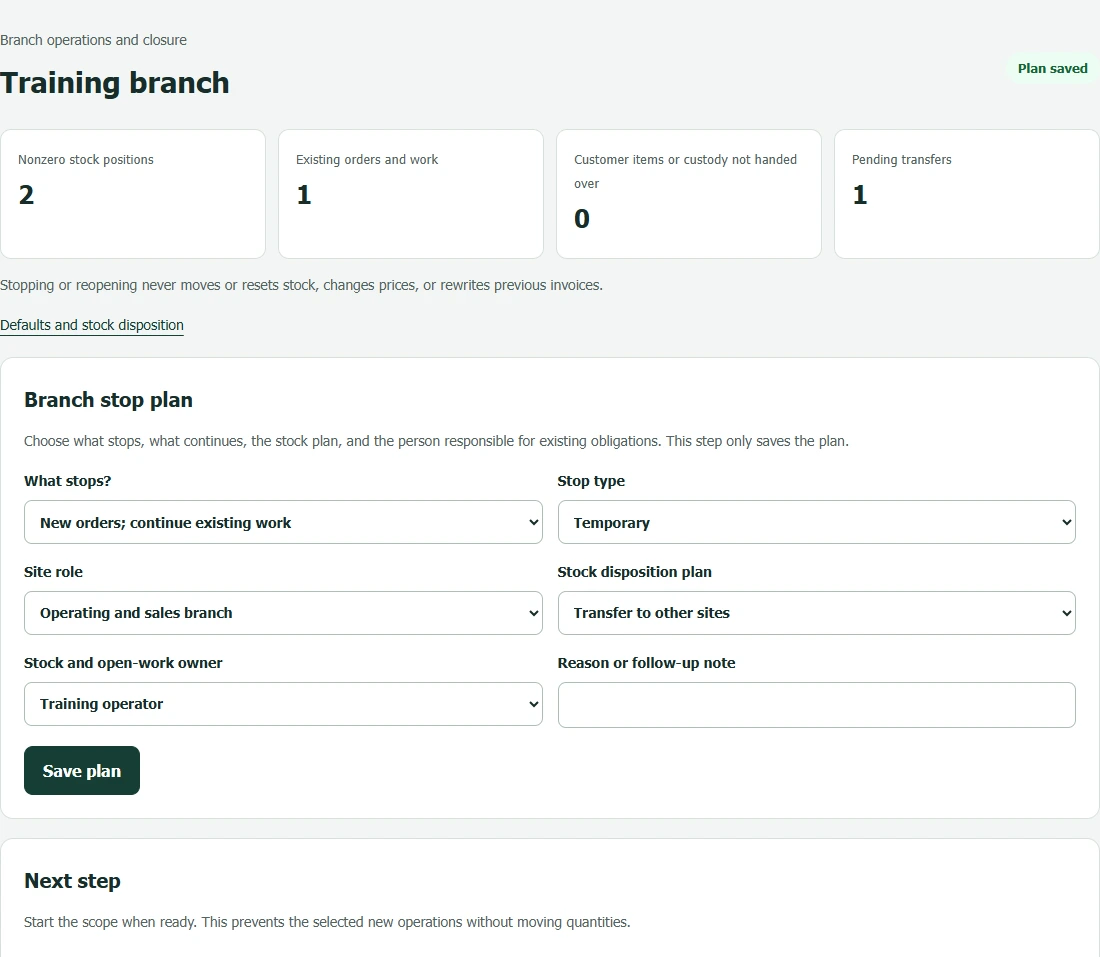
Set the suspension plan
Choose what to stop (online, sales, new orders or everything) and for how long. Enter the reason and owner, then send it for approval.
-
Decide what happens to stock
For each quantity choose keep, transfer, liquidate or return. Record the count and link it to the plan before executing.
-
Reopen the branch
Click Begin reopening and complete the required steps. Test POS, staff sign-in and online ordering before announcing it.
Fields and buttons
| Field or button | When to use it | Result and how to check |
|---|---|---|
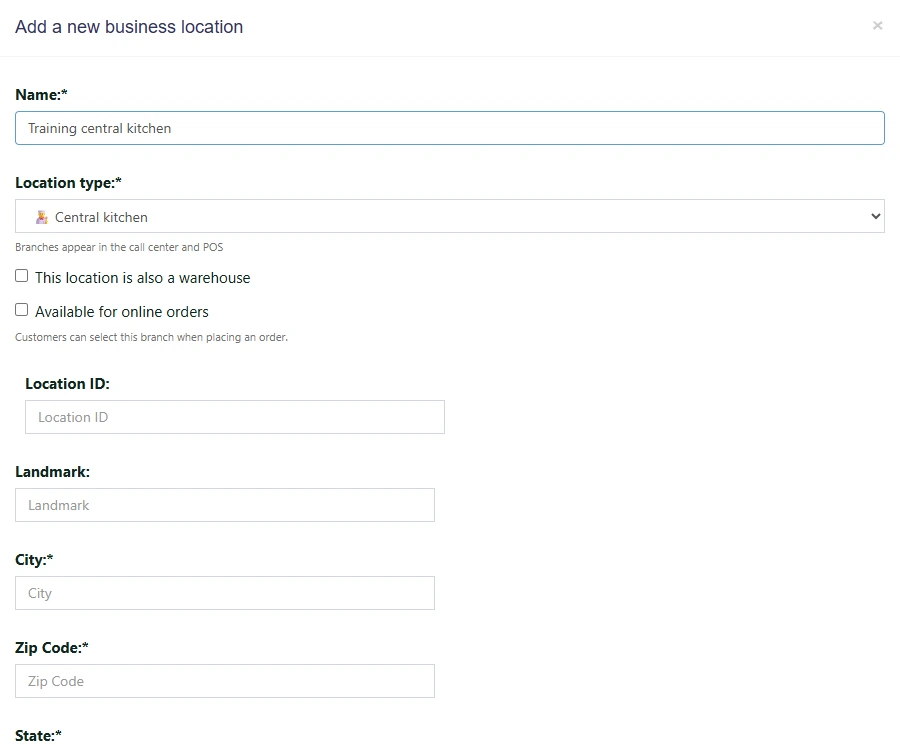
| Name and location ID | Use an unambiguous label across outlets and central kitchens. | Match label and ID in POS, purchases and production before initial movements. |
| Location type / Warehouse / Online order | Set location type and enable online ordering for a branch that can actually fulfill orders. | Test that users can select the branch or warehouse in the intended workflow. |
| Address and contact fields | Enter required city, country and postal fields plus relevant phone or secondary location details. | Check app and receipt displays when the layout exposes those fields. |
| Invoice scheme and layout | Assign POS and sale scheme and layout if using both workflows. | Verify invoice reference and receipt format for each enabled source. |
| Default selling price group | Use it when branch pricing differs and confirm channel menu pricing separately. | Test the item in branch POS and storefront with matching add-ons and promotion. |
| Payment methods and default accounts | Enable the branch's accepted tenders and choose the approved account when accounting applies. | Test a cash or card payment in training and review its recorded tender and account. |
Screen images
Worked example
Suspending one branch's online channel
Training example. A branch is carrying out maintenance in its dispatch area. Choose the online scope if only that channel must stop, decide how to handle open orders, and test the storefront and branch around the approval.
From ChatGPT or Claude
Once KEMET is connected to your assistant, copy and send this request:
Show the branch suspension or reopening status and its latest recorded events.
The assistant reads data right away. Any change is shown to you in KEMET for approval before it runs, within your account permissions only.
Tools the assistant uses here
restaurant_get_branch_lifecycle_statusrestaurant_list_branch_lifecycle_event_logrestaurant_list_branch_disposition_plans
Verify the result
- Branch, scope and reason are visible in the event history.
- Remaining inventory and obligations are accounted for, and reopening was approved for the intended branch.
Common problems
The plan is saved but approval is unavailable
Check approval permission, access to the branch and completion of the required preparation steps.
The count no longer matches when saving
Refresh the branch, review movements since the original count, and validate the quantities and reference after reconciling.
For: Restaurant owner Branch manager Accountant
Screens and buttons depend on your account permissions and branches. Images show KEMET with training data.