
Audit roles and permissions from an employee account
Check screen access, action permissions and branch scope. Trace recorded activity after a change.
Steps
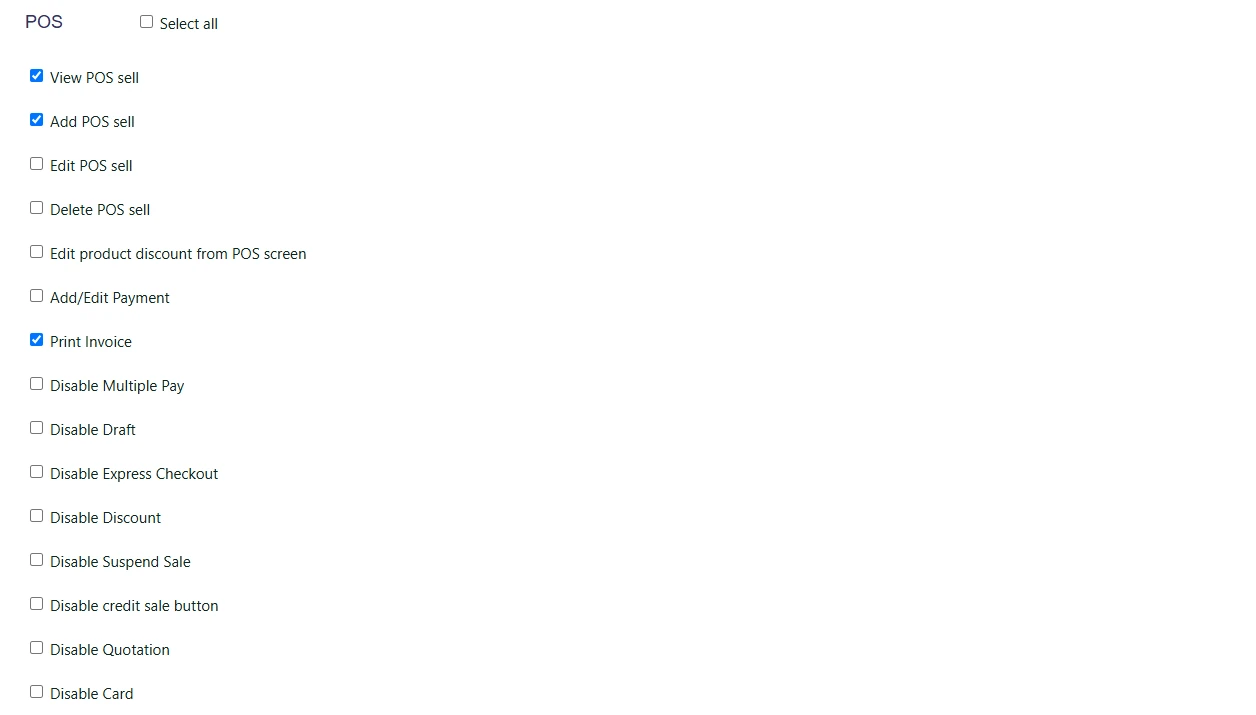
-
Role is not branch
The role sets what the employee can do. Allowed branches are set on the employee's account.
-
Copy a role for a new job
Use Clone role, name it after the job and tick only the permissions needed.
-
Test as the employee
Sign in as them and check they can do their work but not sensitive actions like editing payments.
-
Activity log
If something differs, open the activity log in Reports and filter by date and user.
Fields and buttons
| Field or button | When to use it | Result and how to check |
|---|---|---|
| Module enabled | Check the company's feature availability before changing a role. | Module availability is managed separately from staff rights. |
| Role and action permission | Grant screen view, then specific create, edit or approval access where required. | Verify screen and action using a representative account. |
| Permitted locations | Assign only the operating branches the user needs. | Test one permitted and one blocked branch on a list or document. |
| Journal and account access | Assign accounting access independently from help, catalog or POS access. | Check financial actions and data under appropriately granted roles. |
Worked example
A supervisor role separate from cashier duties
Training example. The cashier can record sales and collections in Branch 1. The supervisor can review and approve its settlement. Test each account and verify that the Branch 1 user cannot open Branch 2 from another screen.
From ChatGPT or Claude
Once KEMET is connected to your assistant, copy and send this request:
Show the roles in my company and the staff assigned to them.
The assistant reads data right away. Any change is shown to you in KEMET for approval before it runs, within your account permissions only.
Tools the assistant uses here
restaurant_list_company_security_rolesrestaurant_list_company_staff_directory
Verify the result
- The account can perform permitted work in its assigned branches.
- The administrator can trace a recorded change through the log or its source document.
Common problems
The employee can open the screen but an action is missing
Check the action permission, module settings and document state, then retest with the employee account.
A role change affects other employees
Review the role's members before broadening it. Use a separate role when the change is for one person and retest affected accounts.
For: Restaurant owner Branch manager Accountant
Screens and buttons depend on your account permissions and branches. Images show KEMET with training data.