
Set company currency, time zone and business day
Set money and quantity display, and give shifts, reports and day close the intended operating-day boundary.
Steps
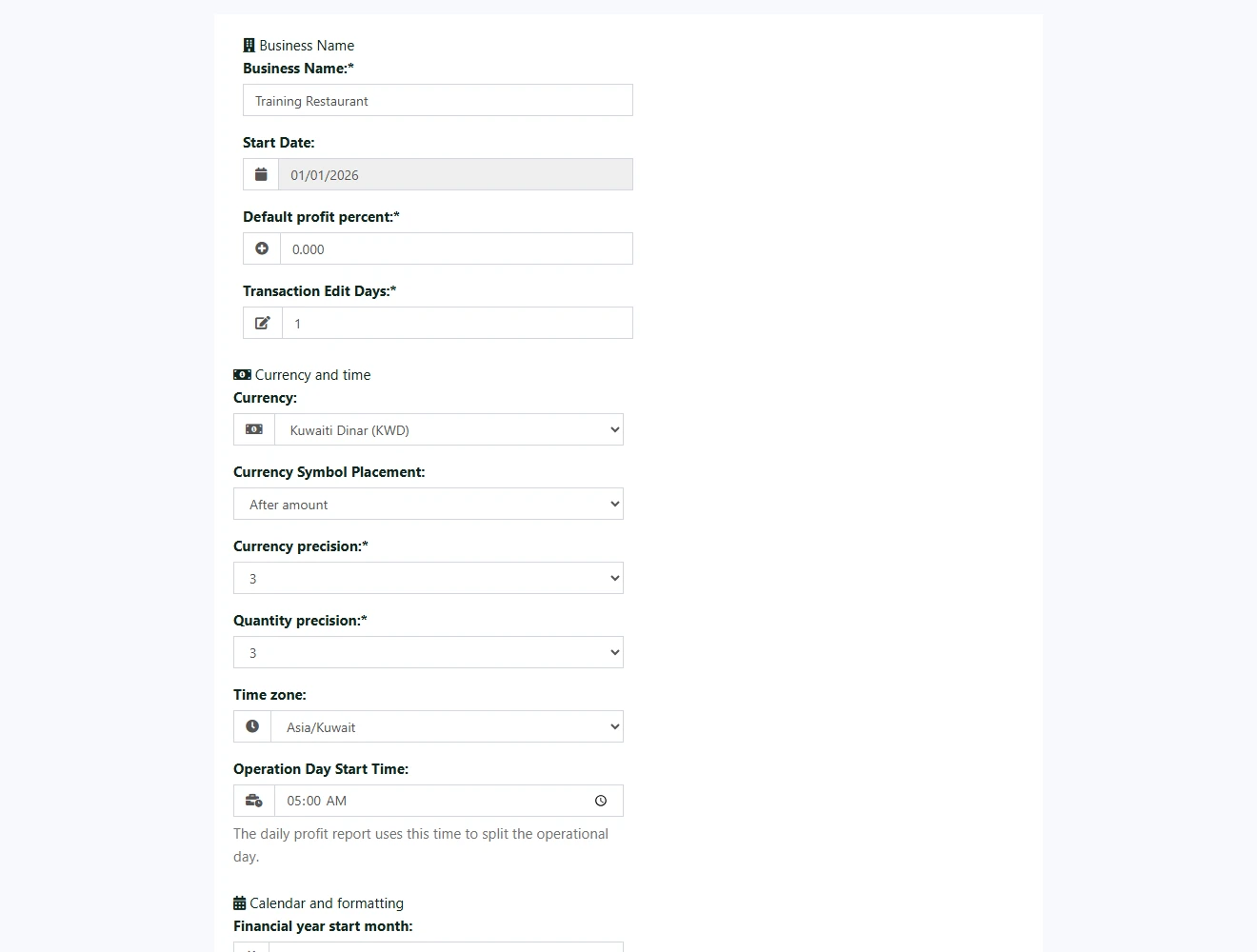
-
Open business settings
From Settings, open Business settings. Check the company name and start date.
-
Set currency and decimals
Choose the currency, symbol position and decimals for amounts and quantities (3 decimals for KWD).
-
Set time zone and day start
Choose the time zone and operating-day start time. If you close after midnight, start the day at, say, 5 am.
-
Check the financial year
Set the financial year start month. Open Accounting periods and make sure the current period is open.
Fields and buttons
| Field or button | When to use it | Result and how to check |
|---|---|---|
| Business name and start date | Match the intended company's identity. | Verify company identity in the app and receipt layout. |
| Currency and currency precision | Set currency and the displayed decimal places, from 0 to 4, according to the approved setup. | Compare invoice total and payment values in the configured currency. |
| Quantity precision | Select precision that can show fractional units, especially kg and litres. | Check a 1.250 kg receipt and matching stock movement. |
| Time zone and business-day start time | Set the applicable time zone and boundary for late shifts. | Check operating-date views and shifts across midnight. |
| Fiscal year start month | Set it from the company's approved fiscal calendar. | Check Accounting Periods separately for each open or closed range. |
Worked example
Service extends past midnight
Training example. With a 05:00 operating-day start, test a 01:15 order and shift close at the same branch. Confirm the business date shown in Remaining stock and the closure view.
From ChatGPT or Claude
Once KEMET is connected to your assistant, copy and send this request:
Show my branch settings: time zone and operating-day start.
The assistant reads data right away. Any change is shown to you in KEMET for approval before it runs, within your account permissions only.
Tools the assistant uses here
restaurant_get_branch_operating_configurationrestaurant_list_branches
Verify the result
- Invoice values and stock quantities display with the configured precision.
- Remaining stock and closure show the expected business date for the training branch.
Common problems
The shift appears on another date
Check time zone, operating day start and filters. Compare movement and shift dates before changing company settings.
Quantity is rounded on screen
Check quantity precision and the product unit and receipt line. Reconcile against the stock movement.
For: Restaurant owner Branch manager Accountant
Screens and buttons depend on your account permissions and branches. Images show KEMET with training data.