
Set up accounting periods, locks and closure
Review date boundaries and use the allowed status action after checking the period's postings.
Steps
-
Open accounting periods
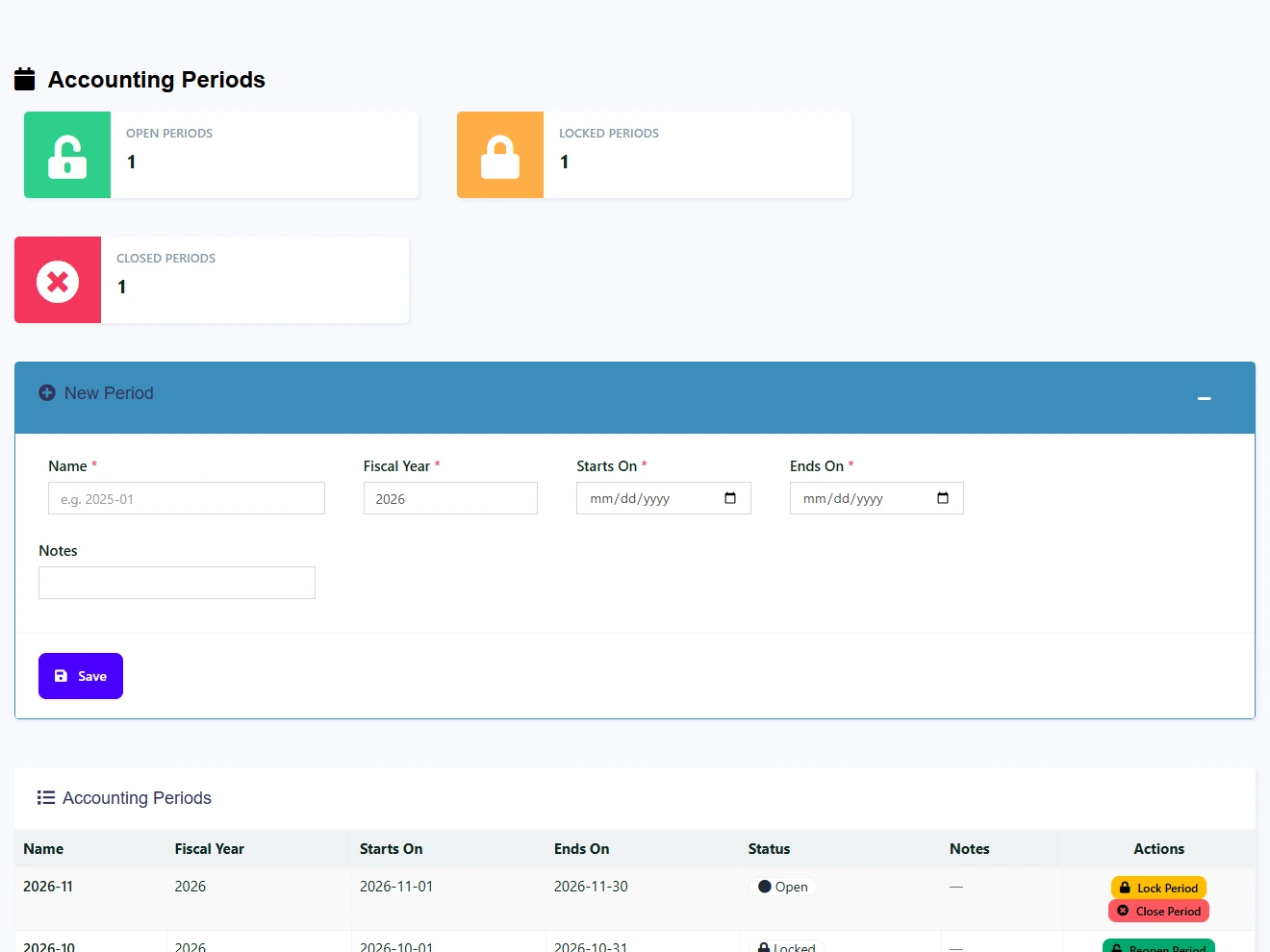
In Accounting, open Accounting periods. Each period shows whether it is open or locked.
-
Add a new period
Enter the name, year, start and end dates. Dates cannot overlap an existing period.
-
Lock after review
Review the period reports first. Then choose Lock or Close on the period row.
-
Reopen only with a clear reason
For a correction in a locked period, agree the reason with your accountant. Use Reopen if it is available to you, then correct from the document.
Fields and buttons
| Field or button | When to use it | Result and how to check |
|---|---|---|
| Name and fiscal year | Use a recognizable period label and the intended fiscal year. | The period table shows label, fiscal year, dates and status. |
| Starts on / Ends on | Set a non-overlapping date range with end on or after the start. | A valid new period is created as Open. |
| Lock | Use after reviewing the period and supporting reports. | Review status and reason before handling posting for dates in that period. |
| Close / Reopen | Select the matching row action after accounting review and record the reason when requested. | Confirm the new state and retry an approved pending entry from its source. |
Worked example
November and December
Training example. If November runs from November 1 through 30, start December on December 1. Starting November 30 would overlap the existing period.
From ChatGPT or Claude
Once KEMET is connected to your assistant, copy and send this request:
Show my accounting periods and lock dates.
The assistant reads data right away. Any change is shown to you in KEMET for approval before it runs, within your account permissions only.
Tools the assistant uses here
restaurant_list_company_accounting_periods
Verify the result
- The new period displays as Open with the intended fiscal year and dates.
- Journals and period reports were reviewed before changing the status.
Common problems
The period is rejected
Check start, end and overlap with the company's other periods.
A document will not post despite correct accounts
Check document date and covering period status, then inspect the original posting message.
For: Restaurant owner Accountant
Screens and buttons depend on your account permissions and branches. Images show KEMET with training data.