
Close the branch business day after operational and accounting checks
Review shifts, pending documents and prepared stock before closing the branch's business day.
Steps
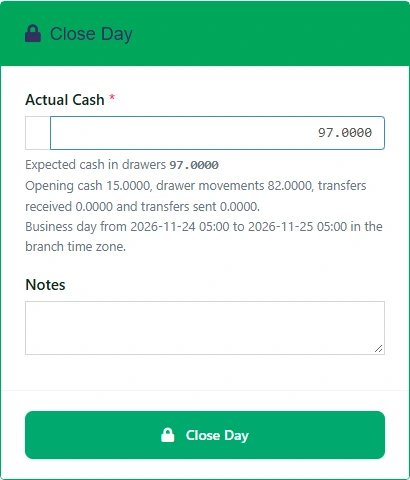
-
Choose the right day
Open branch day close. If service ran past midnight, make sure you are on the correct business day.
-
Check shifts and payments
Make sure all shifts are closed and cash and card totals are reviewed.
-
Review leftovers and returns
Record leftover food as carried forward or waste. Review returns and refunds.
-
Close the day
After clearing blockers click Close day and keep the summary.
-
Any difference? Go to the document
If cash or card is off, note the invoice, amount and shift, and correct the payment itself instead of collecting again.
-
Sales differ from collections
Compare net invoices with the sales report, and cash/card with the collection report. A deposit or an old invoice payment can explain a normal difference.
Fields and buttons
| Field or button | When to use it | Result and how to check |
|---|---|---|
| Branch and business date | Match branch and business date to shift summary. Account for post-midnight trading per setup. | Compare closure and reports using the same branch day and scope. |
| Shifts and cash drawer | Check shift status, counted cash and terminal totals from their sources. | Order value and bank deposits are reconciled independently alongside physical cash. |
| Unposted documents or payments | If closure is blocked, inspect same-day documents and payments and the accounting period. | Resolve the source posting with an authorized role and recheck closure. |
| Closing record | Review figures and explanations before posting the closing record. | Keep reference and scope for subsequent accounting review. |
Screen images
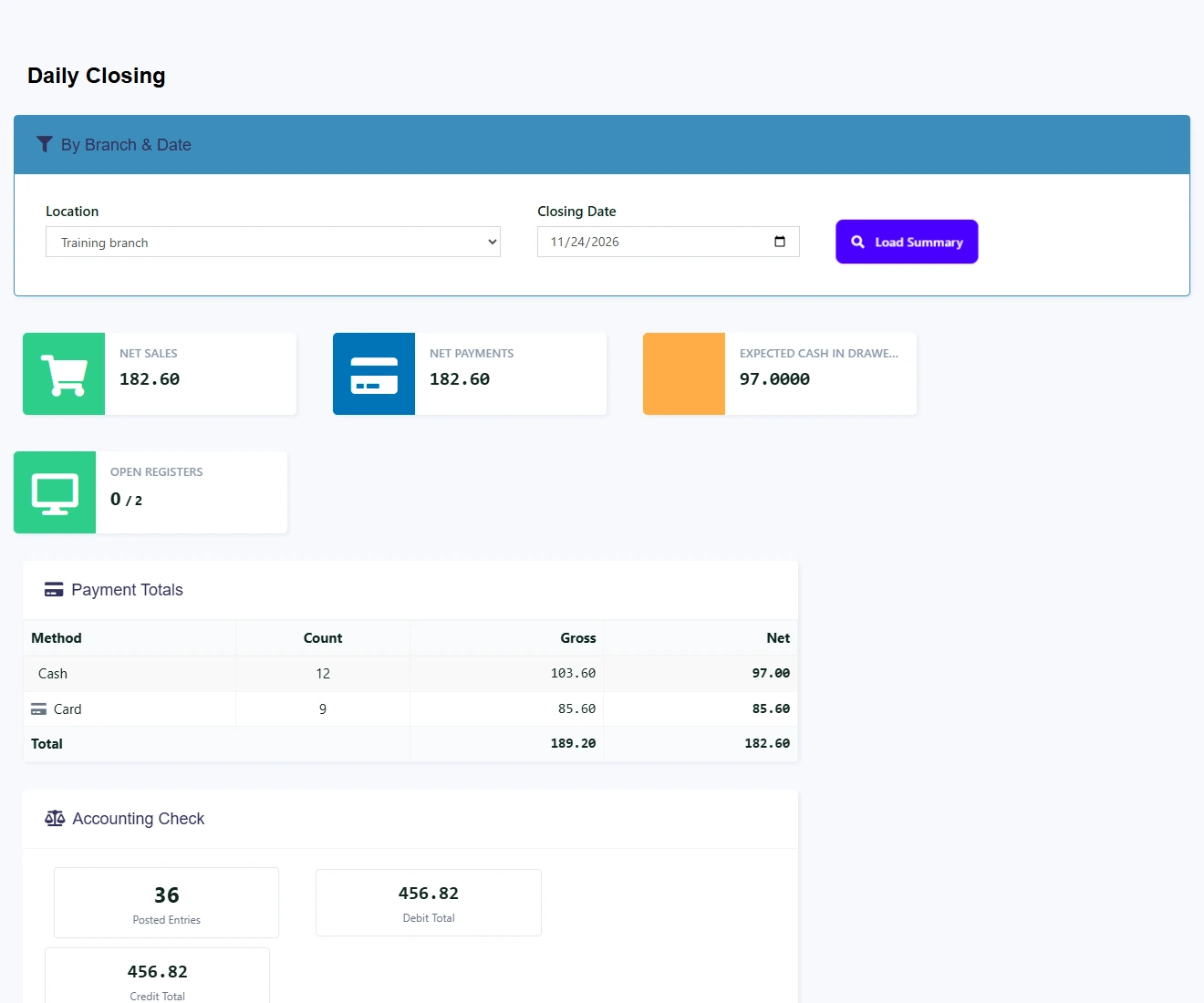
Worked example
Shift ends after midnight
Training example. Saturday service finishes at 1:00 a.m. on Sunday. Use the business date shown on shift and closure documents and the same scope in collection and sales reports.
From ChatGPT or Claude
Once KEMET is connected to your assistant, copy and send this request:
Show my branch's day summary and close the day if everything matches.
The assistant reads data right away. Any change is shown to you in KEMET for approval before it runs, within your account permissions only.
Tools the assistant uses here
restaurant_native_sell_daily_closing_summaryrestaurant_report_branch_closing_cash_controlsrestaurant_propose_close_business_dayrestaurant_propose_reopen_business_day
Verify the result
- All shifts for the date were reviewed and closure branch and business date are visible.
- Any variance or unresolved item has a document reference and assigned follow-up.
Common problems
Closure reports unposted documents or payments
Open linked source documents and check period, postings and account mappings. Run the close check again after resolving the issue.
Sales date and bank payout date differ
Use business date for sales and bank deposit date and clearing reference for gateway or channel settlements.
For: Branch manager Accountant Restaurant owner
Screens and buttons depend on your account permissions and branches. Images show KEMET with training data.