
Make your first POS sale
Select the branch, service type and items. Review the order before sending it to the kitchen or taking payment.
Steps

-
Open POS
Check the branch name at the top. Open Menu and choose the order type: takeaway, delivery or pickup.
-
Add items
Search by name or code. Check quantities and add-ons in the cart.
-
Choose customer or table
For delivery choose the customer and address. For dine-in choose the table.
-
Send to the kitchen
Click Save and send to kitchen. The order appears in Orders.
-
Collect payment
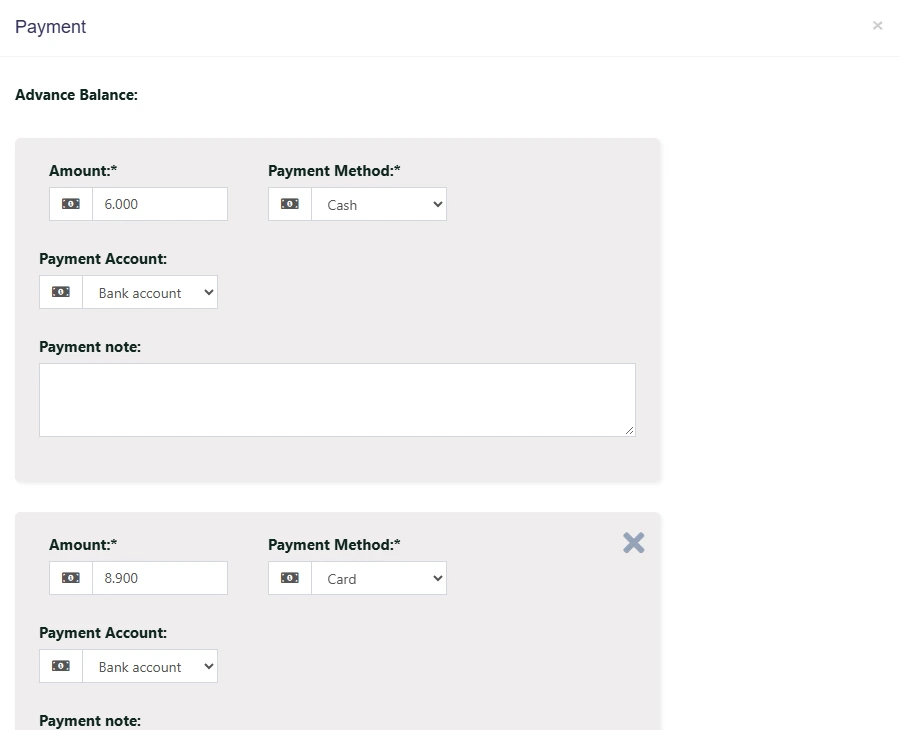
Click Pay, choose the method you received, check the total and confirm.
Fields and buttons
| Field or button | When to use it | Result and how to check |
|---|---|---|
| Branch | Choose it before adding the first item and verify available menu and stock. | The order branch determines preparation, stock and the collection shift. |
| Menu | Choose the branch menu or the assigned channel menu when prices differ. | Compare the selected menu and price shown on the item and in the cart. |
| Dine-in / Takeaway / Delivery / Pickup | Set the service type before checkout. Use a table for dine-in and an address for delivery as applicable. | The fulfillment type changes required fields and how staff see the order. |
| Add customer | Use this when the order needs a customer account or a saved address. | Verify the selected customer, phone or address before confirming payment or delivery. |
| Add or edit item | Choose size and modifiers, then confirm quantity and a note on the appropriate line. | Compare the item price, modifier, discount and total before sending. |
| Save & Send to Kitchen | Use it when the kitchen needs to prepare the order. Use the same reference for later additions. | Check the order appears for the correct branch, station and fulfillment type. |
| Pay | Use when the amount and tender are known and the shift is open. | Checkout shows the amount and allowed tenders. After confirmation, verify invoice and recorded method. |
| Confirming after a slow response | If payment was physically received or the terminal approved it, first find the invoice and payment state. | Confirm a single posting for the reference and method before any authorized correction. |
Screen images
Worked example
Simple demo sale
Add a KWD 3.500 meal and a KWD 1.000 drink. The total is KWD 4.500 before discounts, fees or tax. Match the cart and invoice total before collecting.
From ChatGPT or Claude
Once KEMET is connected to your assistant, copy and send this request:
Open a takeaway order with two menu items and show the total before confirming.
The assistant reads data right away. Any change is shown to you in KEMET for approval before it runs, within your account permissions only.
Tools the assistant uses here
restaurant_list_menu_itemsrestaurant_propose_create_pos_takeaway_orderrestaurant_propose_checkout_pos_cash
Verify the result
- The order appears under the correct branch and service queue.
- The invoice shows the selected items, their modifiers and the recorded payment method.
Common problems
Checkout is unavailable
Check checkout permission, the shift and the order type. For an external order, inspect its invoice payment method and collection state.
Connection dropped after submission
Open Orders and look for the ticket in the same branch and time window before creating another order.
For: Cashier Branch manager
Screens and buttons depend on your account permissions and branches. Images show KEMET with training data.