
Configure the POS customer display
Enable the display where your sales workflow supports it. Verify heading, images and cart synchronization on the customer screen.
Steps
-
Turn on the customer display
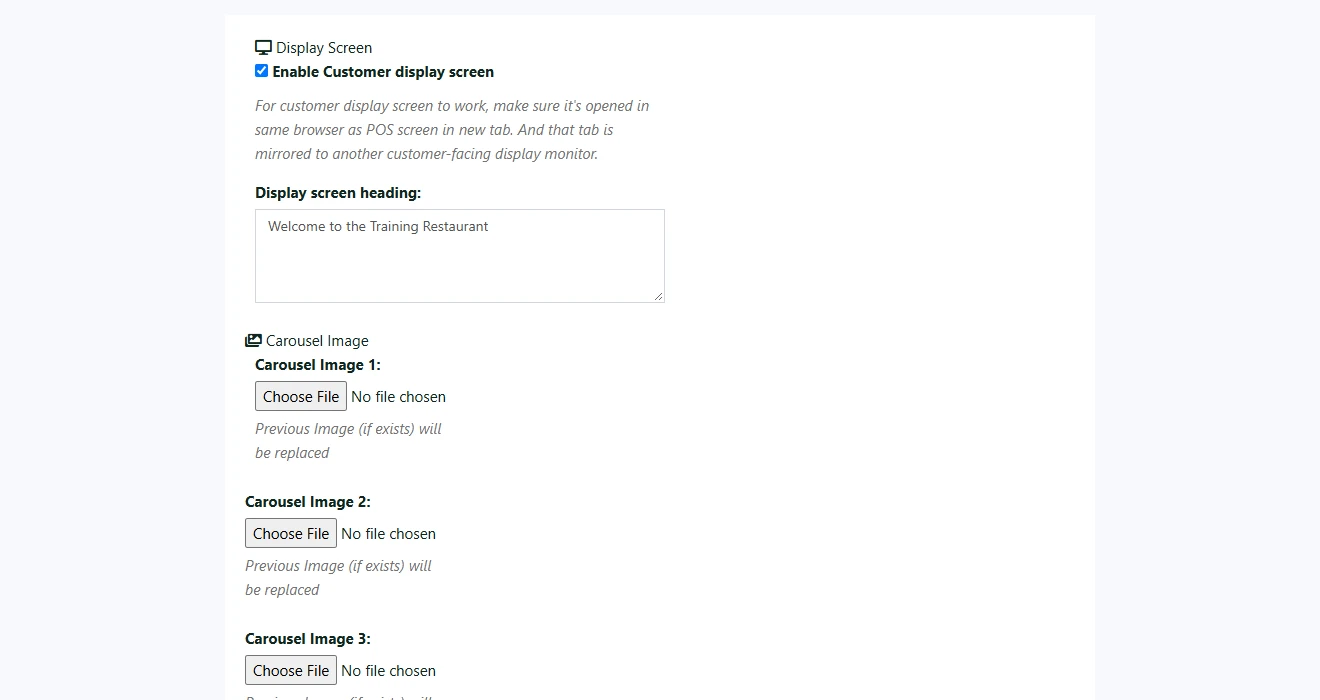
In Business settings → POS → Display screen, tick “Enable customer display”.
-
Add a welcome and images
Write a short welcome message and upload restaurant images.
-
Open the customer display
From POS open the customer display in a new tab and move it to the screen facing the guest.
-
Test an order
Add an item and change its quantity. The total should update on both screens.
Fields and buttons
| Field or button | When to use it | Result and how to check |
|---|---|---|
| Enable customer display | Enable for a point-of-sale workflow that exposes the display action. | Open the customer window and verify it follows the intended cart. |
| Display screen heading | Enter appropriate customer-facing text. | Verify heading on the display after saving. |
| Carousel images | Use the required slots, up to 10, with appropriately sized images. | Preview on the actual customer-facing display. |
| Second browser tab | Open customer display in the same browser and move it to the second screen. | Compare item count and total after a training cart change. |
Worked example
Checking a training price
Training example. Add two KWD 1.250 items and check the customer display shows quantity two and KWD 2.500 before applicable fees or discounts.
From ChatGPT or Claude
Once KEMET is connected to your assistant, copy and send this request:
Show the receipt and customer display settings for my branch.
The assistant reads data right away. Any change is shown to you in KEMET for approval before it runs, within your account permissions only.
Tools the assistant uses here
restaurant_get_branch_operating_configurationrestaurant_propose_change_branch_receipt_settings
Verify the result
- The display is on the intended customer-facing window in the same browser.
- The training cart total matches what the cashier sees.
Common problems
The screen is open and the cart does not update
Check enablement and the POS entry point, then open both tabs in the same branch browser session and test a single item.
Carousel images are missing
Check image assignment in settings, save and reopen the display at the intended screen size.
For: Restaurant owner Branch manager Cashier
Screens and buttons depend on your account permissions and branches. Images show KEMET with training data.