
Add a customer and save a delivery address
Find an existing contact before creating one, then select the actual address for each order.
Steps
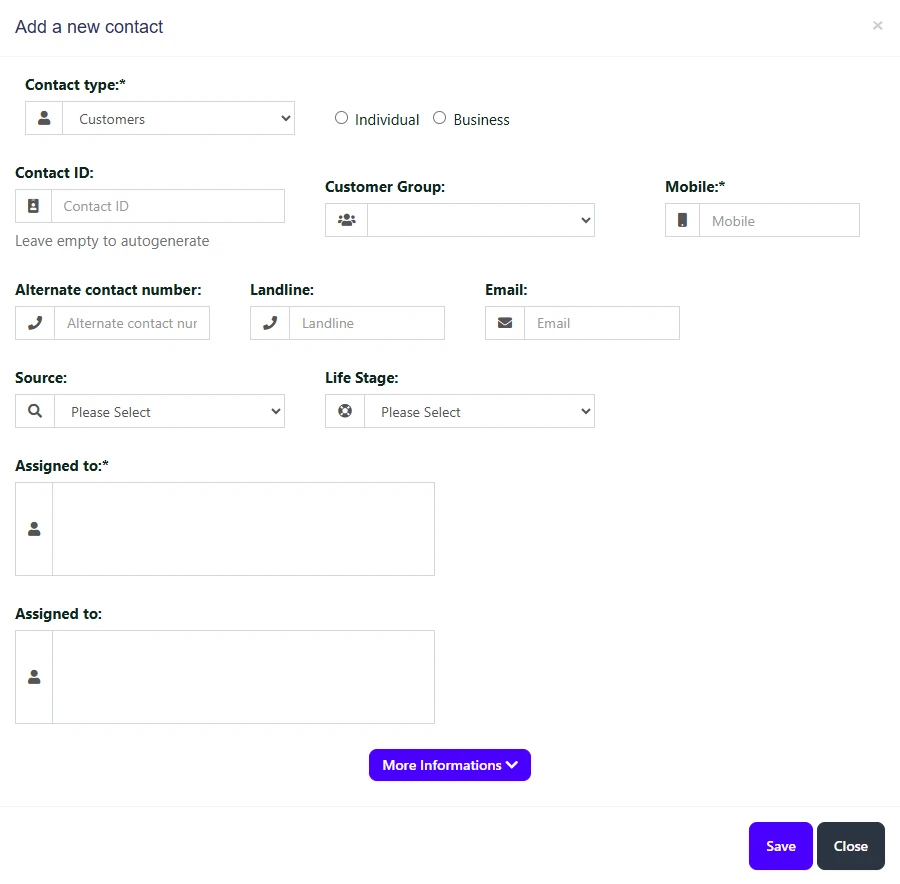
-
Search first
Search the customer by name or mobile before adding a new one.
-
Enter name and mobile
Choose Customer and enter the name and mobile. Other fields are optional.
-
Save the delivery address
In the delivery order pick a saved address or add one, checking area and building.
-
Check the cart
Return to the cart and check the customer and address before confirming.
Fields and buttons
| Field or button | When to use it | Result and how to check |
|---|---|---|
| Contact type | Choose Customer for selling and delivery addresses. | The contact appears in POS customer selection with the proper permission. |
| Name and mobile | Record the phone verified by the guest and search it before creating. | Test name or phone lookup in customer selection with an allowed account. |
| Customer group | Choose one if the company uses group pricing or customer conditions. | Check cart price and discount for that customer. |
| Address | For guests with multiple addresses choose the one confirmed for the current order. | Verify service branch, delivery zone and order reference before dispatch. |
| Opening balance and pay term | Review when setting up migrated customer balances or credit terms. | Check the contact ledger after accounting approves the opening amount. |
Worked example
Home and work addresses
Training example. A contact has a home in zone A and work in zone B. Use the address confirmed for this order and verify its delivery area and fee before sending.
From ChatGPT or Claude
Once KEMET is connected to your assistant, copy and send this request:
Create a new customer with name and mobile, or update an existing customer's number.
The assistant reads data right away. Any change is shown to you in KEMET for approval before it runs, within your account permissions only.
Tools the assistant uses here
restaurant_propose_create_customerrestaurant_propose_update_customer_identityrestaurant_get_customer_pricing_and_credit_terms
Verify the result
- One reusable contact is available and the selected address reaches dispatch staff.
- Order and invoice reference the intended contact.
Common problems
Multiple contacts share a phone number
Identify the correct contact using name and address and ask a manager to review records. Check linked invoices before any consolidation.
The address is saved and delivery is unavailable
Check branch, service area and hours. A saved address does not activate delivery coverage.
For: Cashier Waiter Branch manager
Screens and buttons depend on your account permissions and branches. Images show KEMET with training data.