
Reserve a table and manage arrivals
Book the guest, branch and time window, then review overlaps and guest arrival status.
Steps
-
Open bookings
In Bookings choose branch and date and see available tables.
-
Add a booking
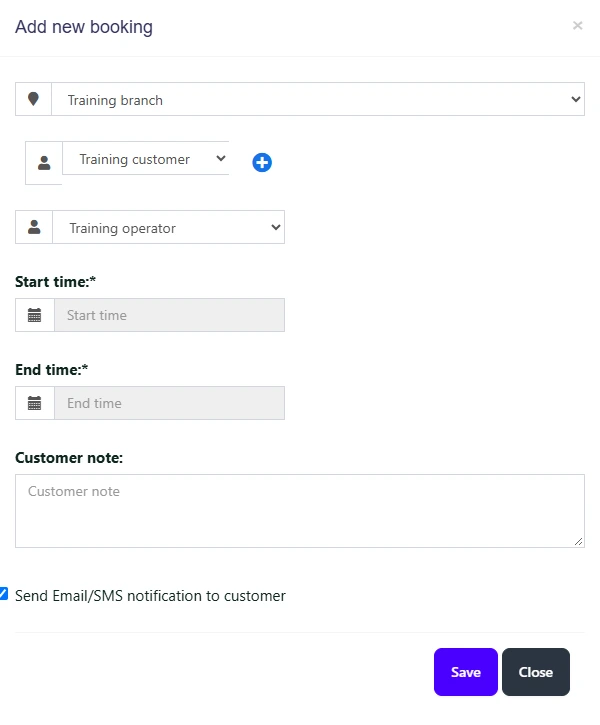
Click Add new booking and choose the customer, start and end time and table.
-
Change the status
In booking details click Change booking status: confirmed, seated, no-show or cancelled.
-
When the guest arrives
Open the table order from POS.
Fields and buttons
| Field or button | When to use it | Result and how to check |
|---|---|---|
| Branch and customer | Select the service location and existing customer contact. | Verify the customer and branch in the saved booking. |
| Start time and end time | Use the confirmed reservation window. End must follow start. | Choose an alternative for conflicts on the assigned table or staff. |
| Table and service staff | Assign where available and check capacity and timing. | Verify assignee and table in booking details. |
| Change booking status | Update to the actual result when the guest confirms, arrives or cancels. | Verify Today's bookings, then open a table order when service begins. |
Worked example
An overlapping table reservation
Training example. A04 is reserved from 19:00 to 20:30. If a 20:00-to-21:00 booking conflicts, check the interval and offer a different table or a time after 20:30.
From ChatGPT or Claude
Once KEMET is connected to your assistant, copy and send this request:
Show today's table bookings and deposit status.
The assistant reads data right away. Any change is shown to you in KEMET for approval before it runs, within your account permissions only.
Tools the assistant uses here
restaurant_list_table_bookingsrestaurant_get_table_booking_lifecyclerestaurant_report_booking_deposit_status
Verify the result
- Booking details show the guest, branch and time, and the assigned table is correct where used.
- Today's booking list shows the statuses floor staff need to follow.
Common problems
The booking overlaps an existing reservation
Check time, table or staff assignment, and choose an available alternative before saving.
A colleague's bookings are not visible
Check branch and date filters and your role. Own-booking access may show only entries assigned to you.
For: Waiter Branch manager Restaurant owner
Screens and buttons depend on your account permissions and branches. Images show KEMET with training data.