
Open a table order, serve it and close the bill
Open a table on the floor plan, send its items to the kitchen, and add later items to the same check before collecting.
Steps
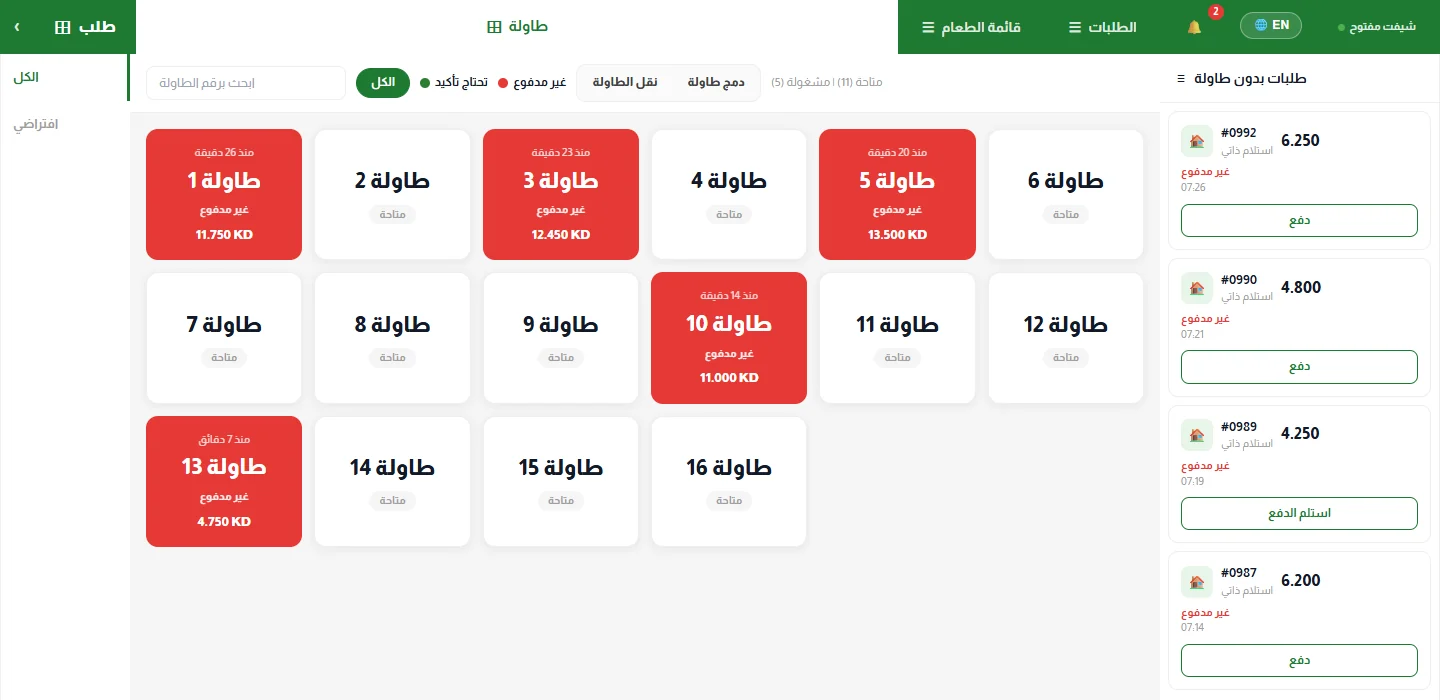
-
Read the table status
In the Table tab: Available = new order, Occupied = existing order, Awaiting payment = bill, Pending confirmation = QR request.
-
Open the table and add items
Tap the available table and add items, quantities, add-ons and notes.
-
Send to the kitchen
Click Save & send to kitchen. Later additions go on the same table and order.
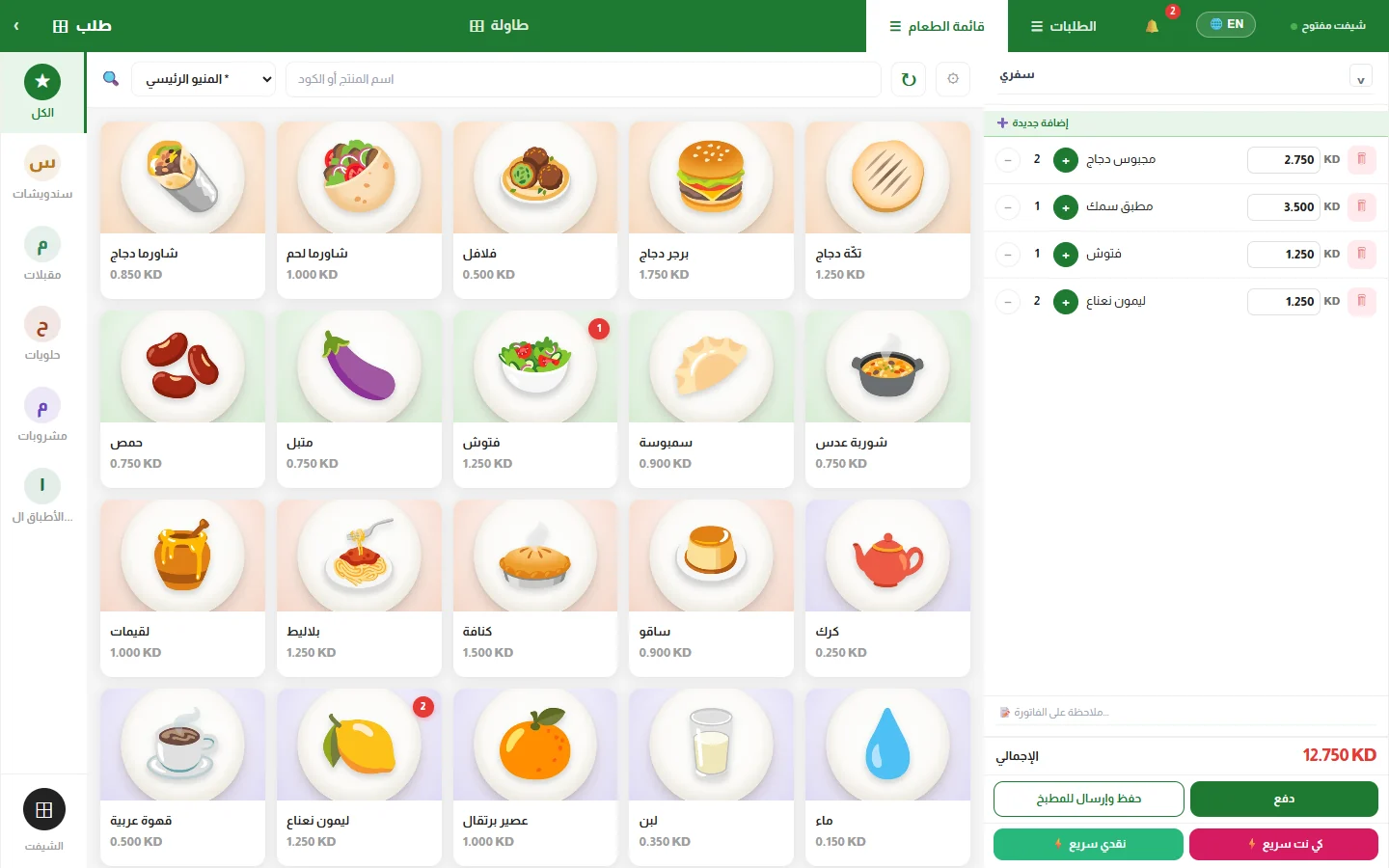
شاشة الكاشير، من اختيار الأصناف لحد الدفعView full size -
Show the bill
Open the table and check items and prices. If guests want separate bills, split before paying.
-
Collect and free the table
Click Pay and record amount and method. The table should clear after payment.
Fields and buttons
| Field or button | When to use it | Result and how to check |
|---|---|---|
| Available | For a new order, select the available card in the intended branch. | Confirm table label in the cart. |
| Pending confirmation | Open the order or QR request preview and check status before dispatch. | Acceptance links the order to the table and configured kitchen workflow. |
| Awaiting payment | Review the bill and previous payments before collecting the outstanding amount. | After paying, check invoice and any other orders still open at the table. |
| Move or merge | Use Move to an empty destination and Merge for two eligible orders. Pick the table to keep first. | Check order number, lines and total at destination. |
Worked example
An addition after the first send
Training example. Table A04 orders two mains for KWD 7.000, then a KWD 1.000 drink. Reopen the same order so the addition reaches the kitchen and appears on the KWD 8.000 bill before fees or discounts.
From ChatGPT or Claude
Once KEMET is connected to your assistant, copy and send this request:
Open a dine-in order for table 4 with two items and show the total.
The assistant reads data right away. Any change is shown to you in KEMET for approval before it runs, within your account permissions only.
Tools the assistant uses here
restaurant_list_floor_occupancyrestaurant_propose_create_pos_dining_orderrestaurant_propose_append_pos_dining_itemsrestaurant_propose_collect_held_pos_cash
Verify the result
- The kitchen ticket shows the correct table and the selected item options.
- The invoice is paid and the table status reflects any other open orders.
Common problems
The table is missing
Check the POS branch and table management. Confirm the table belongs to that branch and your account has access.
The addition is missing in the kitchen
Check the order reference and whether the addition was sent. Match branch and station in KDS, then inspect print status on the same order.
For: Waiter Cashier Branch manager
Screens and buttons depend on your account permissions and branches. Images show KEMET with training data.