
Process an order on the kitchen display
Follow the order card from new through ready and service, and check item station routing before treating a line as missing.
Steps
-
Open the kitchen display
Open the kitchen display and choose All or your station (kitchen, bar, grill). You see order, table and notes.
-
Start preparing
Tap Start preparation when work really starts. If paused, tap Resume when you continue.
-
Mark ready
When your station's items are done tap Ready. If other stations are involved, check with the expediter.
-
Record service
When the order is served, tap the serve action. Recall puts the card back in the queue.
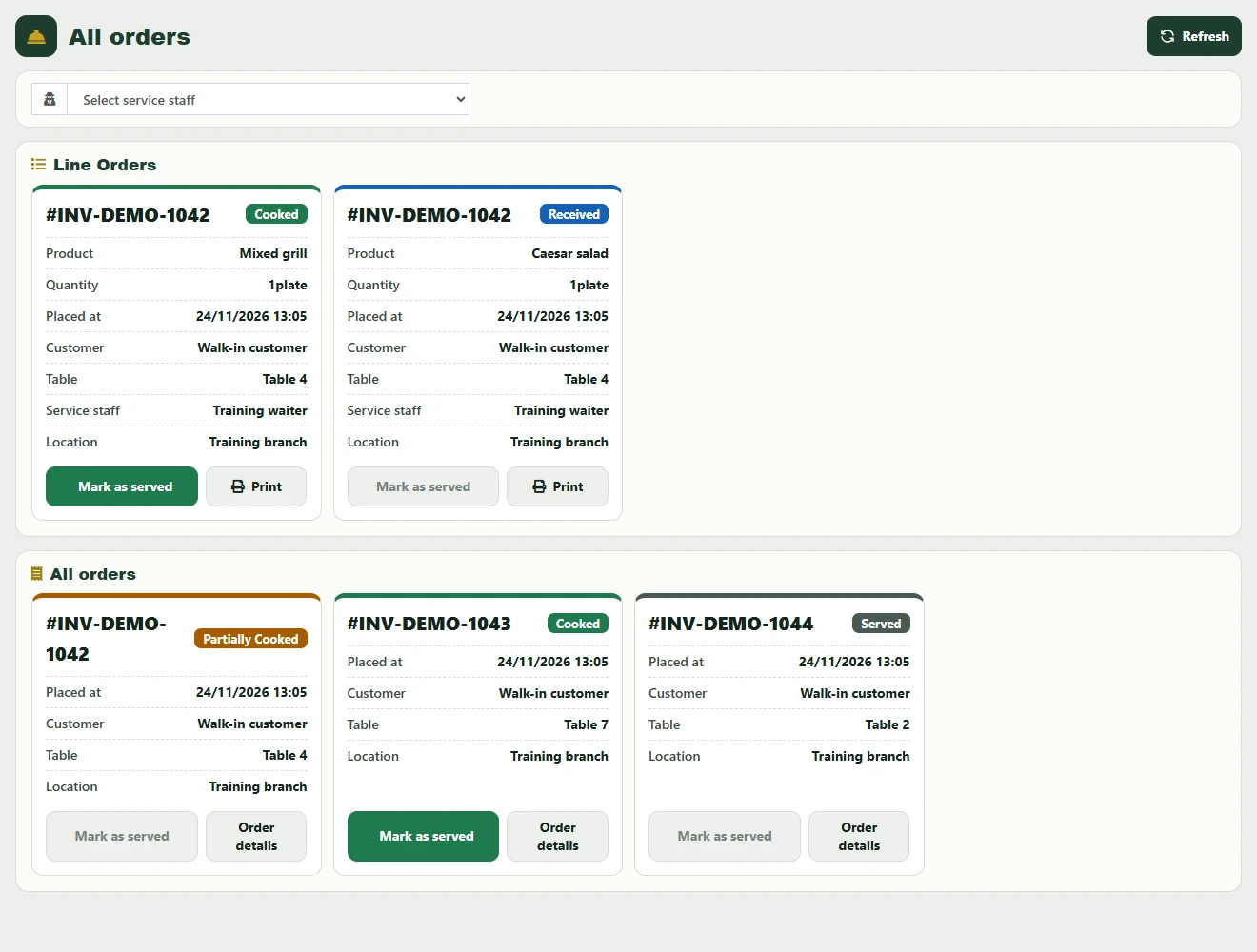
Orders board: each item and order from kitchen to serviceView full size
Fields and buttons
| Field or button | When to use it | Result and how to check |
|---|---|---|
| All / Kitchen / Bar / Grill | Pick the working station. Use All to review a ticket split across stations. | Match branch and items routed to the station. |
| Start preparation | Use when the station actually begins work on the ticket. | Preparation state and timestamp follow the recorded transition. |
| Ready / Serve | Mark station items ready when finished, then record actual service. | Verify readiness across all stations before handing over the complete order. |
| Recall / Cancel item | Use the permitted action based on line state. Cancellations after work starts are restricted. | Verify reference and quantity in POS and any affected stock or payment documents. |
Worked example
An order across two stations
Training example. A meal includes a grill item and a juice. Each station checks its own card and the expediter checks All before saying the whole meal is ready.
From ChatGPT or Claude
Once KEMET is connected to your assistant, copy and send this request:
Show current kitchen tickets and set table 4's order to high priority.
The assistant reads data right away. Any change is shown to you in KEMET for approval before it runs, within your account permissions only.
Tools the assistant uses here
restaurant_list_kitchen_ticketsrestaurant_get_kitchen_ticketrestaurant_propose_transition_kitchen_orderrestaurant_propose_set_kitchen_order_priority
Verify the result
- The right station sees its items and preparation statuses match actual work.
- Service staff can confirm order reference, destination and readiness before handover.
Common problems
An order is missing in KDS
Check branch and station, then choose All. Confirm the cashier sent the request and that QR or incoming intake was accepted.
Cancelling an in-progress item was rejected
Cancellation rules change after an item is started or ready. Ask the manager to review the operational and financial effect from the source order.
For: Kitchen team Waiter Cashier Branch manager
Screens and buttons depend on your account permissions and branches. Images show KEMET with training data.