
Move an order to a free table or merge two orders
Move the order when guests change tables, and merge two orders when they will pay one bill. Both are on the «Table» tab of the POS.
Steps
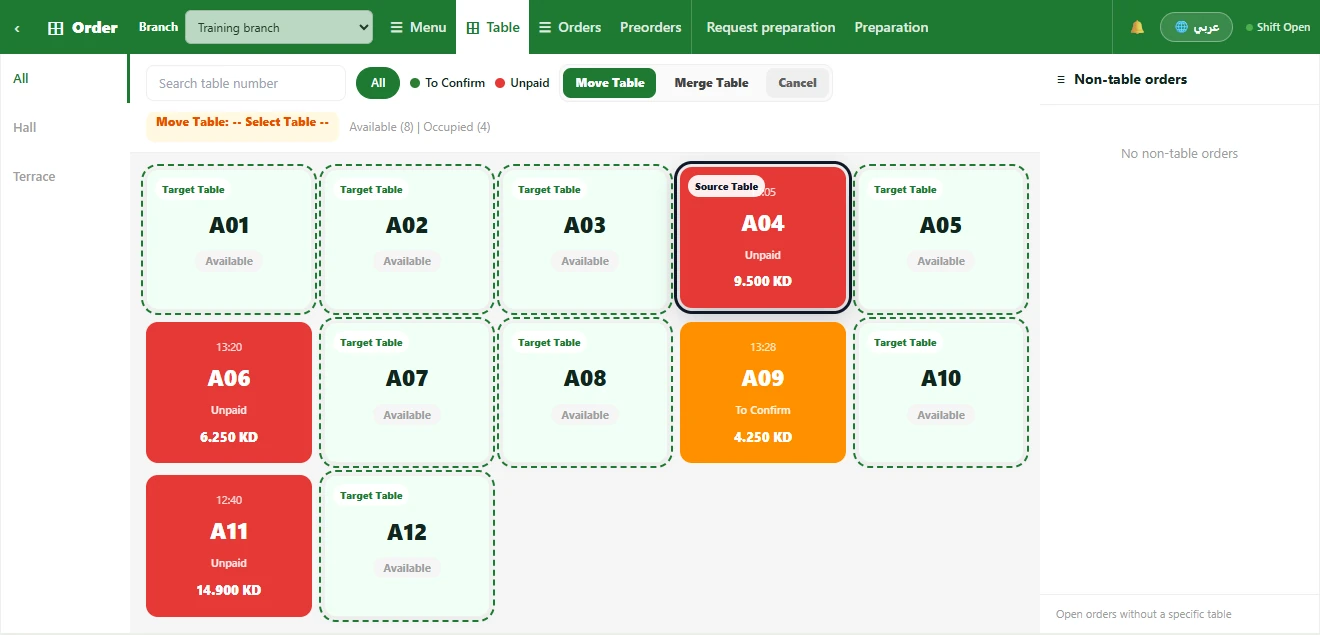
-
Open the «Table» tab
On the POS press «⊞ Table». Red tables have unpaid orders and white ones are free.
-
Move the order
Press «Move Table», then click the table with the order (it shows «Source Table»). Free tables show «Target Table»; click one and the order moves.
-
Merge two orders
Press «Merge Table». First choose the table that keeps the bill, then the other table. The second table's order joins the first and its table becomes free.
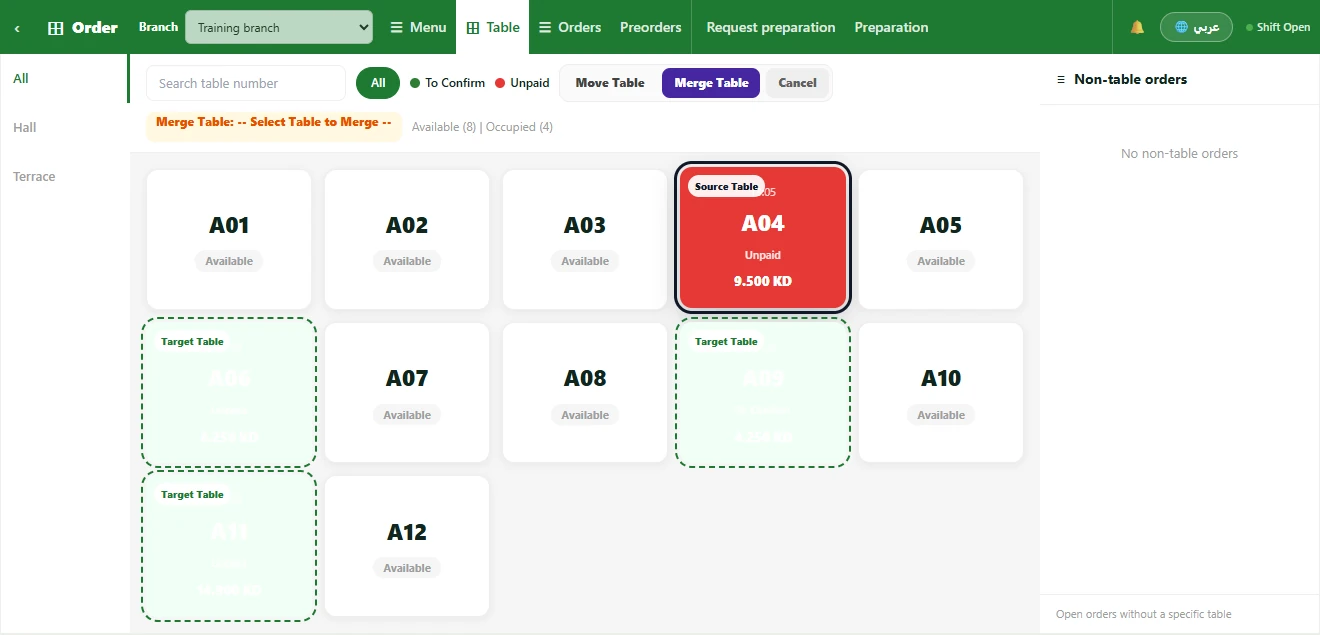
Merge table in the POS: A04 stays, then choose the table whose order joins itView full size -
Check the bill
Click the remaining table and check the items and total. Stock, journals and any partial payment move with the items, so collect once only.
-
If you change your mind
Before choosing the second table, press «Cancel» or click the same table again. Nothing changes.
Fields and buttons
| Field or button | When to use it | Result and how to check |
|---|---|---|
| Move Table | Guests moved to a free table. | The same order number is on the new table. |
| Merge Table | Two orders will be paid together. | The first table takes both orders' items and total. |
| Source Table | The first table you choose. | Move: the table whose order moves. Merge: the table that keeps the bill. |
| Target Table | Tables you can choose next. | Move: free tables only. Merge: tables with orders. |
| Cancel | You change your mind before the second choice. | Nothing changes. |
Worked example
Move or merge, depending on the situation
Training example. Guests at A04 moved to free table A07: press «Move Table», then A04, then A07. If A04 and A06 want one bill on A04: press «Merge Table», then A04, then A06.
From ChatGPT or Claude
Once KEMET is connected to your assistant, copy and send this request:
Merge table A06's order into table A04's order for the same customer, and show me the merged total before I approve in KEMET.
The assistant reads data right away. Any change is shown to you in KEMET for approval before it runs, within your account permissions only.
Tools the assistant uses here
restaurant_list_floor_occupancyrestaurant_propose_move_pos_dining_orderrestaurant_propose_merge_dining_orders
Verify the result
- Move: the same order number and items are on the new table, and the old one is free.
- Merge: the first table has both orders' items and total, and the second is free.
- Any partial payment appears on the merged bill.
Common problems
When merging, the table that stays says «Source Table»
That is expected. In a merge the first table you choose shows «Source Table» and keeps the bill; the second table's order joins it.
The table I want to move to is not marked
You can only move to a free table. If it has an order, use «Merge Table».
The merge was refused
Check that both orders belong to the same customer, are in the same branch and are open. If the accounting day is closed or the bill has recorded waste, the merge does not happen and nothing changes.
For: Waiter Cashier Branch manager
Screens and buttons depend on your account permissions and branches. Images show KEMET with training data.