
Split a table's items between two bills
Make a separate bill for one guest's items on the same table. Service charge, tax and discount are shared automatically, and stock and journals follow the items.
Steps
-
Open the floor map
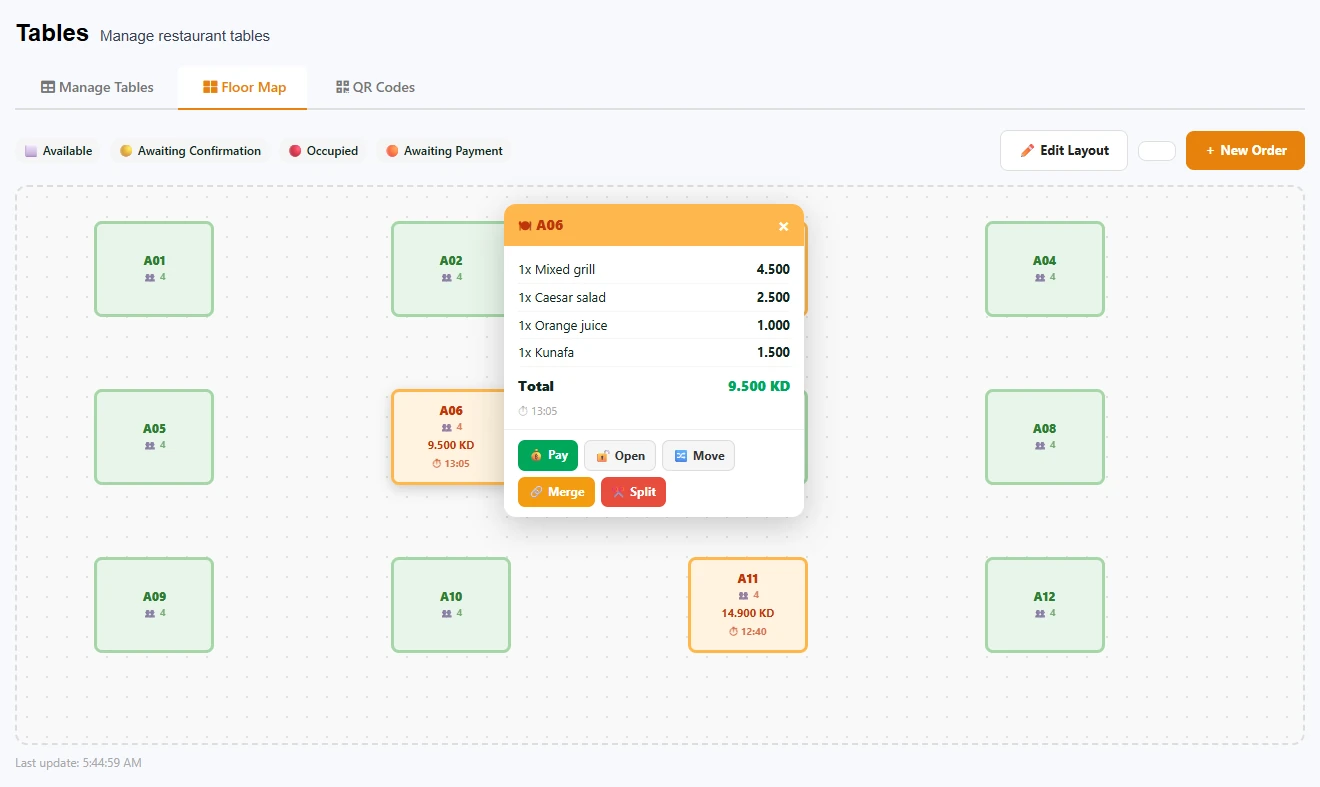
From the menu open «Tables» and choose the «Floor Map» tab. Click the table with the order to see its items and total.
-
Press «✂️ Split» and tick the guest's items
In the «✂️ Split Invoice» window tick the items for the new bill. Below you see the «New Invoice» and «Original Invoice» amounts. At least one item must stay on the original.
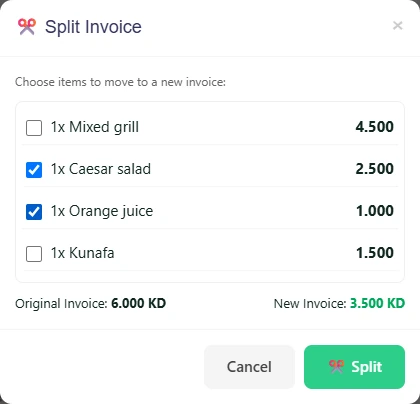
Split Invoice: tick the guest's items and check the new and original invoice before you confirmView full size -
Press «✂️ Split» again to confirm
KEMET creates a new bill on the same table. Service charge, tax and a fixed discount are shared by item value, a percentage discount applies to both bills, and the two add up exactly to the original.
-
Collect each bill separately
Click the table again and pay each bill with «💰 Pay». If a guest pays one bill by cash and card, use split payment methods instead of splitting the bill.
Fields and buttons
| Field or button | When to use it | Result and how to check |
|---|---|---|
| ✂️ Split (on the table) | A guest wants their own bill from the same order. | Opens the «✂️ Split Invoice» window with the order's items. |
| Item tick box | Tick every item for the new bill. | The whole item moves with its add-ons. |
| New / Original Invoice | Check both amounts before confirming. | These are item values only. Service charge, tax and discount are shared after confirming. |
| 💰 Pay | After the split, for each bill. | Each bill is collected separately under its own number. |
Worked example
Two bills on one table
Training example. Table A06's order is KWD 9.500. A guest wants a bill for the salad and the juice. Tick them: the «New Invoice» shows 3.500 and the «Original Invoice» 6.000. After confirming, collect each bill separately.
From ChatGPT or Claude
Once KEMET is connected to your assistant, copy and send this request:
Split table A06's order: move the salad and the juice to a new bill on a free table, and show me both totals before I approve in KEMET.
The assistant reads data right away. Any change is shown to you in KEMET for approval before it runs, within your account permissions only.
Tools the assistant uses here
restaurant_get_order_detailrestaurant_list_floor_occupancyrestaurant_propose_split_dining_order
Verify the result
- The table now has two bills, each with its own number.
- The two bills add up to the original, with service charge and tax shared between them.
- Each payment is recorded on the bill the guest paid.
Common problems
Splitting was refused when I ticked every item
At least one item must stay on the original bill. If all items belong to one guest, collect the whole bill without splitting.
The split was refused after a payment
The payment stays on the original bill, so it must be less than what is left on it after the split. Split before payment, or move fewer items.
Guests want to share the price of one item
Splitting moves whole items. To share one item, use «Split bill» by number of people on the payment screen, or split payment methods.
The «✂️ Split» button is missing
The order must be open and not fully paid, and your account needs table access in this branch.
For: Waiter Cashier Branch manager
Screens and buttons depend on your account permissions and branches. Images show KEMET with training data.