
Set up table QR codes and review guest requests
Generate each table's code and verify that requests reach the correct branch and table for review before kitchen dispatch.
Steps
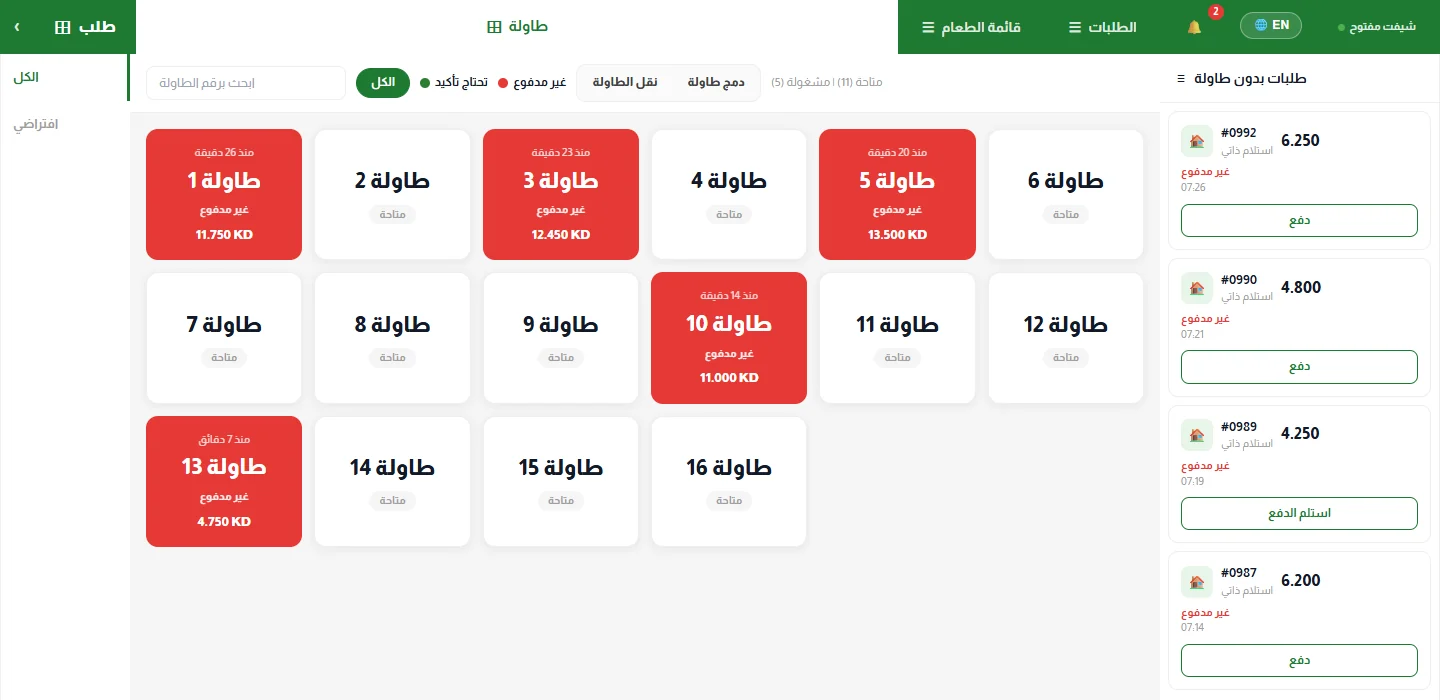
-
Create and test the code
In Tables → QR choose branch and table and click Generate. Print it and scan it with a phone before placing it.
-
Try as a guest
Scan the code and order an item. The status page shows it awaits review.
-
Accept at the cashier
From the notification or pending table open the request. Accept if right; reject with a reason if not.
-
Waiter call
If the guest calls a waiter, an alert shows the table. Tap Acknowledge when you go.
Fields and buttons
| Field or button | When to use it | Result and how to check |
|---|---|---|
| Generate table code | Choose branch and table before creating or downloading the code. | Scan the printed code and verify the intended table. |
| Order from the menu | After scanning, confirm branch and table and choose item, modifier and quantity. | Use the existing status or reference before sending again. |
| Awaiting confirmation | Open the request preview from POS notification or floor view. | Verify table, items and quantity and trace additions to any existing order. |
| Accept for kitchen or Reject | Use the existing request and provide a reason if rejecting. | Check accepted request in KDS or follow the rejected request by reference. |
| Call waiter | Check the table on the service alert and acknowledge after taking responsibility. | Waiter call and kitchen order are separate workflows. |
Screen images
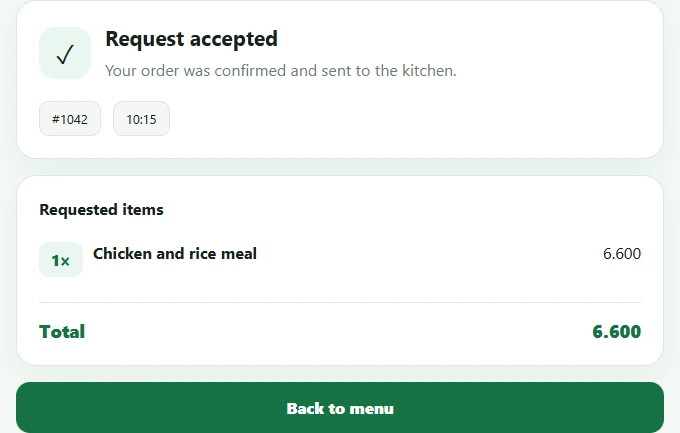
Worked example
Testing the A04 table code
Training example. Scan A04 and send one meal with an add-on. POS preview should show A04 and the option. After acceptance the kitchen ticket should display the same table.
From ChatGPT or Claude
Once KEMET is connected to your assistant, copy and send this request:
Show pending QR requests and accept table 4's request.
The assistant reads data right away. Any change is shown to you in KEMET for approval before it runs, within your account permissions only.
Tools the assistant uses here
restaurant_list_table_qr_queuerestaurant_propose_accept_qr_table_requestrestaurant_propose_send_qr_table_order_to_kitchen
Verify the result
- Each code opens its own table. An accepted order appears in the kitchen and rejected status is visible to the guest.
- A waiter call references the correct table and can be acted on by branch staff.
Common problems
The code opens a different table
Compare the physical label and code in table management. Export the intended code again and test it before placement.
The request is awaiting confirmation
Check branch notifications and floor view. Find the existing request before asking the guest to send another.
For: Restaurant owner Branch manager Cashier Waiter
Screens and buttons depend on your account permissions and branches. Images show KEMET with training data.