
Assign an in-house driver and track delivery
Assign a driver to the existing delivery order, then track acceptance, pickup and transit before marking it complete.
Steps
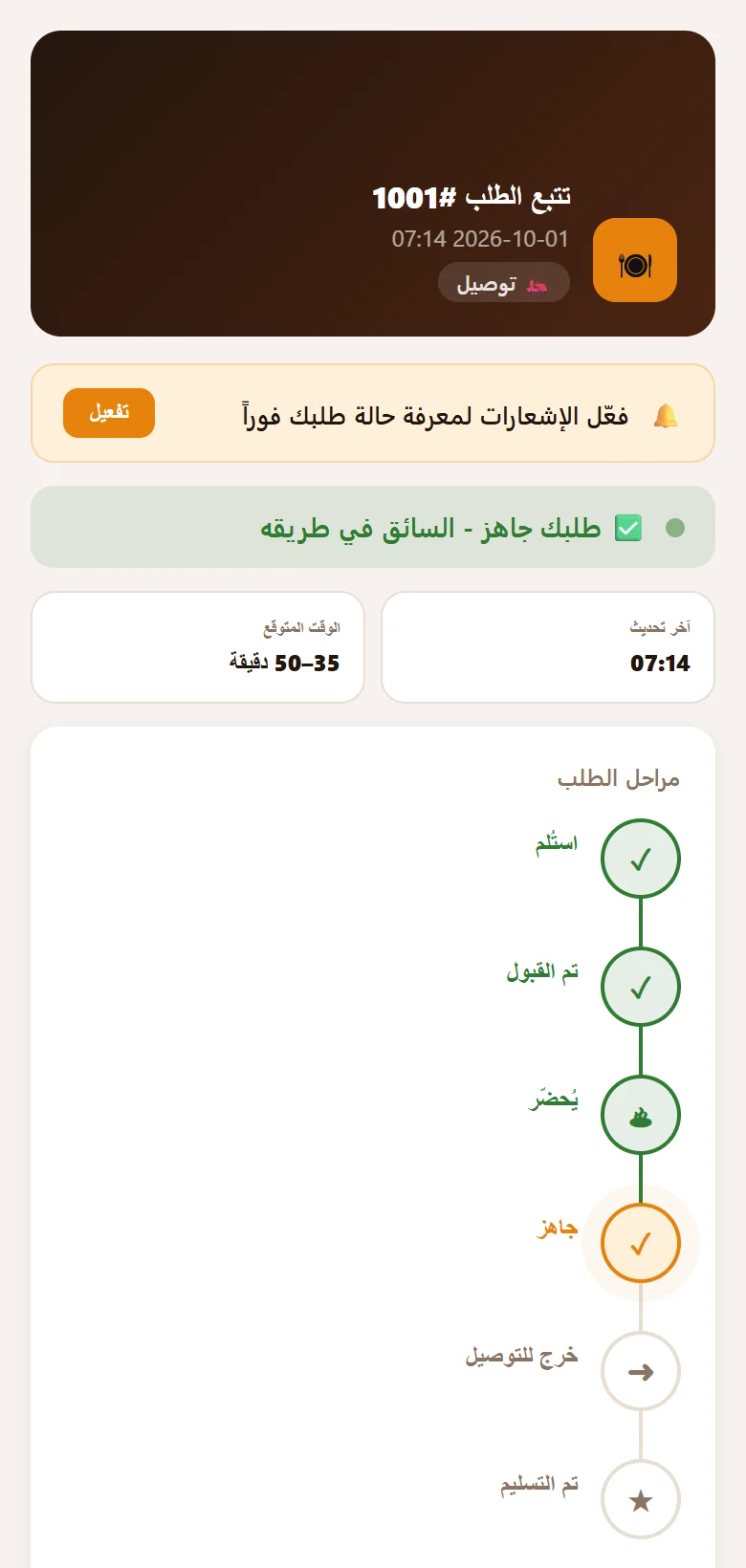
-
Review the order
Open the delivery order and check address, zone and payment. Agree pickup time with the kitchen.
-
Assign the driver
Click Assign driver on the order or in Delivery management and choose the driver.
-
Driver accepts and picks up
The driver accepts in the portal, picks up the bag and marks On the way.
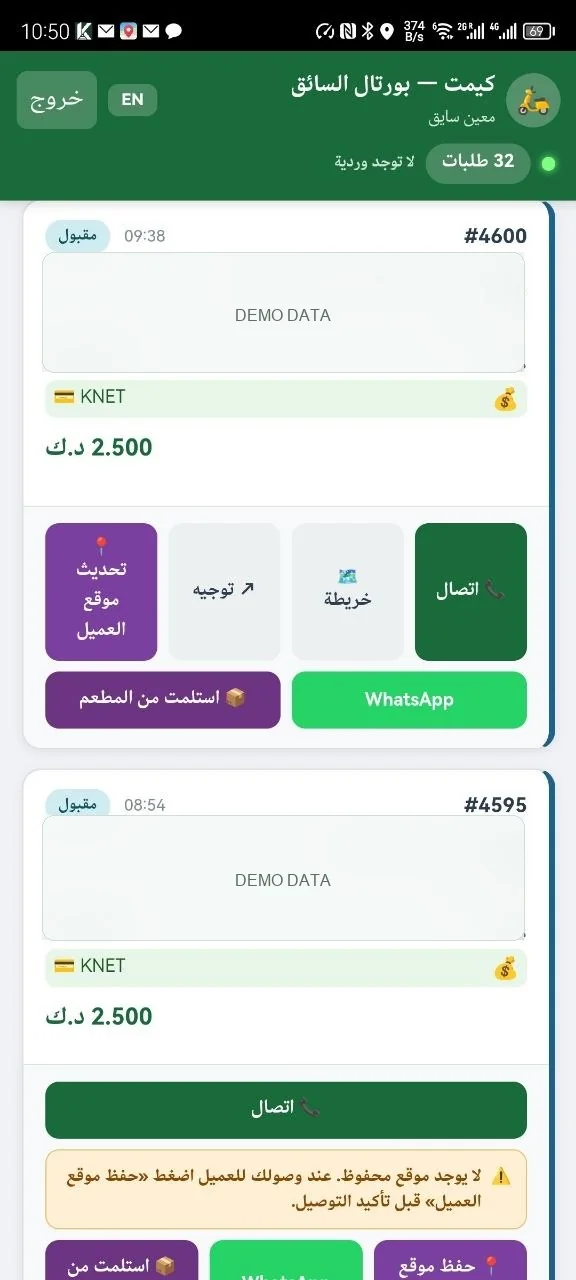
الطلب في بوابة السائق بعد إخفاء بيانات العميلView full size -
Track until delivered
In Delivery management filter by driver or status, or open the driver map.
Fields and buttons
| Field or button | When to use it | Result and how to check |
|---|---|---|
| Unassigned / Assign | Choose the intended delivery, branch and driver before confirming. | Verify invoice and address in the driver's view. |
| Accepted | Driver opens and accepts the job according to configuration. | Check assigned driver and status in Delivery Management. |
| Picked up / On the way | After receiving the package, driver records pickup and then departures. | Check each transition on the order. |
| Delivered / Not delivered | Record actual result from the completion action on the driver screen. | Reconcile collection or refund on the invoice. Failed attempts retain reasons and follow-up actions. |
Worked example
Assigning a driver to two orders
Training example. Two orders from one branch go to the same area. Select both references, assign one driver and verify both addresses appeared for the driver. Track each delivery outcome individually.
From ChatGPT or Claude
Once KEMET is connected to your assistant, copy and send this request:
Show deliveries ready to go and assign this driver to an order.
The assistant reads data right away. Any change is shown to you in KEMET for approval before it runs, within your account permissions only.
Tools the assistant uses here
restaurant_list_delivery_dispatchrestaurant_propose_assign_internal_delivery_driverrestaurant_list_delivery_state_timeline
Verify the result
- The intended driver sees the same order number and address.
- The order record reflects pickup and travel status before delivery or exception follow-up.
Common problems
The driver is absent from the list
Check driver eligibility and branch assignment, then refresh the delivery list.
Assign is disabled and Wasal is displayed
Review the external dispatch in Delivery management. Verify any transfer of responsibility completed before assigning an internal driver.
For: Cashier Branch manager Driver
Screens and buttons depend on your account permissions and branches. Images show KEMET with training data.