
Configure Wasal and dispatch a delivery
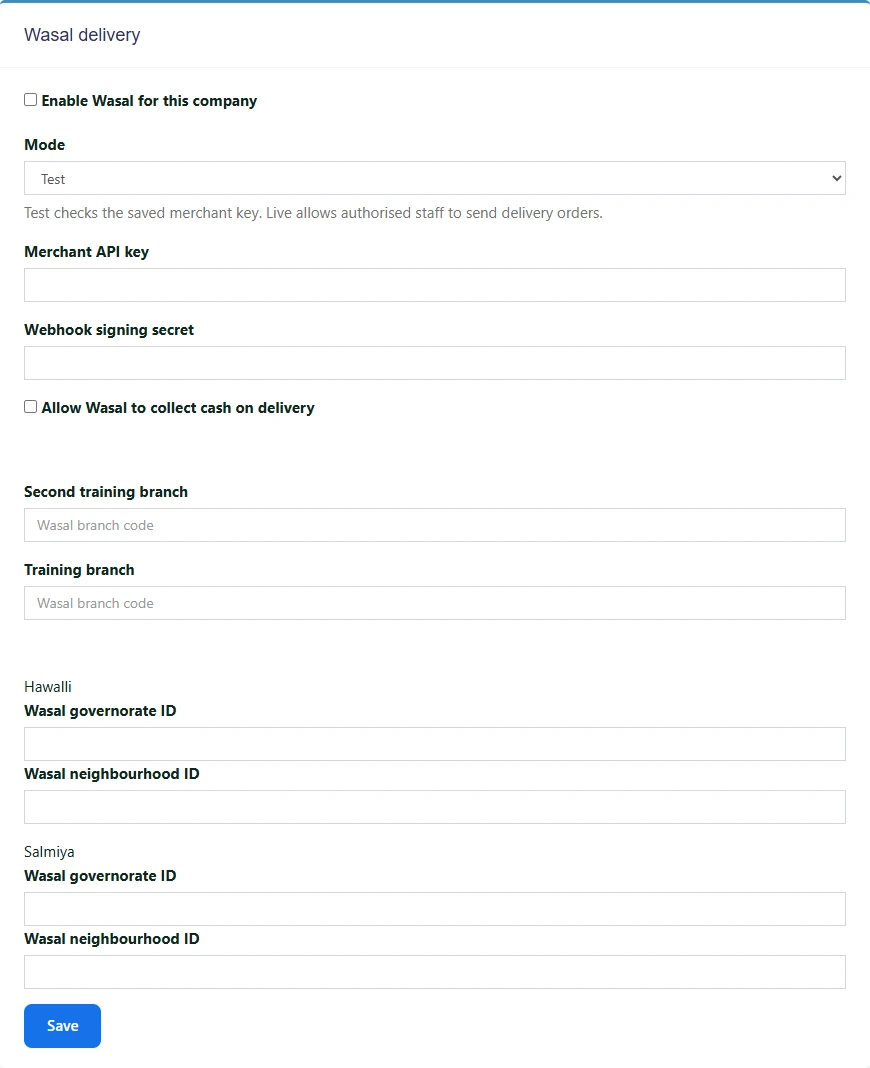
Map branches and zones in test mode, then track the Wasal dispatch and external reference from the original order after activation.
Steps
-
Open Wasal setup
In Company integrations open Wasal. Start in test mode and enter the merchant key, branch codes and zones.
-
Test before going live
Save and test the connection. Switch to live after the administrator approves.
-
Send the order
In Delivery management open a delivery order and click Send to Wasal.
-
Follow the status
Keep the Wasal reference and click Refresh status. If it says Needs reconciliation, check in Wasal before resending.
Fields and buttons
| Field or button | When to use it | Result and how to check |
|---|---|---|
| Mode and credentials | Select test or approved live mode and enter connection credentials only in their designated fields. | Verify the configured connection before production dispatch. |
| Branch, zone and COD mapping | Map branch and zone codes and review COD eligibility. | Correct branch or area mappings before retrying an ineligible dispatch. |
| Send to Wasal | Open an eligible unassigned delivery and use the available Send to Wasal action. | Review a draft and use Dispatch draft when eligible. |
| External reference and refresh | Retain Wasal and KEMET references and refresh unknown status. | For Needs reconciliation check both references before any new dispatch. |
| Cancel dispatch and choose alternative | When available, cancel from the same row and confirm before assigning a driver. | Ensure no active external dispatch remains for the order. |
Worked example
Check branch and zone before dispatch
Training example. Use a delivery for Branch A in an enabled zone. With test settings, verify order, coverage and payment, and that one external reference appears when performing an authorized test dispatch.
From ChatGPT or Claude
Once KEMET is connected to your assistant, copy and send this request:
Show deliveries waiting and the status of each one.
The assistant reads data right away. Any change is shown to you in KEMET for approval before it runs, within your account permissions only.
Tools the assistant uses here
restaurant_list_delivery_dispatchrestaurant_list_delivery_state_timelinerestaurant_report_delivery_outcomes
Verify the result
- A successful dispatch shows the external Wasal reference on the matching KEMET order.
- The delivery screen identifies the responsible party and shows traceable dispatch status.
Common problems
Send to Wasal is unavailable
Check enablement, mode, branch, zone, payment method, existing dispatch and permissions. Inspect the order before retrying.
A delay leaves the dispatch status unclear
Refresh status and reconcile the order reference with Wasal or ask the manager. Confirm the initial dispatch outcome before creating another.
For: Restaurant owner Branch manager Cashier
Screens and buttons depend on your account permissions and branches. Images show KEMET with training data.