
Troubleshoot the print agent, printer and routing
Isolate the problem to the agent connection, physical printer, print job or routing rule. Trace one job by ID before resending anything.
Steps
-
Check the agent status
In KEMET → Print settings refresh Agent status. In the app check it is running and last contact updates.
-
Isolate the problem
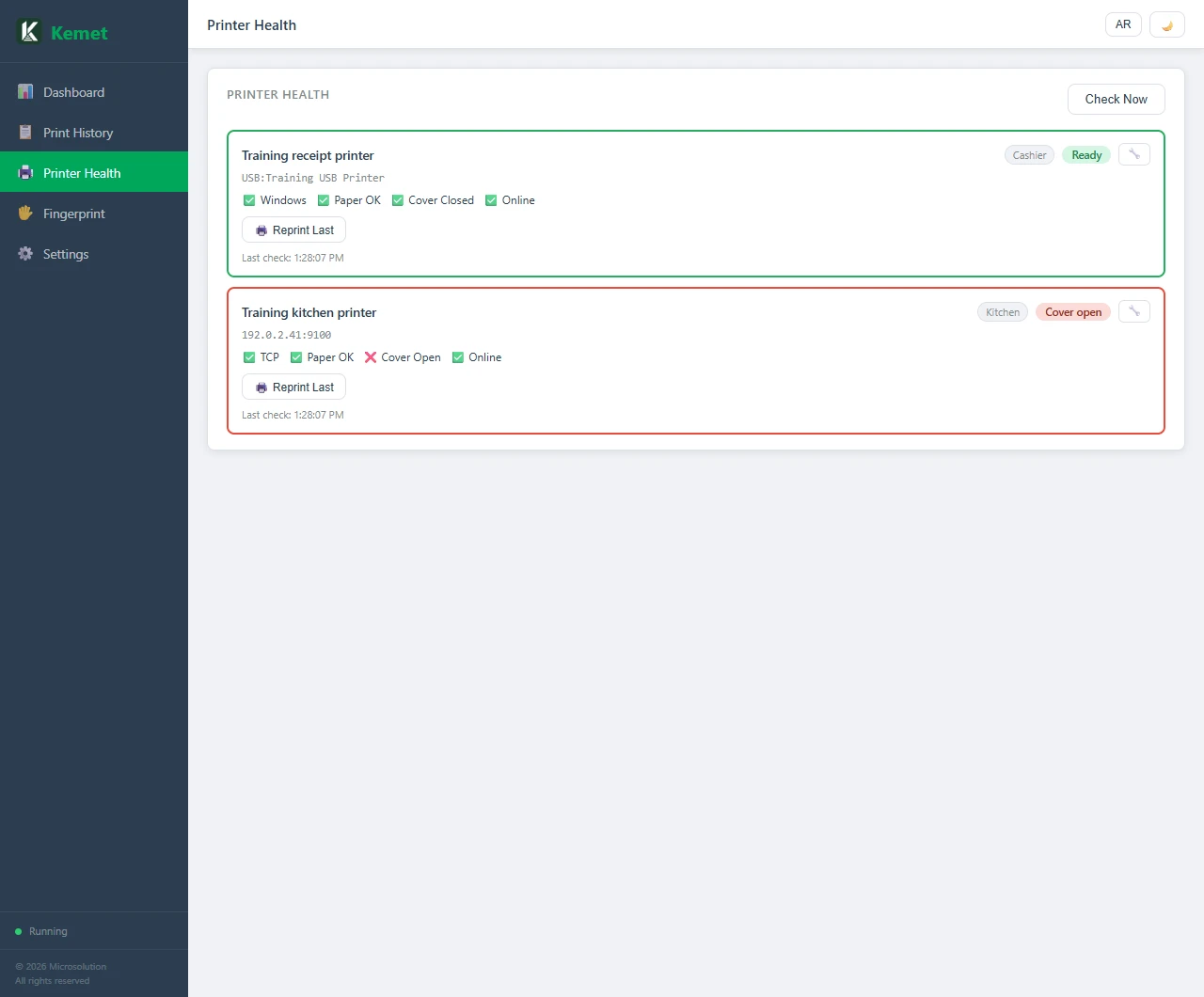
If connection is refused, check link, branch number and key. If connected, click Check now in Printer health.
-
Fix the printer before resuming
If the printer paused for paper or connection, fix it, click Recheck, then Resume printing.
-
Match job number and paper
In Print history find the job by time and number. If it printed, do not resend. If it failed, click Retry.
-
Test prints but KOT does not?
Check the print rule: document type, branch, department and items. For waiter-tablet orders check its print mode.
-
Ask the assistant
Ask the assistant for the agent status and a job by number before reprinting.
-
Test and report
Print one page after fixing. If still failing, send the admin the branch, time, job number and error, never the key.
Fields and buttons
| Field or button | When to use it | Result and how to check |
|---|---|---|
| Last poll and last contact | When jobs across multiple printers in a branch stop moving. | Isolate agent or server connectivity before changing printer records. |
| Paused printer | When Printer Health shows Paused and a reason. | Fix connectivity or paper, recheck, then resume when available. |
| Job ID and status | Trace one document from order time to physical paper. | Distinguishes an earlier test from the current job or reprint. |
| KEMET printer test | After fixing one identified failure point. | Proves output to the selected device. Review receipt or KOT rules if only one document type is still wrong. |
| Retry | After a confirmed failure and repair, for the original job. | Watch its history and paper before another action. |
Worked example
The test works but receipts go elsewhere
The kitchen printer produces its Test OK paper, but receipts are printing there as well. Inspect the branch rule for the Receipt document type and set its intended receipt printer. Submit one training order, then verify the kitchen and receipt destinations in Print History. Change the rule once both devices are confirmed healthy.
From ChatGPT or Claude
Once KEMET is connected to your assistant, copy and send this request:
Show stuck or failed print jobs today.
The assistant reads data right away. Any change is shown to you in KEMET for approval before it runs, within your account permissions only.
Tools the assistant uses here
restaurant_list_print_queuerestaurant_get_print_job_timelinerestaurant_report_print_delivery_health
Verify the result
- Distinguish the agent heartbeat, printer health and job outcome, using the same branch and time.
- Check the job ID and physical output before any retry to avoid printing the same order twice.
- A training order delivers each document to the intended printer.
Common problems
The job waits and the USB printer is missing on the PC
Print a Windows test page under the account running the agent. Verify the exact queue name, then check health again. If the printer is attached to a different PC, confirm the branch agent on that machine can see it.
The waiter tablet tries an old IP address
Review tablet printing and its TCP or Server mode. Check the locally saved IP for TCP. A branch USB printer needs the Server path and an agent that can reach it. Verify one waiter order after correcting the path.
History shows a failure but paper came out
Compare job ID and timestamp and hold off on resending until the server acknowledgement and device history can be reconciled. A manual reprint can produce another copy; use it when the physical document is confirmed missing.
For: Restaurant owner Branch manager Cashier Kitchen team Waiter
Screens and buttons depend on your account permissions and branches. Images show KEMET with training data.