
Record a payment batch against outstanding expenses
Review selected expense documents, allocate each amount and record actual tender and reference for batch reconciliation.
Steps
-
Choose the expenses
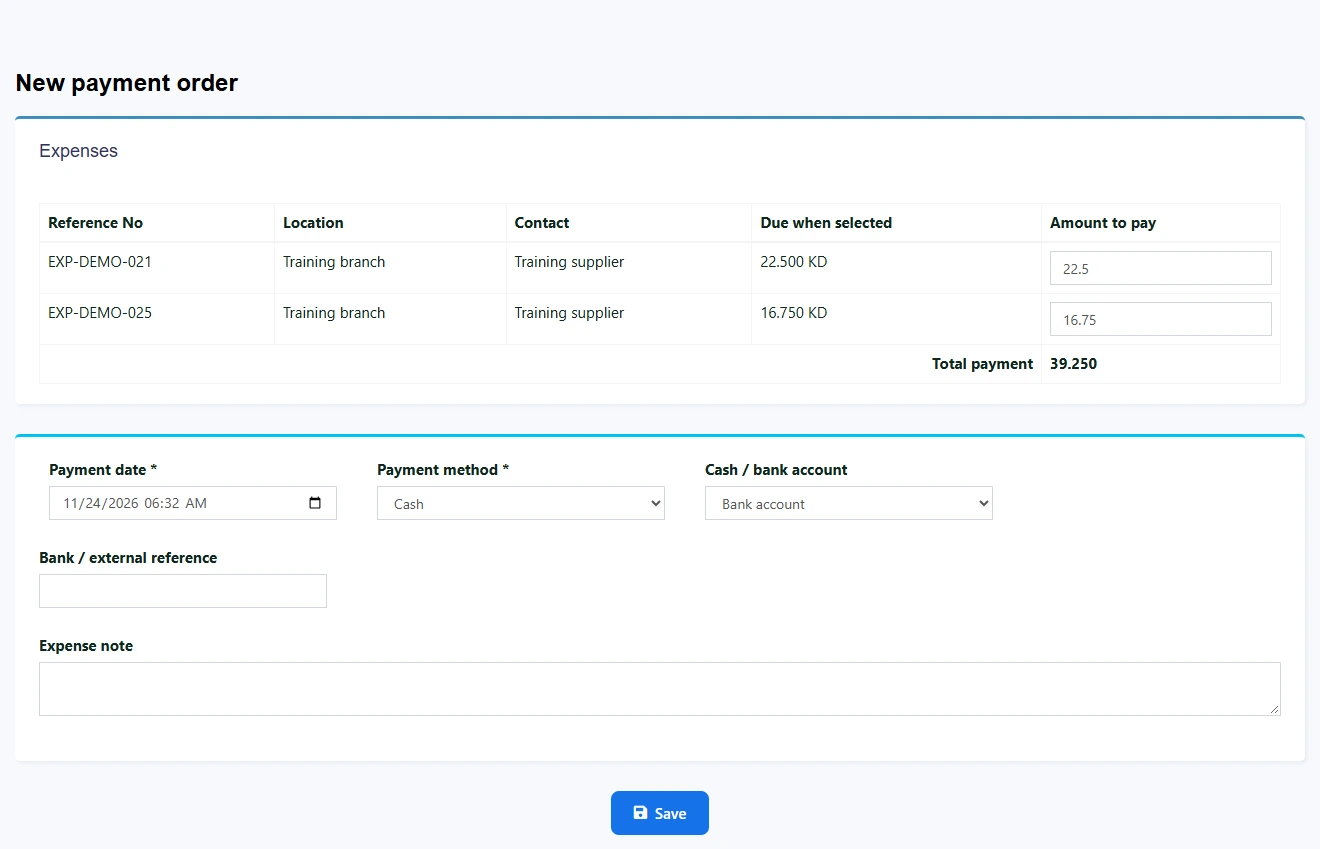
In Expense payment batches start a new batch and choose the due expenses.
-
Check the amount per expense
For each line enter the amount to pay, up to the amount due.
-
Enter payment details
Choose date, method and account, and enter the bank or cash reference.
-
Check after saving
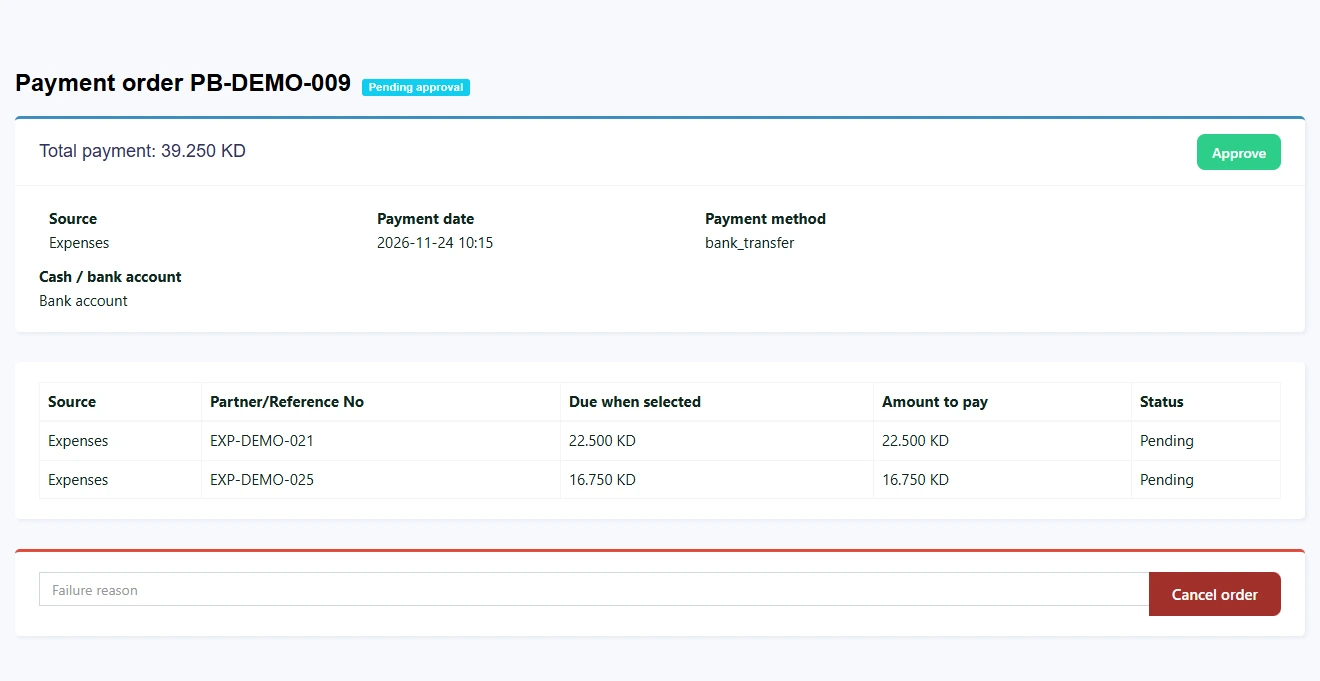
Open the batch and see each expense's balance after payment.
Fields and buttons
| Field or button | When to use it | Result and how to check |
|---|---|---|
| Source document and due amount | Confirm each expense, branch and current outstanding amount. | The form shows the maximum for each document. |
| Allocated amount | Enter a positive amount up to each outstanding balance and match actual total tender. | The training payment restores KWD 20.000 and KWD 10.000 allocations, totaling KWD 30.000. |
| Payment date, method and account | Enter the actual bank or cash payment details and select an account where applicable. | Verify tender, mapped account and document amounts in batch details. |
| External reference | Use the reference on the payment evidence and retain the generated batch number. | If submission is slow, locate those references and balances before retrying. |
Screen images
Worked example
A payment batch across two expenses
Training example. Two expenses are due for KWD 20.000 and KWD 35.000. Allocate a KWD 30.000 payment as KWD 20.000 to the first and KWD 10.000 to the second. The balances become zero and KWD 25.000.
From ChatGPT or Claude
Once KEMET is connected to your assistant, copy and send this request:
Prepare a cash payment batch for my branch's due expenses.
The assistant reads data right away. Any change is shown to you in KEMET for approval before it runs, within your account permissions only.
Tools the assistant uses here
restaurant_propose_create_expense_payment_batchrestaurant_propose_submit_expense_payment_batchrestaurant_propose_approve_expense_payment_batchrestaurant_list_payment_batch_headers
Verify the result
- Allocated amounts match payment evidence and each expense reference.
- Batch total and outstanding values were checked from source documents.
Common problems
The outstanding amount changed before saving
Open the expense and check newer payments before creating the batch. Update the allocation against current outstanding amounts.
It is unclear whether the batch saved
Search by payment reference and compare expense status and recorded payments before retrying.
For: Restaurant owner Branch manager Accountant
Screens and buttons depend on your account permissions and branches. Images show KEMET with training data.