
Staff meals and hospitality
Record a non-sale order in the branch POS, then verify stock usage and the allocation of staff-meal cost.
Steps

-
Choose the order type
In POS change the order type to Staff meal or Hospitality.
-
Choose employee and items
Pick the current staff-meal employee before adding the item. Change it for a colleague's meal.
-
Enter the reason and confirm
For hospitality enter the reason (e.g. meeting). Stock is issued and revenue is zero.
-
Open the report
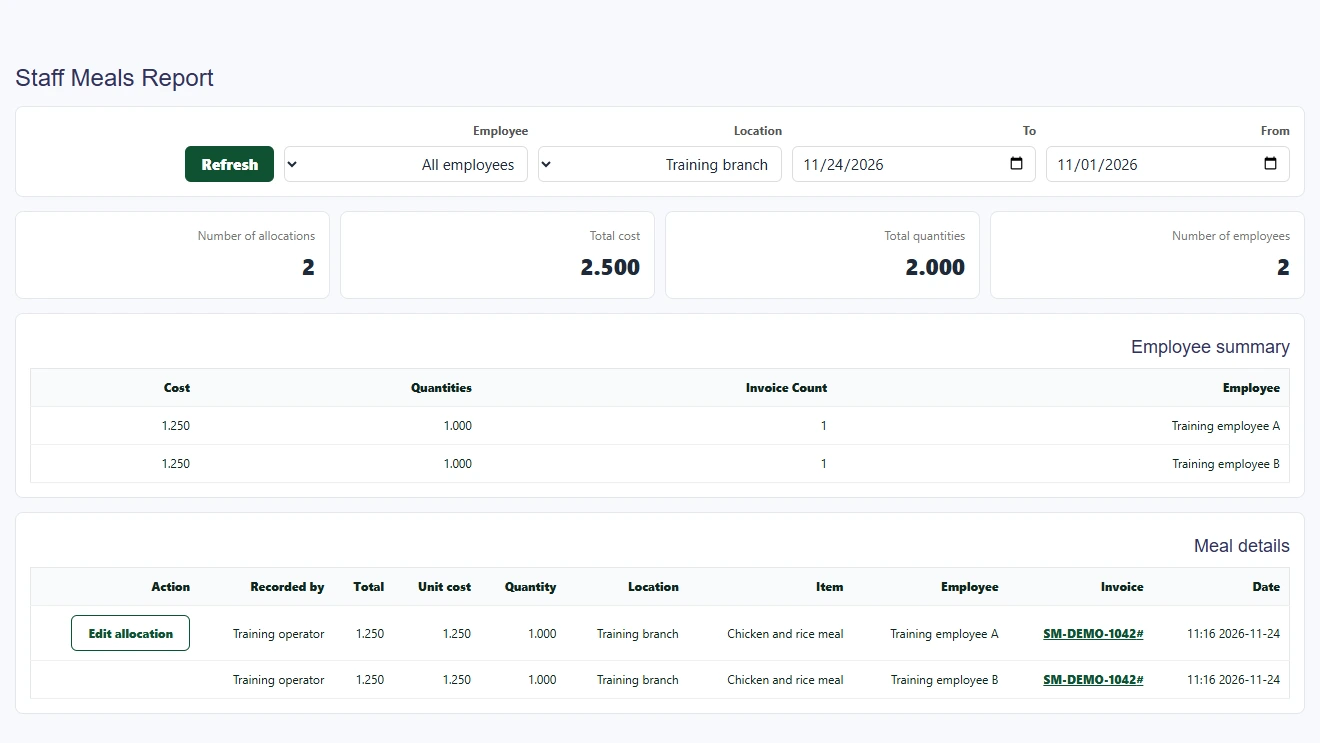
In Restaurant reports → Staff meals choose period and branch. You see quantity and cost per employee.
-
Match the cost
Open the order and stock movement. If cost is uncertain, review it with the accountant.
Fields and buttons
| Field or button | When to use it | Result and how to check |
|---|---|---|
| Order type | Choose Staff meal or Hospitality when enabled for the branch | Each type has its own permission and can consume tracked stock. |
| Current staff meal employee | Set the employee before adding items or increasing quantity | A line increment belongs to the active employee. Change it for another person's quantity. |
| Hospitality reason or recipient | Keep a brief auditable description | Review the order under hospitality and trace its stock issue. |
| Date, branch and employee filters | Set them in the Staff meals report | Displays quantities, unit cost, total cost and employee-level totals. |
| Edit line allocation | Use it from report detail with the dedicated permission | The allocation total remains equal to the line quantity. Recheck reported cost after updating. |
Screen images
Worked example
Training example with two meals
Add two dishes as a Staff meal and allocate one to each employee. If the evidenced cost is KWD 1.250 per dish, the report shows two dishes, KWD 2.500 in total cost and zero sales revenue.
From ChatGPT or Claude
Once KEMET is connected to your assistant, copy and send this request:
Show this month's staff meal cost per employee.
The assistant reads data right away. Any change is shown to you in KEMET for approval before it runs, within your account permissions only.
Tools the assistant uses here
restaurant_report_staff_meal_cost_by_employeerestaurant_list_staff_meal_allocation_lines
Verify the result
- Check that the order type is correct and each staff-meal line is fully allocated.
- The report branch and order reference match the stock issue.
Common problems
An employee is missing
Check active employee status and both users' branch access. Selecting a user from another branch requires a separate permission.
The allocation does not save
Allocate each item's full quantity to one or more employees, and check the active employee before increasing a line.
For: Cashier Branch manager Accountant
Screens and buttons depend on your account permissions and branches. Images show KEMET with training data.