
Review collection settings and shift points
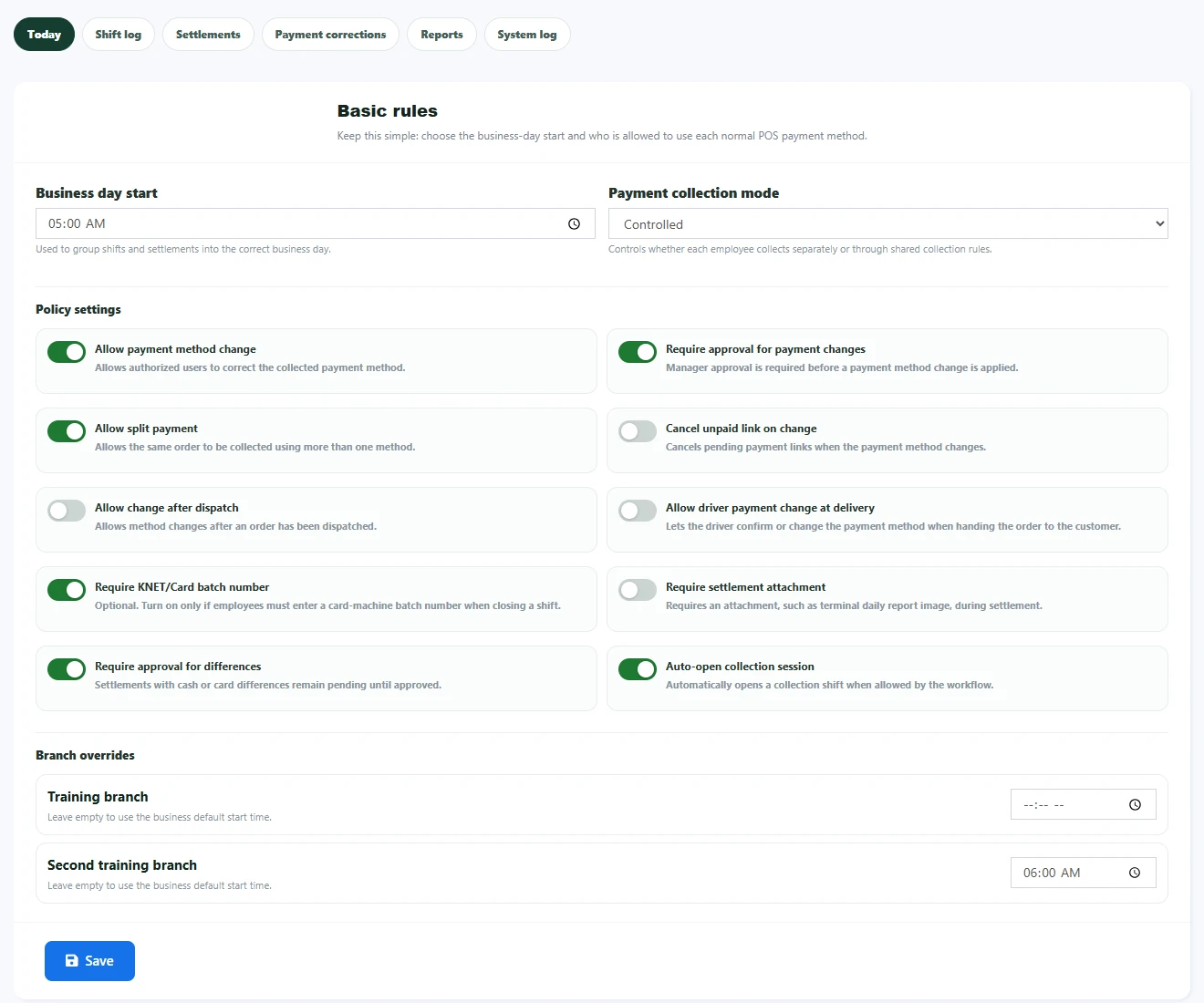
Review the business-day start and collection policy, then verify the points assigned to a staff session in the Shift log.
Steps
-
Check the day start
In Collection management → Today, check the operating-day start for the company and branch.
-
See the shift's point
In Shift log, the Points column shows each employee's point. Adding points is hidden for now, so ask your system admin.
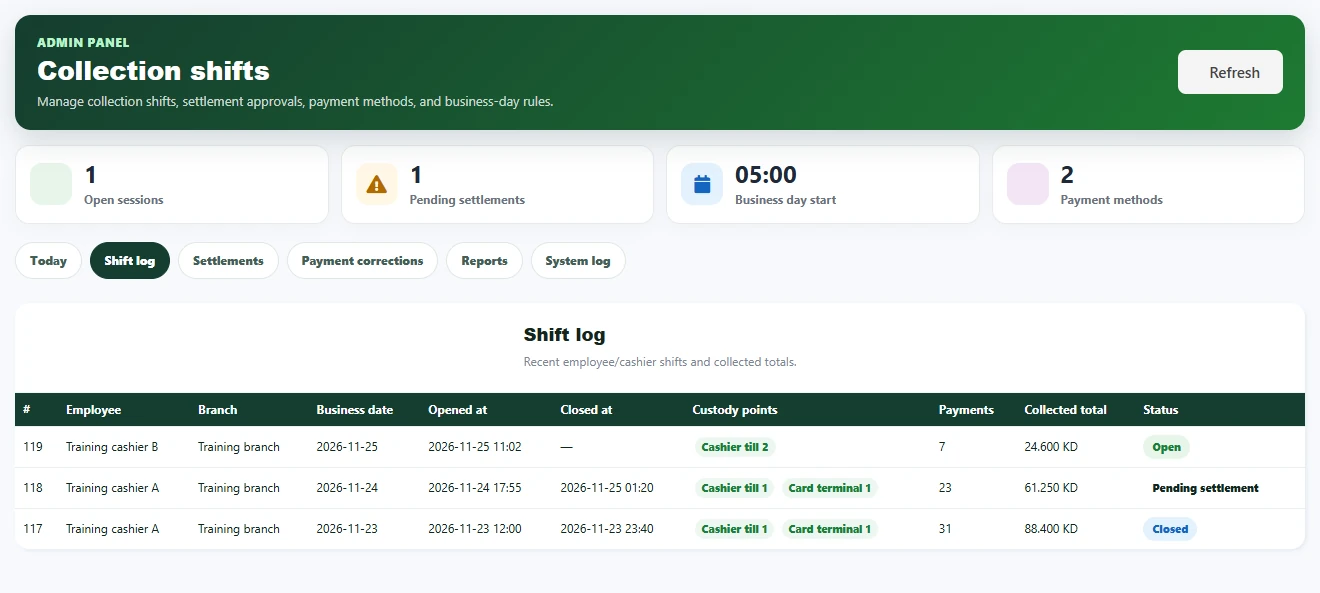
Shift log: employee, branch, business date, collection points and total collectedView full size -
Check allowed payment methods
Today shows the collection mode (unified, flexible or controlled) and whether split payment is allowed.
-
Match the first payment
After the cashier starts, match the first payment to the invoice, employee and method.
Fields and buttons
| Field or button | When to use it | Result and how to check |
|---|---|---|
| Company business-day start | Under Today, check the business-day boundary used for new shifts. | The business date explains how overnight payments are attributed. |
| Branch override | Check whether this location inherits the company start time or has an override. | Compare the selected branch’s shifts using its operating time. |
| Collection mode | Check the mode and tender options with appropriate access. | Trace the first payment by its actual method and reference. |
| Points column | Open Shift log and match the row by branch and employee. | Shows any points assigned to the session. |
| Point management | Ask your administrator to confirm the management path for a required point change. | The point management tab is hidden in current Collection Management. |
Worked example
A session after midnight
Training example. A branch starts its operating day at 5:00 a.m. A 1:00 a.m. collection belongs to the preceding operating day under that configuration. Check the session’s business date before comparing it with a calendar-day report.
From ChatGPT or Claude
Once KEMET is connected to your assistant, copy and send this request:
Show my branch collection points and who is assigned in the shift.
The assistant reads data right away. Any change is shown to you in KEMET for approval before it runs, within your account permissions only.
Tools the assistant uses here
restaurant_list_collection_pointsrestaurant_list_collection_sessionsrestaurant_get_collection_session_points
Verify the result
- The open session has the right staff member and branch.
- The terminal reference and opening float agree with the shift records.
Common problems
The point is missing or needs a change
Check the branch, employee and session in Shift log. The current interface shows assigned points there and keeps the point management tab hidden. Ask the administrator to check the company’s point-management configuration.
The first payment is missing from the expected session
Check the acting user, branch, payment time and session-open setting. Review the existing payment with the supervisor before recording anything again.
For: Restaurant owner Branch manager Cashier Driver Accountant
Screens and buttons depend on your account permissions and branches. Images show KEMET with training data.