
Kitchen display and KOT
Kitchen display or printed KOT, and how to combine them
When to choose a kitchen display and when a printer is enough, how to route each item to its station, and how to trace a ticket that did not arrive.
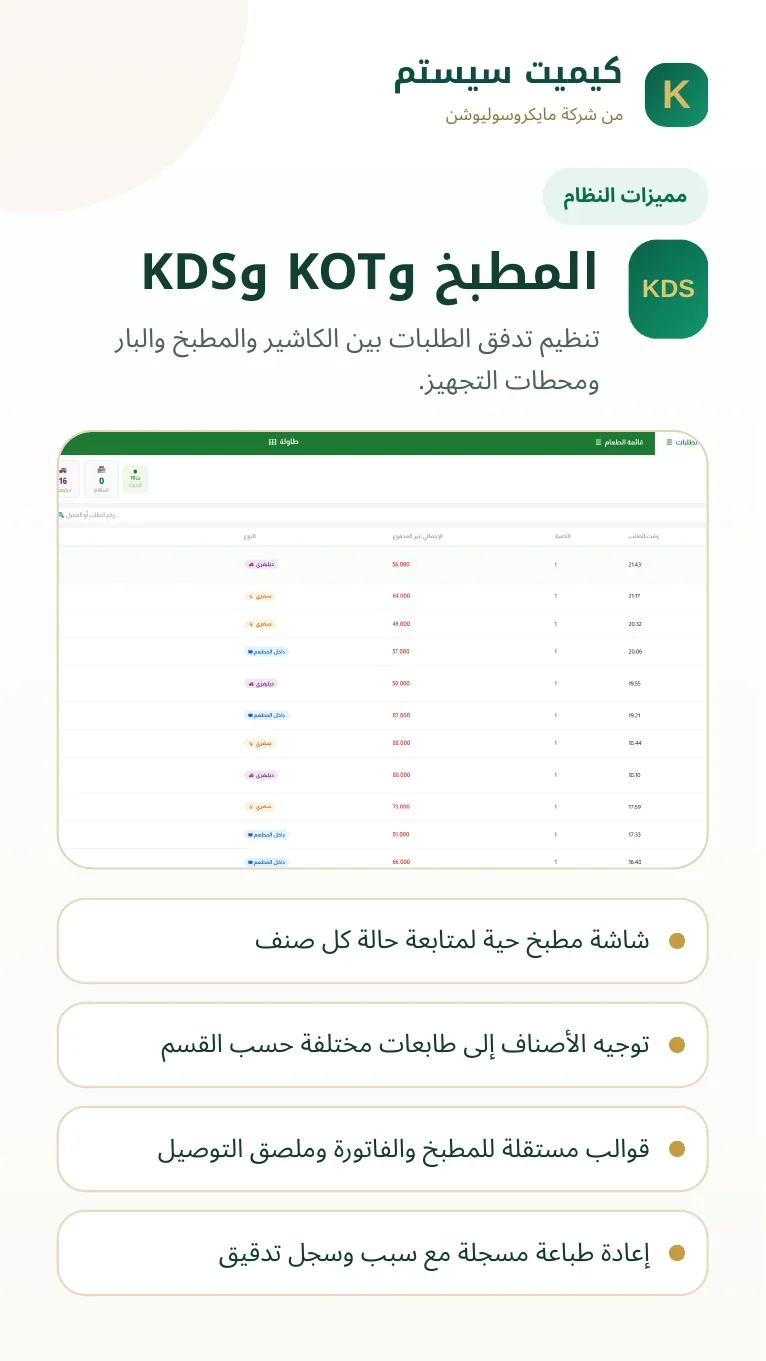
Not every kitchen needs a screen. A small dessert station may be fine with a printer, while a busy hot line benefits from a display and timers. KEMET lets you mix both in the same branch.
When to choose a display
For busy stations that need ordering, visible time and changing an order to ready.
When a printer is enough
For small stations or kitchens that hang a ticket in front of the cook. The ticket carries items, modifiers and notes.
Routing
Routing rules decide which category goes to which display or printer, by branch, order type and source.
Tracing a ticket
If a ticket does not arrive, trace the print job by its number (agent connection, printer or rule), then reprint from the order.
How to start in KEMET
- List the kitchen stations and the workload of each
- Choose a display or printer per station
- Set the routing rules
- Test an order with items from every station
An example from a restaurant
A restaurant with three stations: the hot line on a display, salads on a printer, and the bar on a small display. One family order is split across the three, and each station sees only its share.
Common questions
Can an order go to both a display and a printer?
Yes, if you want, according to the routing rules.
Does kitchen routing affect the guest bill?
No. The guest bill has its own print route, separate from kitchen tickets.
Can a KOT be reprinted?
Yes, from the order itself, after checking why it did not arrive.
Want to see it on your restaurant?
We show you the system on your own restaurant and help you choose the right plan and devices for your branches.