
Connect a fingerprint attendance device and test its first sync
Choose a connection method the device supports, assign the correct branch and verify a training attendance event before relying on it.
Steps
-
Register the device
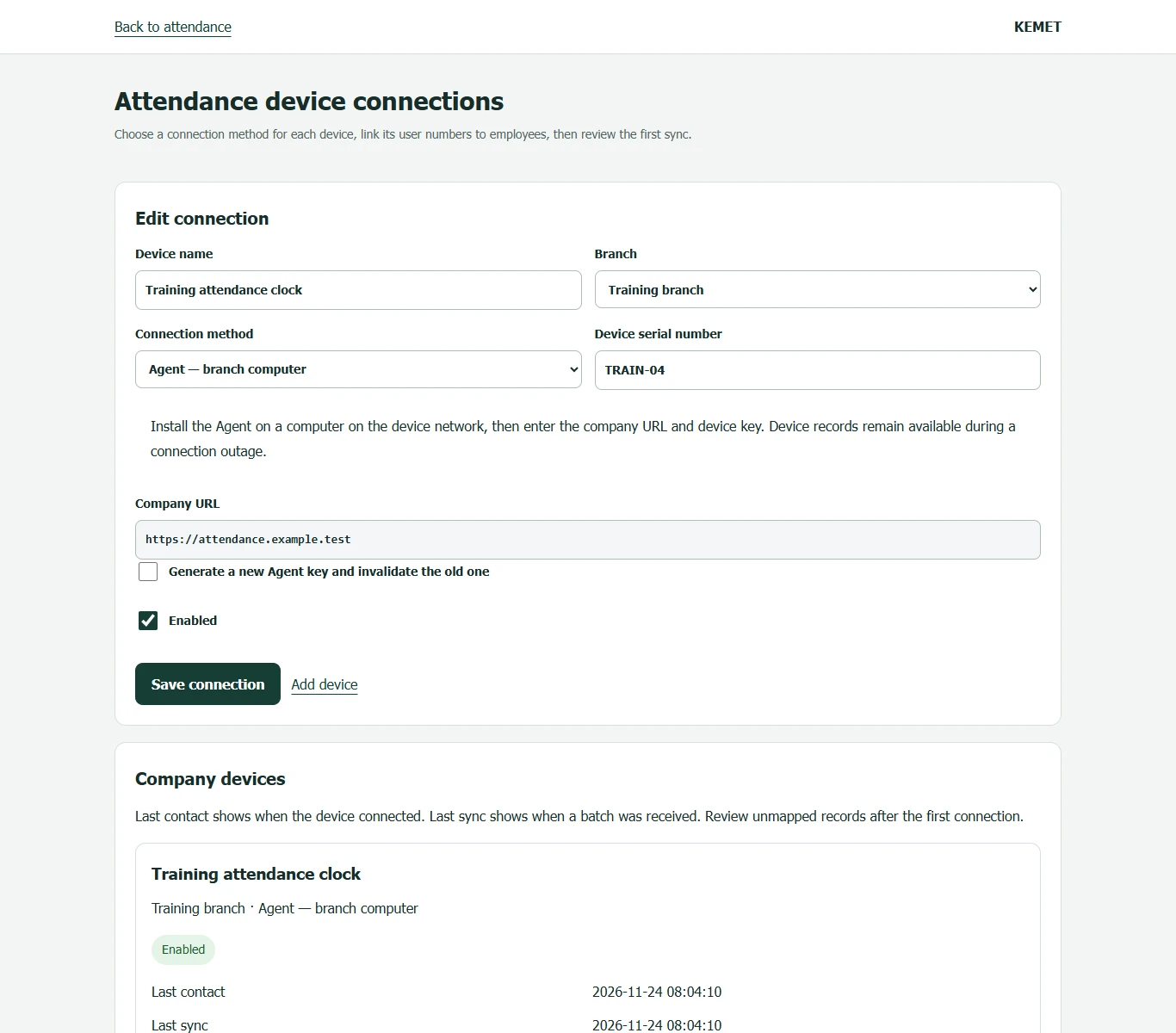
In HR → Attendance device connections → Add device. Enter a location name, branch and serial, and choose the connection method.
-
Agent: device on the branch network
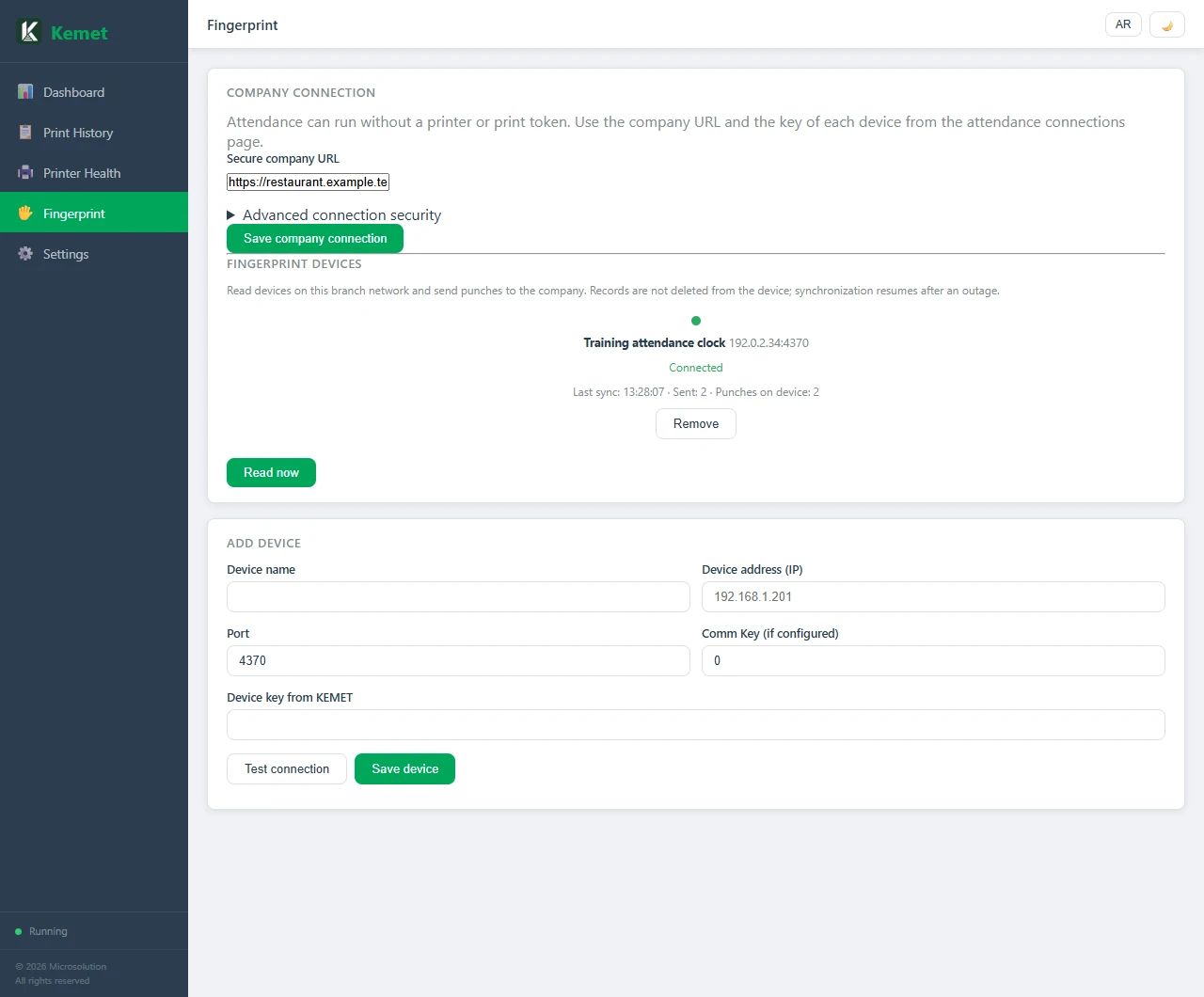
In the KEMET app on the branch PC → Fingerprint, enter the company link, add the device IP and key, then Test connection and Read now.
-
ADMS: device pushes by itself
Choose ADMS, match the serial, and enter the shown receiver address in the device settings.
-
Public IP: polled by the server
Enter the public IP and port. Your network admin allows only the KEMET server to connect.
-
Test the first punch
Map a test employee, clock in and out, and follow them in raw logs and then Attendance.
-
Check with the assistant
Ask the assistant for the device health and last contact. Never paste device keys in chat.
Fields and buttons
| Field or button | When to use it | Result and how to check |
|---|---|---|
| Device name, branch and serial | Use a clear label and actual branch. The serial is required for ADMS. | The same reader appears under that branch and matches its event logs. |
| Agent — branch computer | For a ZKTeco TCP-compatible device reachable from the branch PC. | Uses the company HTTPS origin, local address and port, Comm Key and KEMET device key. |
| ADMS — direct push | For a device model supporting direct event push and the required authentication. | Record the serial and authorized source or supported token, then verify event receipt. |
| Public IP — server polling | Use when the worker is ready and the administrator has approved a protected device address and port. | A connection test confirms reachability. Last sync and the logs confirm receipt. |
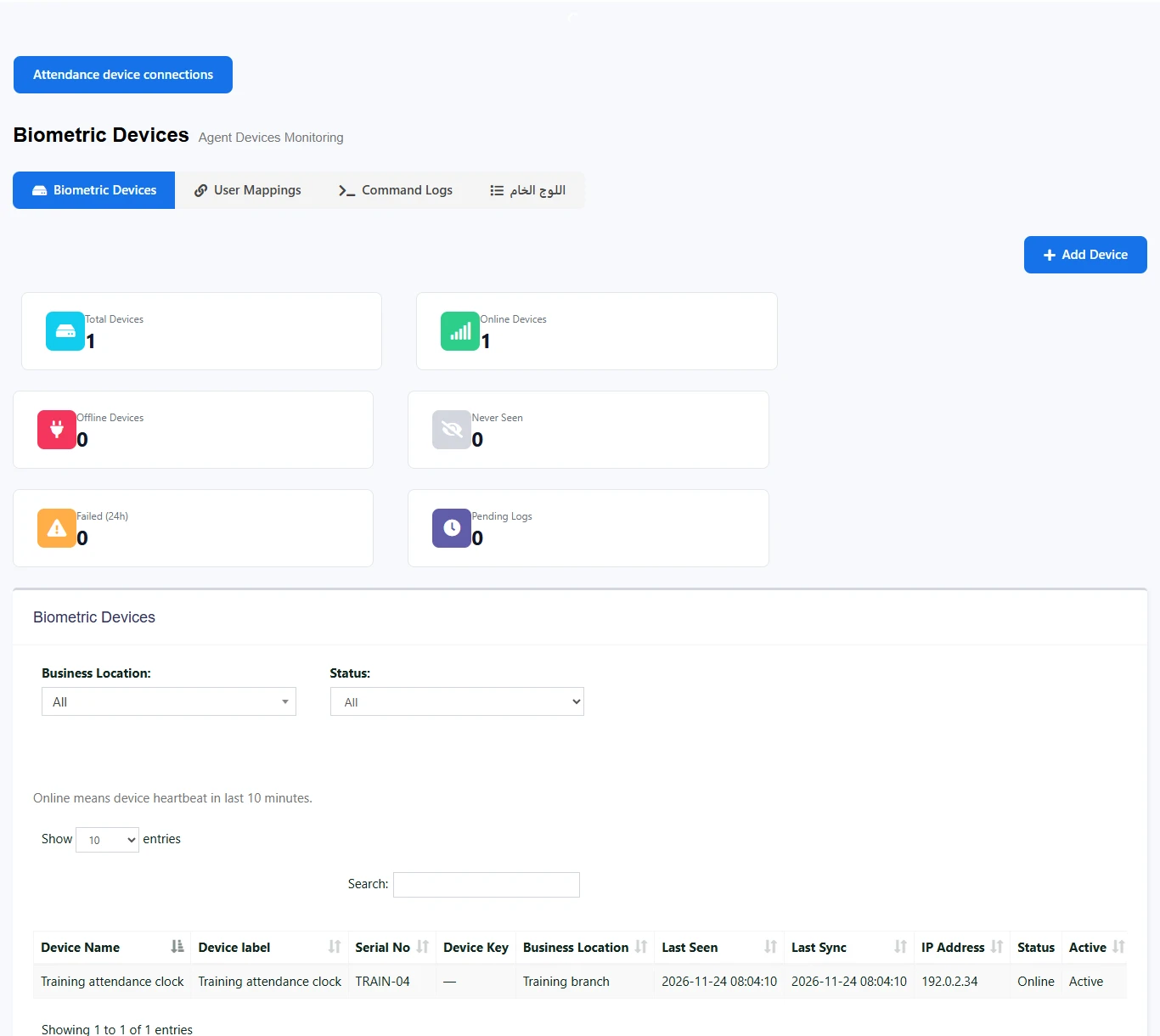
| Last contact / Last sync | Check both after testing the device. | Last contact confirms communication; sync and attendance logs show received and processed events. |
| Secure company URL | Use the company HTTPS origin shown in the connections screen. | The agent sends attendance events to the configured company. |
| Device address, port and Comm Key | Check the actual device configuration with the network administrator. | Connects the branch PC with the intended reader; 4370 is the compatible device default. |
| Device key from KEMET | Use the key issued on creating the attendance device or rotating its credentials. | A key rotated in KEMET must be updated in the agent before the next sync. |
| Test connection, Save device, Read now | Test first, then save the device and request a sync. | Check the result and KEMET logs to differentiate connection from attendance processing. |
Screen images
Worked example
A LAN unit at the staff entrance
Training example. Staff entrance is on the branch LAN at 192.168.50.23 and the model supports ZKTeco-compatible TCP on port 4370. Select Agent and use a PC on the same network. When test employee ID 101 clocks in, verify the last sync and the event on that specific reader before relying on attendance.
From ChatGPT or Claude
Once KEMET is connected to your assistant, copy and send this request:
Show fingerprint device health and last sync.
The assistant reads data right away. Any change is shown to you in KEMET for approval before it runs, within your account permissions only.
Tools the assistant uses here
restaurant_list_attendance_device_healthrestaurant_report_attendance_device_processing
Verify the result
- Connection mode, branch and serial agree with the actual supported device. Use the attendance device key in the Fingerprint configuration.
- Last contact and last sync are verified, and a training event appears with the expected processing result.
- Record the model-specific hardware test before rolling out to other branches. The available connection methods depend on the deployed build and configuration.
Common problems
The PC reaches the company but cannot reach the reader
Check the branch network, device address, port and Comm Key with the device administrator. Confirm the supplied model can be read with the intended protocol. 4370 is the default for compatible ZKTeco TCP devices.
ADMS is saved but Last contact is empty
Verify model support and match serial and receiver URL. Have the network administrator confirm the observed source IP or test the token if supported by the model. Serial number alone does not authenticate the device.
Public IP test unavailable or polling worker not ready
Verify Public IP is selected and its server worker is enabled. If a local connection suits the site and model, pilot the branch Agent method.
The device connects but sync stops on an error or record limit
Check the status message and device capacity with the administrator. Adjust the polling limit in Public IP when applicable. Retain the agent configuration and attendance cursor file during updates, and confirm successful sync for the same device after repair.
For: Restaurant owner Branch manager
Screens and buttons depend on your account permissions and branches. Images show KEMET with training data.