
Count branch stock and resolve quantity differences
Compare the physical count to the system at one cutoff. Investigate the difference and post an approved correction.
Steps
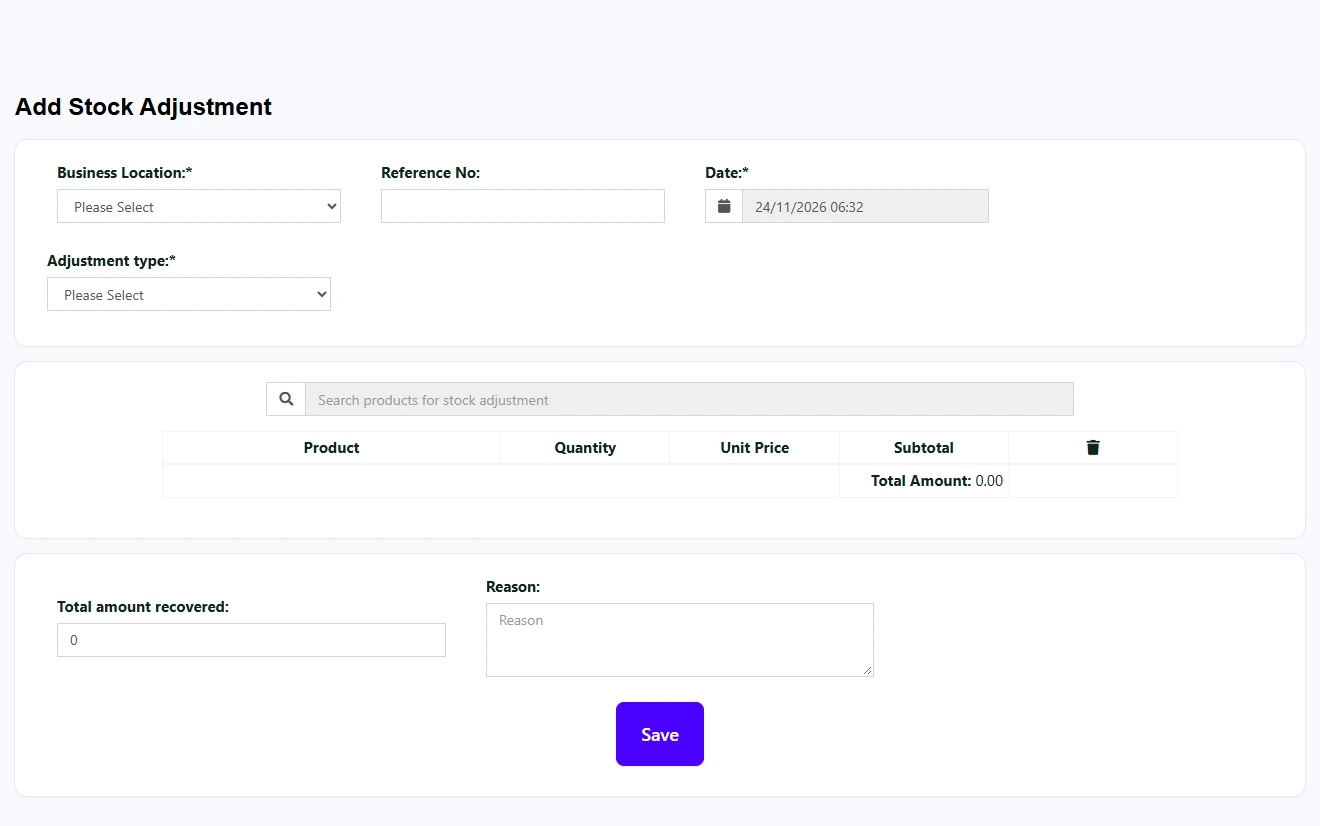
-
Open a count session
In Inventory → Advanced inventory click Open count session and choose branch and items.
-
Count and enter
Enter the actual quantity for each item. Enter zero only when you are sure it ran out.
-
Review differences
Compare counted with expected. For big differences recount and look for a missing document.
-
Send and approve
Click Send to review. An authorised user approves, then Post to stock.
-
Check the balance
See the inventory ledger and the new branch balance.
Fields and buttons
| Field or button | When to use it | Result and how to check |
|---|---|---|
| Count location | Open the order for the physically counted location | Book stock comes from the selected count location. |
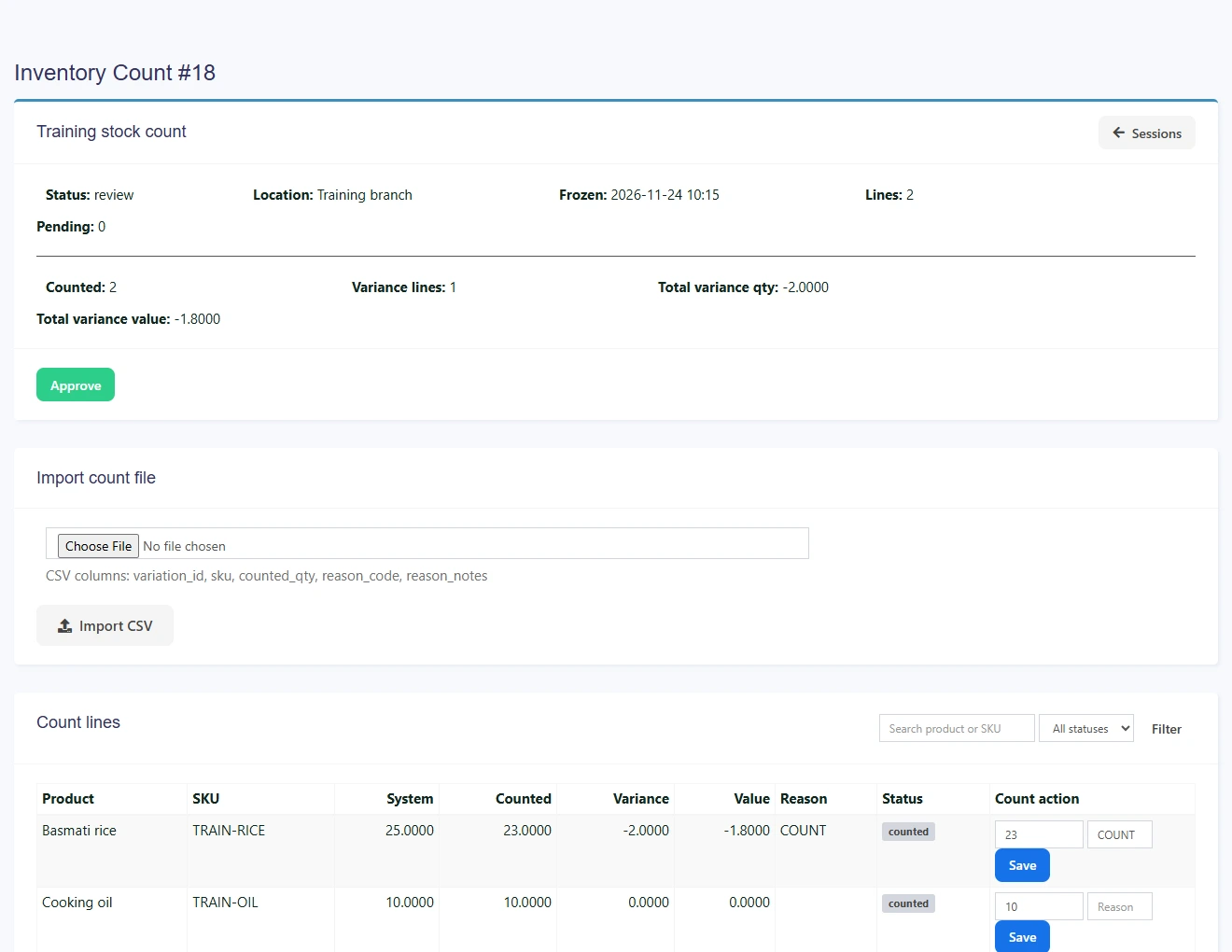
| Book vs counted | Enter the count in the item unit | Book 8 versus count 6 gives −2 after reconciling movement timing. |
| Movements during count | Check item history if receipts or sales occurred during the count | Identify which movements were already reflected in the physical count. |
| Variance reason | Record the verified reason in the available notes | The reviewer can trace item, location and cause. |
| Approve and post | An authorized user reviews and posts the difference | Reconcile the quantity movement and then the cost in accounting events. |
Screen images
Worked example
Two units short after recount
The snapshot shows 24 cartons and the branch counts 22. Enter 22 in the session. After checking intervening transactions, review the minus-two variance and post the session. The balance becomes 22 if there were no later movements.
From ChatGPT or Claude
Once KEMET is connected to your assistant, copy and send this request:
Open a stock count for my branch, record counted quantities and show differences before approval.
The assistant reads data right away. Any change is shown to you in KEMET for approval before it runs, within your account permissions only.
Tools the assistant uses here
restaurant_propose_open_stock_countrestaurant_propose_record_stock_count_itemsrestaurant_report_count_variances_by_itemrestaurant_propose_post_stock_count
Verify the result
- The count record identifies the branch, time and unit.
- Posted movements and variance value match the approved count lines.
Common problems
A sale occurred while stock was counted
Compare at a common cutoff or reconcile the documented sale into the count worksheet.
Physical count exceeds the book quantity
Check unrecorded receipts, conversions and source branch. If the surplus is verified, approve that positive variance through the count session.
Uncounted lines prevent review
Count the missing items. Enter zero where verified. Bulk zeroing is separately permissioned.
For: Branch manager Accountant Kitchen team
Screens and buttons depend on your account permissions and branches. Images show KEMET with training data.