
Set up the first delivery driver in KEMET
Enable a staff account as a driver, assign branch access, and decide who may open a shift or collect payments. Test one complete delivery before the first shift.
Steps
-
Create a driver account
In User management add a user for the driver and tick Delivery driver and Allow login.
-
Set branch and permissions
Choose the branches and review permissions for opening shifts, collecting and not-delivered.
-
Prepare collection
Make sure the branch has a collection point, and decide who receives cash at shift end.
-
Send the restaurant link
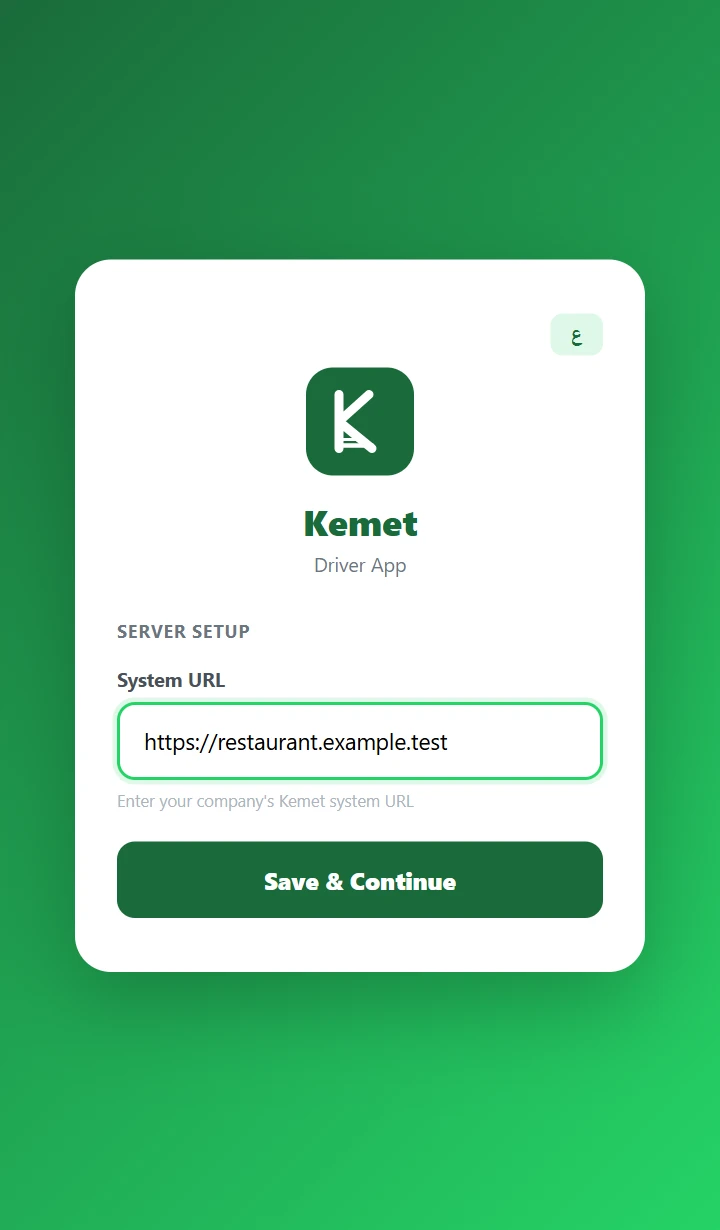
The driver enters the link in Server setup in the app, or opens it in a browser.
-
Test an order
Create a training delivery and assign it. It must appear for the driver with the same number.
-
Test delivery and payment
Try a prepaid order and one with money due. Make sure each payment is recorded once.
Fields and buttons
| Field or button | When to use it | Result and how to check |
|---|---|---|
| Username and status | Separate username, active and allowed to sign in. | Sign in from the restaurant portal with the driver's own account. |
| Delivery Driver | Enable the option on the staff account. | The driver portal opens and the driver is available for assignment. |
| Branches | Assign the locations the driver is permitted to serve. | Check that a correctly assigned test order appears. |
| Shift and collection point | Use an available point for the branch according to the employee role. | Open a test shift, checking the point and start time. |
| Payment and settlement | Agree accepted payment methods and the cash handover process. | Reconcile the driver report, invoice payment and actual collections. |
| Already paid | Assign a prepaid order and complete delivery. | Delivery status changes without an extra payment record. |
| Collection on delivery | Assign an outstanding order and record its actual collection method. | The outstanding amount is shown correctly and collected once. |
| Not delivered | Test a reason and check the management dashboard. | Management sees the reason and can follow up. |
Worked example
First driver at Salmiya
Training example. An administrator creates a Salmiya driver account and assigns its branch and collection point. The cashier assigns test order 204 with KWD 4.250 outstanding. The driver confirms receipt of order 204, and management matches the delivery and collection against that number.
From ChatGPT or Claude
Once KEMET is connected to your assistant, copy and send this request:
Show the driver devices registered in my branch.
The assistant reads data right away. Any change is shown to you in KEMET for approval before it runs, within your account permissions only.
Tools the assistant uses here
restaurant_list_driver_notification_devicesrestaurant_list_company_staff_directory
Verify the result
- The driver's name appears in assignment and their account opens the native app or driver portal.
- The test order and shift are for the same branch. An actual collection appears once in the order's payment records.
- Confirm that the driver can monitor assigned orders in the browser if the app or notifications are unavailable.
Common problems
Sign-in is refused or opens the usual staff interface
Check Delivery Driver, the exact username, active account status and Allow login in the same company.
The driver is missing from assignment or cannot see the order
Check that the order is a delivery and verify its branch, driver access and latest delivery state before reassigning.
The driver can see the order but cannot open a shift or collect
Review the permission for the blocked action, the collection point and the shift branch. Establish the shift, then reload the order.
The app shows the wrong server
Use Change to enter the restaurant's HTTPS company portal. Review pending actions before changing the account or server.
The order appears but the driver gets no notification
With delivery management permissions, ask the assistant to review registered driver notification devices for the branch with restaurant_list_driver_notification_devices. Check the platform, last seen and disabled status. Sign-in and notification permissions are handled on the driver?s device.
For: Branch manager Cashier Driver
Screens and buttons depend on your account permissions and branches. Images show KEMET with training data.